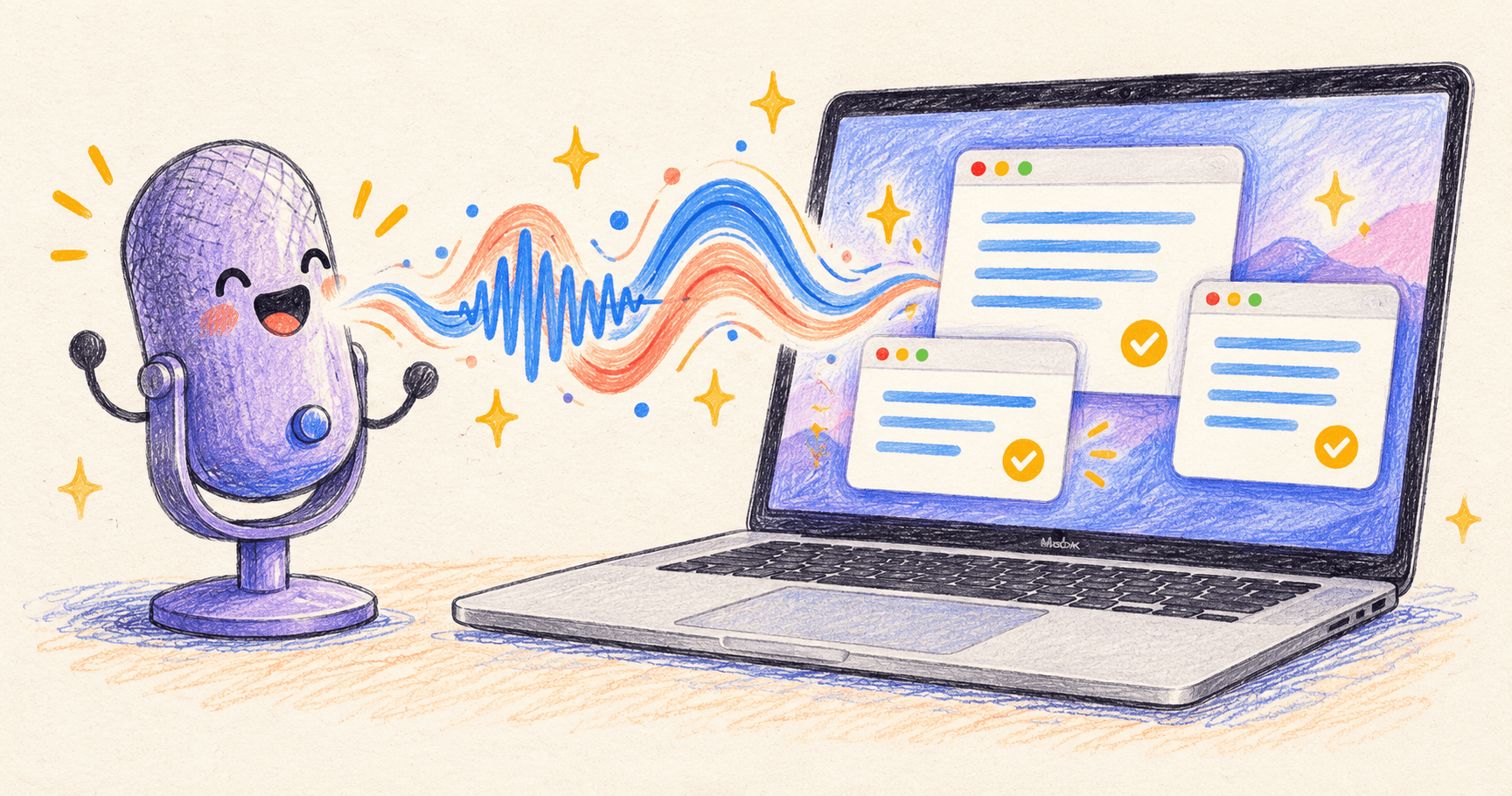
The meeting summary looks tidy. Unfortunately, it contains only your half of the conversation.
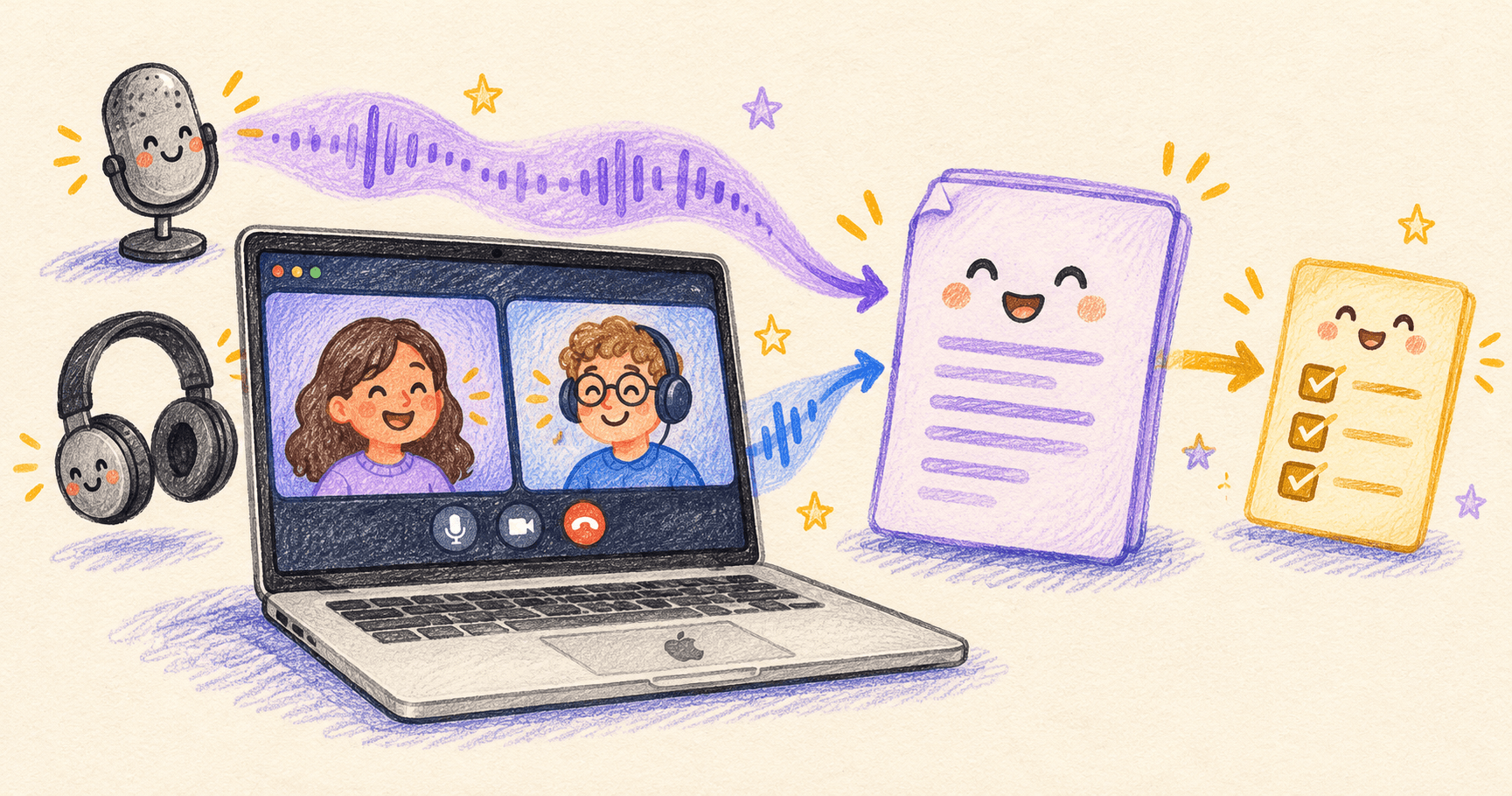
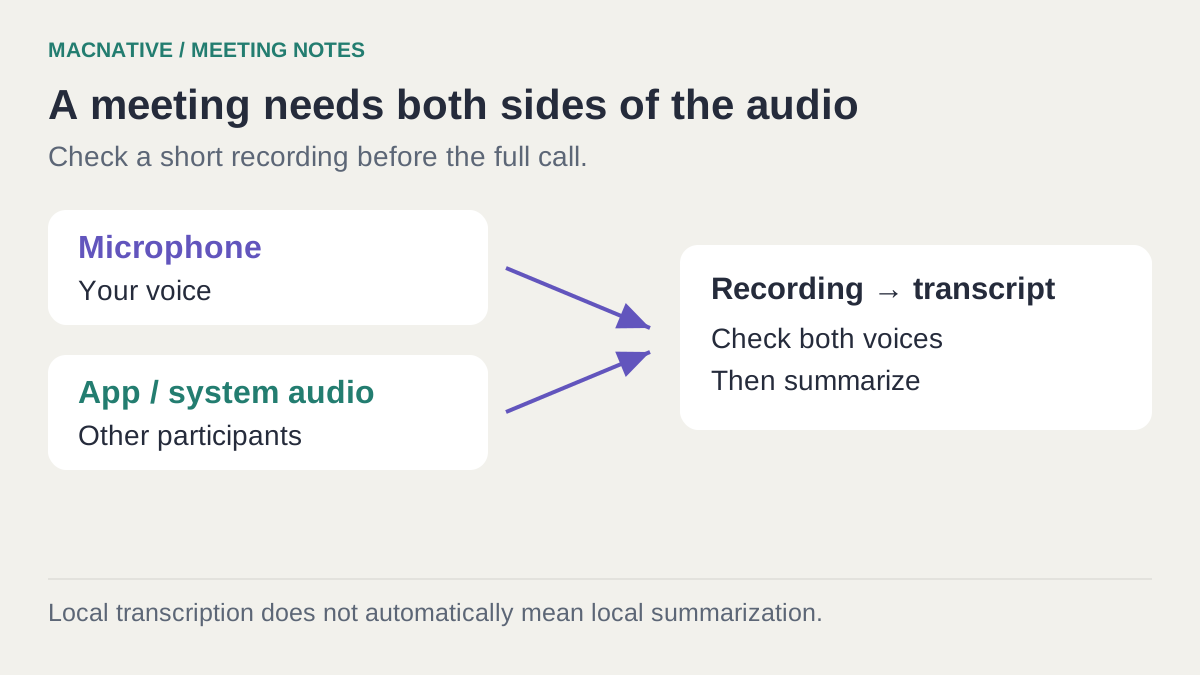
That usually starts as an audio-capture problem. Your microphone records what you say; the other participants arrive through the meeting app. With headphones on, your microphone may pick up almost none of their voices.
A dependable meeting-notes workflow captures both sources, verifies the recording, and treats the AI summary as a draft. MacWhisper can cover recording and transcription; the important choices are the audio inputs and the provider used for the later summary.
Bottom line
 MacWhisper
Run a short two-person test with the same meeting app and headphones you will actually use. Confirm both voices in playback before relying on transcription. Choose a local transcription model if needed, and check the separate summary provider before sending the transcript anywhere.
On this page
Set up a recording before the real meeting
Tell the participants you plan to record and follow your organization's policy and the applicable consent requirements. A recorder that doesn't add a bot to the call still records people; absence of a bot is not a consent mechanism.
Use a brief test call with someone who knows it is a test. Ask them to say a distinctive phrase, then say a different one yourself. A second device can work, but use headphones or mute its speakers to avoid creating feedback.
For MacWhisper's direct-download edition:
- Open its recording controls and select Start Recording from the MacWhisper menu for a manual test.
- Grant the microphone and recording permissions the app requests.
- Speak, ask the other person to speak, and stop after about thirty seconds.
- Find the saved recording in the app and play it back before transcribing.
The developer documents manual recording and optional meeting-detection notifications. The recording guide also warns about limitations in automatic capture. The edition comparison explains why instructions for the direct-download app may differ from the App Store's Whisper Transcription edition. Confirm feature access in your installed version before buying or relying on it.
Audio & Voice · Free · Pro, one-time $59
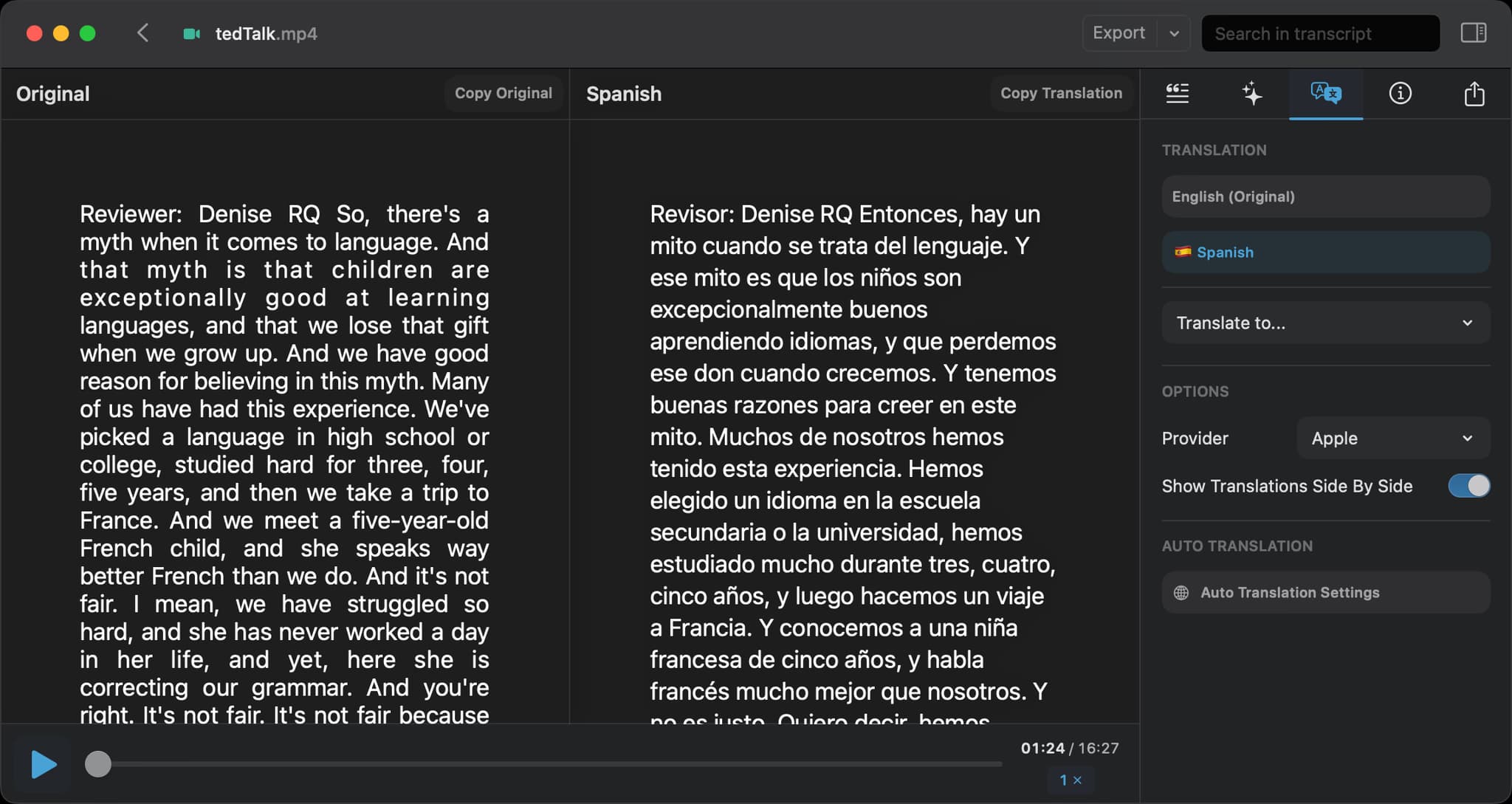
Drag in audio or video and get an accurate, speaker-labelled transcript — running OpenAI's Whisper models entirely on your Mac.
Check the edition and the meeting app first
The developer's recording guide currently marks automatic meeting recording as beta and recommends manual recording for critical meetings. It also lists FaceTime as unavailable for this feature. The App Store edition does not offer the same automatic meeting notifications. Verify your exact workflow before relying on it; support for a browser does not establish that every call in that browser will capture successfully. Documented limitations
Two permissions serve different jobs
Microphone permission covers your selected input device. System Settings → Privacy & Security → Screen & System Audio Recording controls a different capture path. The exact prompt and label can vary with macOS and the recorder's implementation. Apple's recording-permissions guide
Don't assume your Mac's default microphone is the one the recorder selected. Connecting AirPods or a USB headset can change the device arrangement. Repeat the short test after switching hardware.
What about Zoom, Google Meet, and Teams?
Test the actual desktop app or browser you use. A working Zoom test doesn't establish that a Meet tab in another browser is being captured. If automatic detection misses a meeting, manual recording gives you a simpler path to diagnose.
For in-person meetings, there may be no meeting-app audio source at all. Microphone placement and distance become the important variables. Keep the mic near the conversation and check the quietest speaker, not just the person beside the laptop.
Turn the recording into a usable transcript
Select the finished recording and choose an appropriate transcription model. If the recording must remain on the Mac, select a downloaded local model rather than a cloud service. Our offline transcription walkthrough covers model setup and exports in more detail.
Review three parts before asking for a summary:
- The beginning, to confirm capture started when expected.
- A passage with names, figures, or dates.
- A section where participants interrupt or correct each other.
Speaker labels also need review. “Speaker 2” is a label, not proof of identity. If the model assigns a decision to the wrong person, a beautifully formatted action list makes the mistake more convincing.
Keep unresolved words visibly marked in the transcript. Replacing a doubtful phrase with your best guess can make the next AI step treat it as a confirmed fact.
Ask for decisions, actions, and unresolved questions
A summary that says “the team discussed the launch” tells you very little. Ask for a structure that separates discussion from commitment:
Use only this transcript. Produce:

1. Decisions that were explicitly agreed.
2. Action items, with owner and due date only when stated.
3. Open questions and disagreements.
4. Statements that need checking because the transcript is unclear.

For each decision and action, include a timestamp if the transcript
has one; otherwise quote a short supporting phrase.
Use "unassigned" and "no date stated" where appropriate.
Do not turn suggestions or hypothetical examples into commitments.
Then check the items most likely to cause trouble: numbers, deadlines, ownership, and anything the summary claims was approved. If someone said “I could take this next week,” that isn't automatically a commitment with a due date.
Practice with a transcript that contains a trap
Use the fictional meeting transcript and answer key. Copy only its TRANSCRIPT section into your summarizer with the prompt above, then compare with the answer key.
In this example, Mara commits to sending revised copy on Thursday. Jules only offers a possible review on Friday, and the launch remains unapproved. A passing summary preserves those distinctions and marks the missing budget owner as unassigned. This checks the summarization stage without having to record another call.
For real notes, use this compact handoff format:
Meeting / date:
Confirmed decisions + supporting timestamp or quote:
Actions: task | owner or unassigned | due date or no date stated | evidence
Open questions:
Unclear audio requiring review:
Keep “no decision yet” visible when that is the outcome. Empty certainty is worse than a short list of unresolved questions.
Choose where the summary is processed
MacWhisper's Settings → AI Services lets you add a provider. Its documentation includes local options such as Ollama and LM Studio, as well as remote providers. Local services need to be running and configured with the correct server address. Provider setup
Transcription and summarization are separate settings. MacWhisper's privacy guide makes that distinction explicit. A local transcript followed by a remote summary still sends transcript content off the device.
Start with a short excerpt when checking a local summarizer. If an entire meeting is too long for its context, summarize sections with their evidence, then combine the checked results. Keep unresolved issues from each section in the final pass.
Diagnose the failure before repeating the whole meeting
| Symptom | Check first |
|---|---|
| Only your voice is present | System/app audio capture, its permission, and the selected meeting app |
| Only the other participants are present | Microphone permission, mute state, and the recorder's input device |
| Both sides sound doubled | Speaker audio leaking into the mic or overlapping capture paths; test with headphones |
| Playback is good but transcript is poor | Language, transcription model, specialist names, and overlapping speech |
| Transcript is good but actions are wrong | Summary instructions and source evidence, not the microphone |
| No recording exists | Whether recording actually started; a reminder or detected meeting is not a saved file |
If you need to capture screen video too, our Mac recording-audio guide explains the related system-audio problem. Keep the workflow as small as the task requires; a full video recording isn't necessary for every set of notes.
Save the useful result, not just the AI response
Keep the original recording until review is complete and retention rules allow deletion. Save the corrected transcript and final notes together with a meeting date. Transfer approved actions into your task system deliberately; avoid automatically creating tasks from every tentative suggestion.
Our writing apps collection can help if you want a home for the finished notes. The success criterion is straightforward: someone who missed the meeting should be able to tell what was decided, what remains open, and where each important claim came from.
Editorial review: October 25, 2026. This is a documentation-based guide with original practice examples, not a hands-on app benchmark. Check the linked developer documentation for your installed version.