
You uninstall an AI app, open Storage settings, and barely recover any space. The application was small. The model downloads were not.
AI apps can keep large model files outside the application bundle. They may also store transcripts, chat attachments, recordings, indexes, and caches. Find out which category is taking the space before deleting a folder with an unfamiliar name.
Bottom line
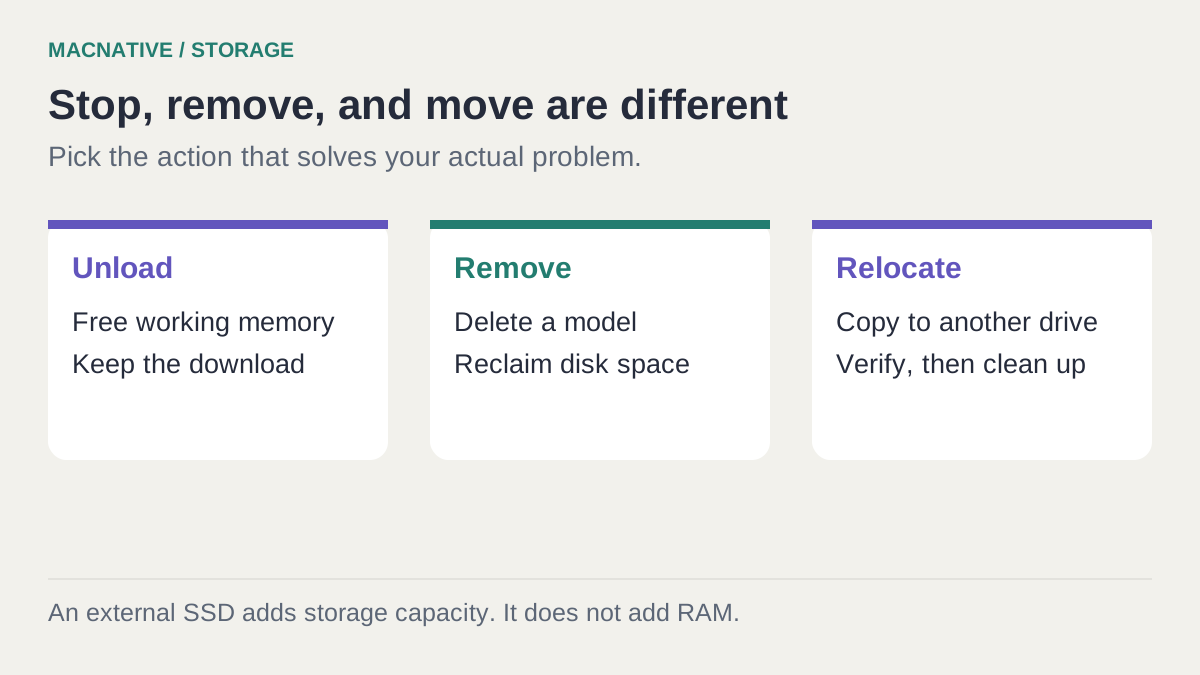
Use the app's model manager to remove downloads you recognize. In Ollama, ollama list shows installed models and ollama rm MODEL_NAME removes a selected model. Unloading a model only frees RAM. Copy and verify a library before deleting the original when moving to an external drive.
On this page
Separate downloads from your own work
Quick command reference: RAM or disk space?
| Goal | Ollama command | Effect |
|---|---|---|
| See installed downloads | ollama list | Lists models kept on disk |
| See currently loaded models | ollama ps | Lists active model state |
| Free model memory | ollama stop MODEL_NAME | Unloads; keeps the download |
| Remove an unused download | ollama rm MODEL_NAME | Removes the named model; it must be restored or downloaded to use again |
Replace MODEL_NAME with the exact name and tag from your own list. These commands solve different problems; the Ollama CLI documentation is the reference.
A model is often replaceable: you can download it again if the same release remains available. Your corrected transcript, conversation, or custom configuration may be much harder to reconstruct.
Before cleaning up, sort the large items into these groups:
| What occupies space | What to establish before removal |
|---|---|
| Downloaded model weights | Exact model/version, whether another app uses it, and whether it can be downloaded again |
| Recordings, attachments, transcripts | Whether these are your only copies and whether you need them for review |
| Chat history and custom prompts | How to export or back them up |
| Search or document indexes | Whether the app can rebuild them from preserved sources |
| Caches and temporary downloads | Whether the app identifies them as disposable and is no longer using them |
DaisyDisk can help locate the largest folders before you decide what they mean. A disk map tells you where the bytes are; it doesn't determine whether the contents are expendable.

Utilities · $9.99 · one-time
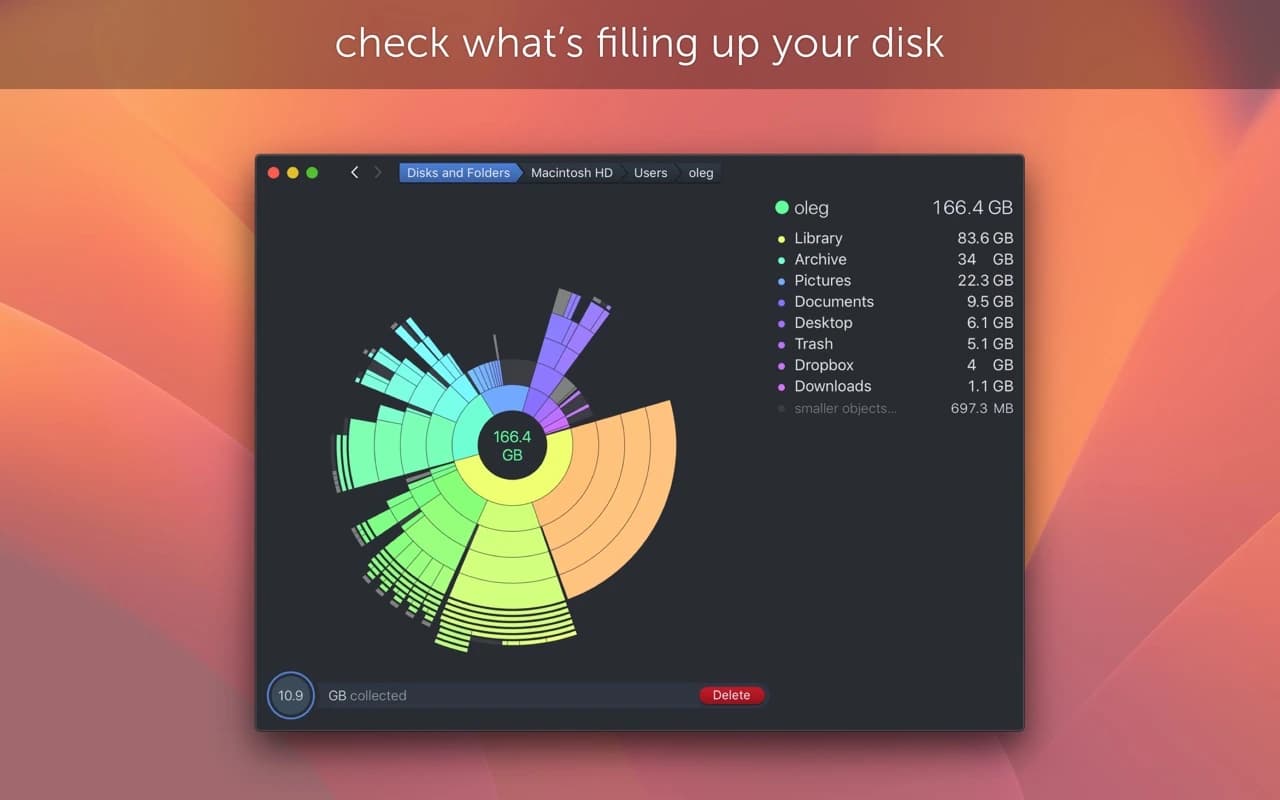
Find what is eating your disk with a scan that turns your drive into an interactive sunburst map you can drill into and clean up.
Find Ollama's model folder
Ollama documents its default Mac model location as ~/.ollama/models. In Finder, use Go → Go to Folder, paste that path, and inspect it. A custom OLLAMA_MODELS setting may point somewhere else. Ollama storage configuration
Don't start deleting individual blobs whose filenames you don't recognize. Use the model manager or CLI so that the app can manage references to shared data.
For LM Studio, open My Models and check the configured directory. Its download guide documents changing that location. Other apps may keep independent copies even if the model names look identical.
Remove a model from LM Studio
Unload the model first if it is active. Open My Models, locate the downloaded model you no longer need, and use its delete action. Check the exact variant first: two quantizations of the same model are separate downloads. If you only want to stop using RAM, unload the model instead.
Use the folder shown by the app as the authority for disk cleanup, especially if you have changed its download directory. Do not delete an entire hidden application folder to remove one model. LM Studio documents model management in its download guide.
Measure the Ollama folder before and after
This read-only command reports disk usage for the default model directory:
du -sh "$HOME/.ollama/models"
If you configured another model directory, measure that directory instead. Record the result, remove one unwanted model through Ollama, and run the same measurement again. This checks the actual folder change without assuming every listed model owns a separate set of bytes.
Remove a model without deleting your whole AI setup
For Ollama, start with:
ollama list
Identify a model you no longer use. Copy its exact name, including its tag where shown, and substitute it for MODEL_NAME:
ollama rm MODEL_NAME
This is a deletion command for that model. Run it only after checking the name. The CLI reference distinguishes removal from listing and stopping models.
By contrast, ollama stop MODEL_NAME unloads a running model from memory. It does not reclaim the model's disk space. If your actual problem is a sluggish Mac, start with memory and performance diagnosis rather than storage cleanup.
After removing a model, refresh the installed-model list and check available disk space again. A displayed model size is not always the amount reclaimed: some models or tags can share underlying data. Inspect the actual change rather than adding up every size in the list.
Why deleting the app didn't remove everything
Ollama's Mac installation guide lists separate locations for the app, models, configuration, and logs. Removing the application bundle is only part of a complete uninstall.
If you intend to keep using local AI, removing a few unused models is usually a more focused action than uninstalling everything. Preserve custom models or irreplaceable settings before following any complete-removal instructions.
Move model storage to an external SSD carefully
An external SSD can be a sensible home for downloads. It doesn't add RAM, and it introduces a dependency: the drive needs to be connected whenever the app loads those files.
Use this order:
- Stop active AI jobs and quit the app or service using the model library.
- Create a clearly named destination on the external SSD.
- Copy the complete model library, keeping the original for now.
- Point the app at the copied directory using its supported setting.
- Reopen the app, list the models, and generate a new response.
- Quit and reopen again, then verify the path and model loading once more.
- Only after verification, remove the old copy you intentionally replaced.
For Ollama launched as a Mac app, its FAQ documents launchctl environment configuration. If your copied model folder is /Volumes/AI Models/Ollama/models, the setting is:
launchctl setenv OLLAMA_MODELS "/Volumes/AI Models/Ollama/models"
That command does not copy any files. Replace the example path with the real destination, then restart Ollama. The quotes keep spaces in the path together. Confirm the configuration after login or reboot; don't assume a setting applied to the current login environment persists indefinitely.
To remove that environment override and return to the default location:
launchctl unsetenv OLLAMA_MODELS
Restart Ollama afterward. This also doesn't move files back: the default library must still exist or be restored for those downloads to appear.
If the model list becomes empty
Stop and inspect the destination path before downloading everything again. A common mistake is pointing at the parent of the copied model directory or copying an extra nested folder. Also check that the external volume is mounted under the expected name.
Keep the original library until a restart and a fresh response prove the new arrangement works. If the app starts with the drive disconnected, don't assume it will discover the right path later without restarting.
Will an external SSD make generation slower?
Storage speed can affect loading and reading files. Once a model is loaded, generation has other constraints, especially memory and compute. The result depends on the app and workload; don't treat moving files as either a guaranteed speedup or a guaranteed slowdown.
Why doesn't free space increase immediately?
Check whether you moved files to Trash without emptying it, copied the library rather than removing the old one, or removed a tag whose underlying data is still referenced elsewhere. Storage reporting and filesystem snapshots can also complicate the picture.
Don't delete system-managed folders merely because a storage label says “AI” or “System Data.” App-downloaded models and macOS-managed assets have different owners and cleanup controls. Use the owning app or operating-system setting, and keep general cleanup separate from model removal.
Our Mac disk-space guide covers the broader investigation. For AI specifically, the useful habit is simpler: record which models you actually use, and keep one deliberate location for each library.
Editorial review: October 25, 2026. This is a documentation-based guide with original practice examples, not a hands-on app benchmark. Check the linked developer documentation for your installed version.