

“Local AI is slow” can describe several different waits: downloading a model, loading it into memory, reading a long document, thinking before answering, or generating words one at a time. They need different fixes.
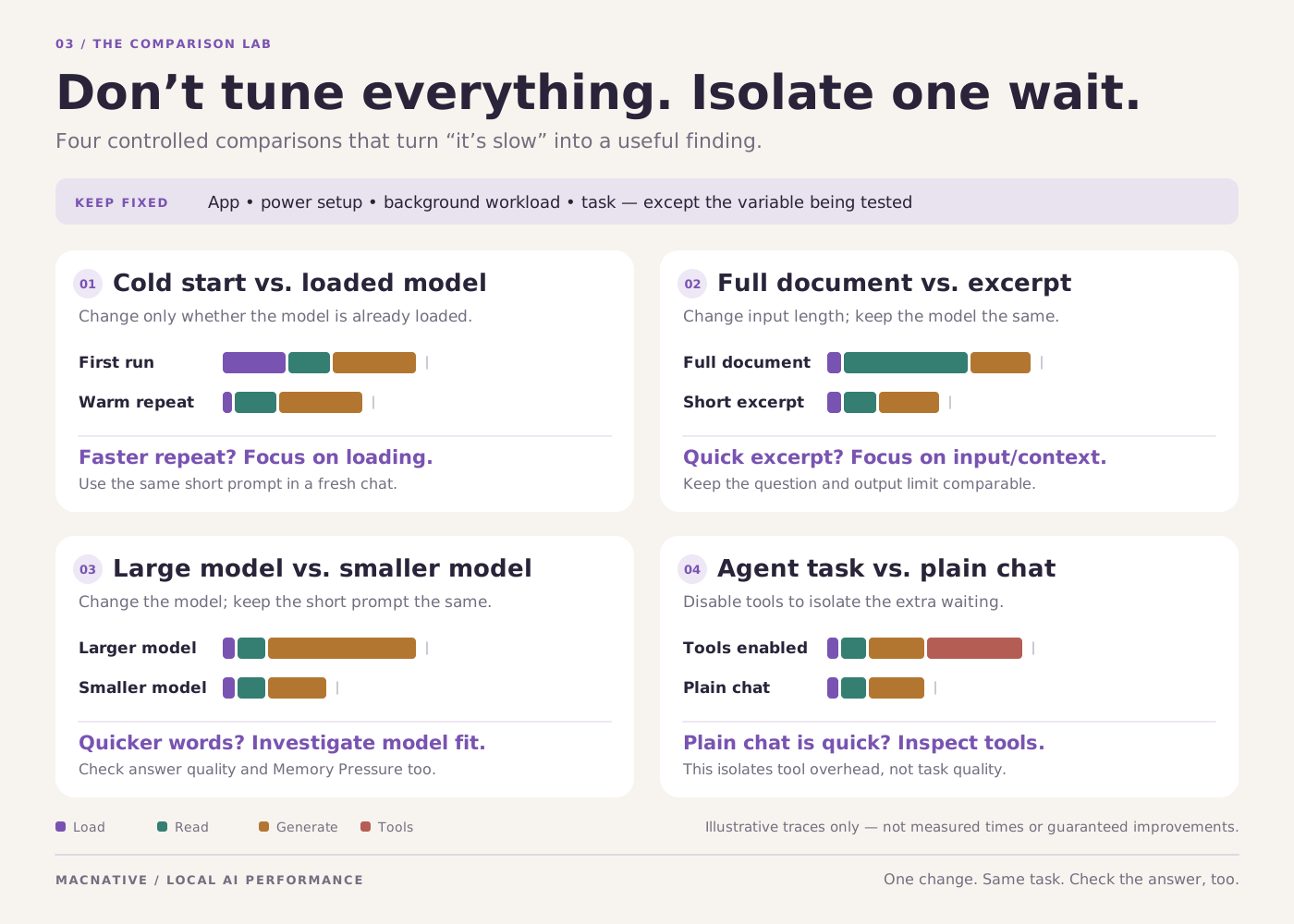
First identify when the delay happens. Then change one variable and repeat the same task. Otherwise you can spend an afternoon switching apps without discovering that your oversized context setting was the problem.
Bottom line
Compare a short prompt in a fresh chat with your slow task. Watch Activity Monitor's Memory Pressure and check which model is actually running. If short chat is fast but document chat is slow, investigate the input and context before blaming the Mac.
On this page
Separate loading from generating
A first response after opening an app can include loading model weights from disk. A follow-up may reuse a model already in memory. Comparing the first run in one app with a warm follow-up in another isn't a fair speed comparison.
Long input creates another wait. Before generating an answer, a model must process the prompt and any included history or documents. Some models also produce a reasoning phase before the visible answer. A silent-looking interval doesn't necessarily mean the app is frozen.
| Where it slows down | Likely place to investigate | Useful comparison |
|---|---|---|
| Before the model is ready | Download, storage, runtime loading, or memory allocation | First run versus a second run with the same loaded model |
| After attaching a large file | Extraction, retrieval, and prompt processing | A short excerpt versus the full document |
| Words arrive slowly | Model size, compute path, memory bandwidth, or memory pressure | A smaller model with the same short prompt |
| The whole Mac becomes sluggish | Memory pressure or competing workloads | AI running versus model unloaded |
| The agent pauses between actions | Tools, network requests, approvals, or retries | Plain chat with tools disabled |
Make a five-minute baseline
Write down the app version, Mac chip and RAM, exact model name and quantization, and context setting. If you use BoltAI or Osaurus, record the selected provider too. A remote model's delay may be network or service latency rather than local inference.
Open Activity Monitor → Memory. Note Memory Pressure and Swap Used before the test; compare changes while the model works. Apple's memory documentation explains why occupied memory alone is not a reliable problem indicator.
Run this short prompt in a fresh chat, with no attachments or tools:
Rewrite this sentence as a clear, friendly email of no more than
50 words. Keep the dates unchanged:

We received the files on Monday and will send our review on Thursday.
Please confirm whether you want comments on the mobile design too.
Record roughly how long it takes to start and finish. Repeat in another fresh chat while the model is still loaded. Then run your original task. Use this as a diagnostic comparison, not a benchmark to publish without more controlled testing.
Use the downloadable test worksheet to keep those three runs comparable. Record both time to the first visible answer and time to completion; a longer answer can take more total time without being slower per token.
If the short prompt is fine and your original task isn't, you have narrowed the problem substantially.
Change the setting that matches the symptom
1. Reduce context when long chats are the problem
Try a fresh conversation and a shorter input. Lower an unnecessarily large context allocation, then reload the model if the app requires it. Keep enough room for the instructions, input, and answer.
Ollama's context guide documents the memory cost of larger context windows. A model advertising a very long maximum doesn't mean that allocating it is sensible for every Mac.
For a document, ask about one section first. If that works, improve the retrieval or split the task rather than repeatedly feeding the entire document. Our PDF guide explains the tradeoff.
2. Try a smaller model when generation is the problem
Use the same prompt with a smaller compatible model. If you compare quantizations, keep the base model the same where possible; otherwise both capability and size change at once.
Judge the final result, including corrections. A faster model that consistently changes dates may save no time. A slower but accurate model might be acceptable for a batch task and unpleasant for live dictation.
3. Stop overlapping AI workloads
A transcription model, chat model, browser, and video editor can compete for the same machine. Unload unused models from their apps before retrying. Closing a chat window doesn't always stop its background runtime.
Sequence the work: transcribe first, then summarize. If that resolves the slowdown, you have learned more than you would from reinstalling either app.
4. Check the engine and installation
Use a supported native Mac installation and a model format compatible with its runtime. Don't assume every engine uses the same acceleration path.
Ollama's FAQ notes that Docker Desktop on macOS doesn't provide the GPU passthrough needed for its documented GPU-accelerated container route. If you followed a generic Linux container tutorial, compare with the native Mac installation. Ollama GPU and container notes
Avoid copying low-level memory-limit commands from benchmark posts as a first fix. They can change system behavior without addressing the workload that caused the problem.
Useful Ollama checks that don't change your files
With Ollama running, open Terminal and enter:
ollama ps
This shows loaded models. Inspect the processor and context information in your version. A model running through the CPU when you expected GPU acceleration is worth investigating; it isn't a reason to assume every CPU percentage in Activity Monitor represents the inference engine.
To unload a model, copy its exact name from that output and replace the placeholder below:
ollama stop MODEL_NAME
This frees its loaded state; it doesn't delete the download. Ollama command reference
For developers using the API, the generate response includes separate timing fields such as load_duration, prompt_eval_duration, and eval_duration. Those can help distinguish loading, input processing, and generation. They don't measure whether the answer is correct or how long a human spends editing it.
Turn Ollama timing fields into a useful comparison
For a completed API response, calculate generation speed as:
generated tokens per second = eval_count / (eval_duration / 1,000,000,000)
Ollama reports durations in nanoseconds. An illustrative response with 120 generated tokens and an eval_duration of 6,000,000,000 gives 20 tokens per second. That is arithmetic, not a measurement from a tested Mac. Keep load_duration and prompt_eval_duration separate: generation speed does not include those waits. Response field definitions
When comparing two runs, keep the model, quantization, prompt, context, and power setup the same. A reasoning model may spend time producing thinking output before showing the final answer, so note that mode too. The useful result is the time to a correct answer, not the largest speed number.
If the app crashes or fails to load rather than merely running slowly, inspect its logs. Ollama documents Mac logs under ~/.ollama/logs/. Review them locally and remove sensitive paths or content before sharing a report. Troubleshooting guide
What if the Mac is fast at first, then slows down?
Check whether the conversation grew, another workload started, or the model was unloaded and had to reload. Also look at the Mac's power mode and cooling conditions. Compare on a stable power setup and a hard surface with ventilation available, rather than making several settings changes together.
Will more RAM fix it?
Only if memory is the limiting factor. More capacity can help an overloaded configuration, but it won't guarantee faster token generation for a model that already fits. Read the local AI memory guide before treating a hardware purchase as the next troubleshooting step.
A useful support report ends with a specific finding: “The short prompt is responsive, but this document causes memory pressure,” or “The first load is slow; the next three prompts are fine.” That gives you—and the developer—something concrete to fix.
Editorial review: October 25, 2026. This is a documentation-based guide with original practice examples, not a hands-on app benchmark. Check the linked developer documentation for your installed version.