

A model is a 6GB download. Your Mac has 16GB of memory. It should fit comfortably, right?
It might. But the download is only one part of the working memory requirement. The model also needs room to process your conversation, the app needs its own memory, and macOS still has to run your browser and everything else.
For local AI, choose RAM around the workload you want to keep running—not just the biggest model you can load once.
Bottom line
16GB can be useful for compact local models and ordinary text tasks. More RAM gives you room for larger models, longer context, and multitasking; it doesn't guarantee faster or better answers. On your current Mac, watch Memory Pressure during a realistic task before deciding you need new hardware.
On this page
Where the memory goes
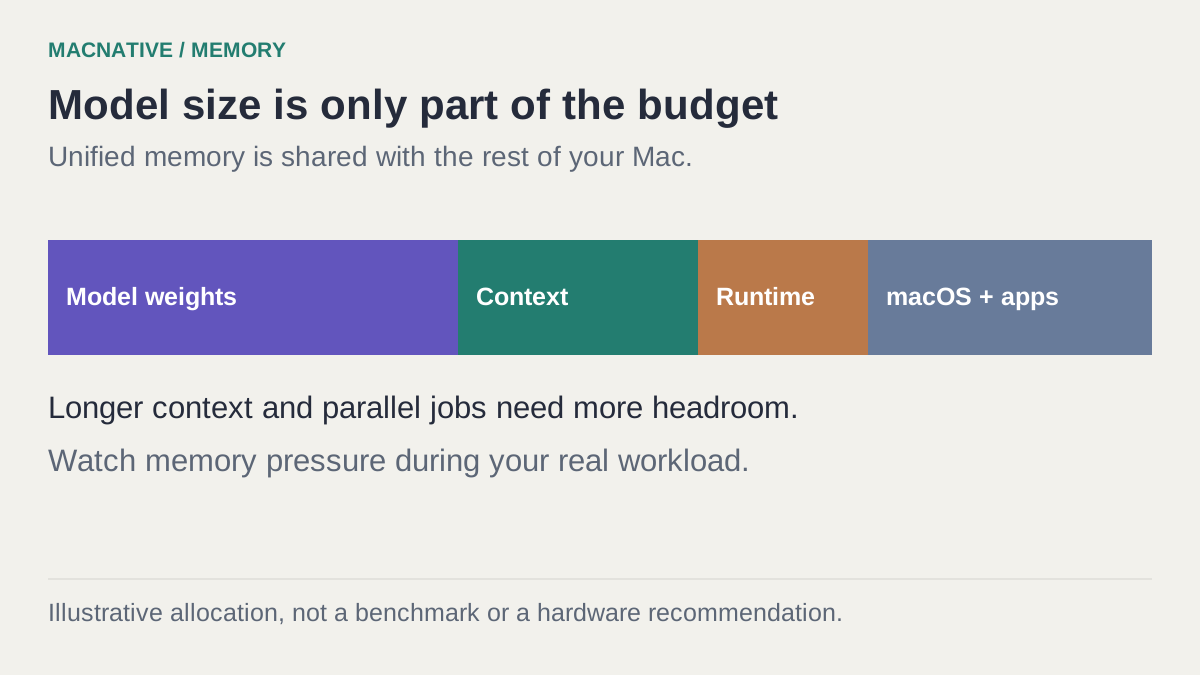
On Apple silicon, the CPU and GPU share unified memory. That is useful for local AI, but it doesn't mean all the advertised memory is available to the model. macOS, your open apps, and graphics all draw from the same overall resource.
A practical budget has four parts:
- Model weights. The learned parameters, in the format and precision you downloaded.
- Conversation state. The working data used to process the prompt and generate the next part of an answer.
- Runtime overhead. Buffers and other allocations made by the engine and app.
- The rest of your Mac. Browsers, documents, calls, development tools, and the operating system.
What does “8B Q4” tell you?
“8B” generally describes roughly eight billion parameters. “Q4” indicates a roughly four-bit quantized representation, although real formats use additional metadata and may store different parts at different precisions.
For an intentionally simplified example, eight billion parameters multiplied by four bits is about four billion bytes of raw weight data. That is not the total memory required to run the model. It leaves out format overhead and everything needed during inference.
This calculation is useful for understanding why quantization helps. It is not a buying guide or a substitute for the actual runtime's memory estimate. LM Studio's load command includes an estimation option for supported configurations.
Estimate a downloaded model before loading it
If LM Studio's lms CLI is installed, list your downloaded models, then substitute one exact key for MODEL_KEY:
lms ls
lms load "MODEL_KEY" --context-length 4096 --estimate-only
The estimate-only flag reports a resource estimate without loading the model. Repeat with --context-length 8192 to see how the estimate changes for the same model. These context sizes are comparison inputs, not universal recommendations. The command documentation describes the supported flags.
The estimate is a screening step. Confirm it with a real task while your ordinary apps are open; runtime estimates do not guarantee that the whole Mac will remain responsive.
Why a longer conversation can change the result
A short email rewrite and a long document analysis can use the same model yet have different memory needs. More context means more material available to the model, and the engine has to accommodate it.
Ollama's context documentation explicitly notes that increasing context raises memory requirements. Start with the context your task needs, rather than allocating the largest advertised window. Some runtimes reserve memory in advance; others grow allocations during use, so watch the complete task.
What to expect from common Mac memory sizes
These are conservative starting points for experimentation, not measured compatibility limits. Model architecture, quantization, context, and runtime can change the outcome substantially.
| Mac memory | Sensible first experiment | What needs particular care |
|---|---|---|
| 8GB | A compact, quantized model around 1–4B for short text | Other open apps and long inputs can consume the remaining room quickly |
| 16GB | Start small, then try a quantized 7–8B-class model for your task | Large attachments and several loaded models |
| 24GB | More multitasking room; cautiously explore a larger quantized model | Assuming a bigger model will also be quick enough |
| 32GB | More headroom for mid-sized models or longer documents | Very large dense models and high context allocations still have limits |
For context, LM Studio recommends 16GB or more while acknowledging smaller models on 8GB machines. That is an app-level recommendation, not a guarantee for every model in its catalog. LM Studio requirements
A model described as mixture-of-experts may use only some parameters for each generated token. Don't size memory using only the “active parameters” figure: the weights the runtime needs resident can be much larger. Check the full model and the implementation you actually use.
Check the Mac you already own
Open Activity Monitor → Memory before loading the model. Note the Memory Pressure graph and Swap Used, then run your normal workload alongside the AI task.
Apple explains that memory pressure reflects several factors, including swap activity, rather than simply the percentage of RAM occupied. Some cached memory is useful; a nearly full memory bar by itself isn't a failure. Apple's memory guide
Use a repeatable sequence:
- Keep your ordinary browser tabs and writing apps open.
- Start a new AI conversation and run a short prompt.
- Repeat with a representative document or longer input.
- Switch back to your browser and editor while the answer is being generated.
- Record whether typing, scrolling, and app switching remain comfortable.
- Unload the model and compare responsiveness again.
If swap is already nonzero before you start, don't attribute all of it to AI. Watch the change over the test and the behavior you experience. A single screenshot taken after closing everything else won't tell you whether the setup is pleasant for daily work.
Keep a small record of the test
Use the local AI test worksheet to record a cold load, a warm prompt, and your real workload. The worksheet is blank: it contains no invented performance results.
Write down the Mac chip and RAM, app version, exact model and quantization, context setting, input, and other apps open. “It runs on my M-series Mac” omits nearly everything someone else needs to reproduce it.
If you're using Osaurus, record the selected local model. If you're using BoltAI, also record the provider: a cloud-backed chat isn't evidence that the same model fits in local memory.
For a guided first setup, use our local AI walkthrough. If loading succeeds but generation is sluggish, the next step is diagnosing local AI speed.
Does more RAM make AI faster?
It can help dramatically when the old configuration is constrained by memory. It won't automatically make a model generate faster once that model and its working data already fit comfortably.
Generation speed also depends on the chip, memory bandwidth, runtime, model architecture, and workload. Two Macs with 32GB need not perform alike. A smaller model on your current machine may be a better daily tool than a larger one you can only barely load on an upgrade.
Before spending money, try these changes one at a time:
- Use a smaller quantized model on the same task.
- Reduce the context setting and start a new chat.
- Process a long document in sections with a final synthesis step.
- Unload models belonging to other AI apps.
- Separate transcription and summarization instead of running both together.
Can an external SSD substitute for RAM?
No. An external SSD can hold model downloads and free startup-disk space. It doesn't add unified memory for inference. Moving or removing model files solves a storage problem.
Is 16GB enough for an AI agent?
The word “agent” doesn't specify the memory requirement. A small model doing a short tool task is very different from a large model carrying a long browser history. Look at the local model, context, and concurrent tools involved. Cloud agents put much of that work elsewhere.
Choose the configuration that finishes your representative task while leaving your Mac usable. That is a more useful threshold than “the largest model that didn't crash.”
Editorial review: October 25, 2026. This is a documentation-based guide with original practice examples, not a hands-on app benchmark. Check the linked developer documentation for your installed version.