

An AI app asks to see your screen. Then it asks for Accessibility access. Later it asks to connect your drive account. It is tempting to treat the prompts as three versions of “let the assistant work.”
They are different permissions, with different boundaries.
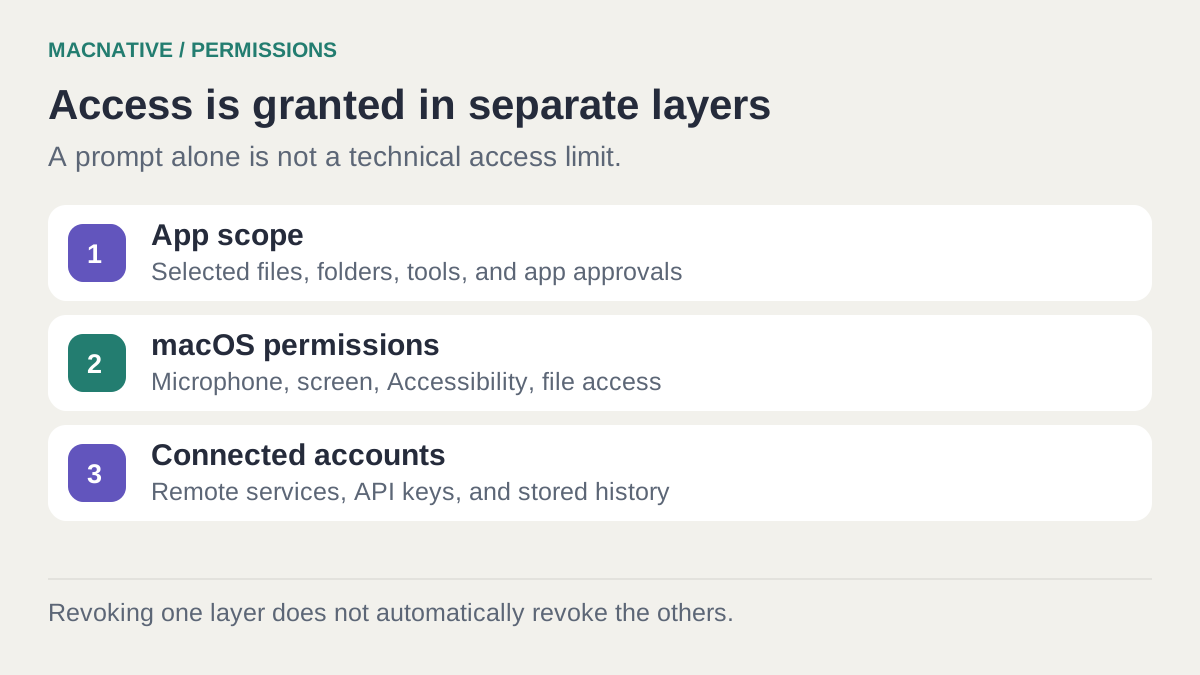
An agent's access comes from several layers: macOS permissions, the app's tools and approvals, and any connected accounts. Turning off one layer doesn't necessarily disconnect the others.
Bottom line
Match each permission to the task you asked for. Reading a selected document, seeing a window, controlling an app, and querying a cloud account are different capabilities. Review both System Settings and the agent's connected services when removing access.
On this page
Start with how the agent reaches the information
An agent might read a PDF through a file tool, view it through a screenshot, or retrieve a copy through a cloud-drive connection. Those routes may expose the same document, but they don't use the same permission.
A Mac app that runs a local model may also have a web-search tool. An app that uses a cloud model may have a narrowly selected local working folder. “Local” and “cloud” describe parts of the system, not a complete access policy.
Apple's platform security documentation explains macOS controls for protected locations and additional permissions for automation. An agent's own tool restrictions and prompts sit alongside those operating-system controls.
What the common Mac permissions mean
Open System Settings → Privacy & Security to inspect the permissions an app has requested. Available categories and wording vary with macOS version.
| Permission | What it enables | A reason an AI app might request it |
|---|---|---|
| Files & Folders | Access to protected locations listed for the app | Read documents in a working location |
| Full Disk Access | Broad access to protected file data, subject to other system protections | A workflow that genuinely needs protected data beyond ordinary selected files |
| Accessibility | Interaction with and control of the Mac through accessibility capabilities | Insert dictated text or operate another app's interface |
| Screen & System Audio Recording | Capture of screen content and/or system audio according to the granted capability | Understand a visible window or capture meeting audio |
| Microphone | Audio from an input device | Voice instructions or dictation |
| Automation | Permission for an app to control specified other apps through automation interfaces | Perform an action in a supported Mac app |
These summaries follow Apple's Privacy & Security reference. Permissions grant capabilities; they don't tell you how a developer stores, transmits, or uses the resulting information.
Files & Folders is not a universal list of every readable file
Apple documents controls for locations such as Desktop, Documents, and Downloads. The app may also have access through file selection or other routes. Don't read an empty-looking panel as proof that the app can read nothing. Files & Folders controls
A prompt saying “only use this folder” is an instruction to the agent. A real folder scope or sandbox is a technical restriction. Use both when available; don't confuse the wording of your request with an enforced boundary.
Accessibility isn't merely permission to see pixels
Accessibility is used for interaction and control, and can expose interface information. Screen capture and Accessibility are therefore not a tidy pair of “read” and “write” switches. Apple's Accessibility permission guide explains how to grant and remove the capability.
This distinction is useful when diagnosing dictation: the app may hear you but be unable to insert text. Our dictation guide follows that symptom through the separate stages.
Full Disk Access is not a universal repair button
It doesn't fix an expired cloud login, an unavailable model, or an agent waiting for its own approval. It is also not administrator access and does not disable every other system protection.
If an app requests it, identify the specific operation that requires it. For an experiment with one PDF, first use a selected copy or the documented narrow access path. If a managed work Mac blocks a setting, use your organization's support process rather than trying to bypass the restriction.
“Permission denied”: which setting should you check?
Follow the failed action rather than enabling every permission:
| Failed action | Check this layer first | Useful test |
|---|---|---|
| Cannot open a chosen document | Working-folder scope, file selection, then protected-folder access | Try a harmless file in the explicitly selected folder |
| Dictation records but will not insert text | Accessibility and destination-field focus | Paste manually into a blank note |
| Cannot read a cloud document | Connector sign-in and the account's access to that file | Open the same file using the connected account |
| Cannot interact with an app | Agent approval, Accessibility, or Automation for the specific route | Inspect the error for the app or action being blocked |
| Local summary works but web research fails | Network access, tool availability, or service authorization | Try plain chat, then one public-page request |
This is a diagnostic order, not a guarantee about a particular agent. The error and its documented tool requirements determine the next step. Granting Full Disk Access cannot renew a cloud account token.
Try a limited task and inspect its access
Suppose you want an assistant to summarize a project brief.
- Put a non-sensitive copy in a dedicated trial folder.
- Select that file or folder using the app's documented attachment or working-folder control.
- Ask for a summary with source passages. Leave browser, email, and unrelated tools disconnected.
- Note the permissions requested and the reason given.
- Check where the response and any copied document were saved.
For a local-only version, use our private PDF workflow. If you choose a cloud-backed agent, a local folder can still be a source of uploaded content. macOS permission to read the file doesn't express your preference about where the next step runs.
The same principle applies to Osaurus and BoltAI: inspect the active provider and tools for the current task. The app name alone is not enough to describe the data route.
Why does the agent ask again after macOS allowed it?
The operating system may have allowed a capability while the agent still requires approval for a particular app or action. Claude's computer-use guide, for example, describes per-app approvals within its workflow.
Those prompts are not necessarily duplicates or bugs. Read the resource and action being requested. “Use this app” and “send this message” can represent different decisions.
Remove access at each place it was granted
When you finish an experiment:
- Stop active jobs and scheduled tasks that use the connection.
- Remove the working folder or tool connection in the agent's own settings.
- In Privacy & Security, turn off Mac capabilities the app no longer needs.
- Disconnect cloud services in the agent and review the provider's own connected-app controls where applicable.
- Quit and reopen the agent, then use a harmless test to check the expected access is gone.
Revocation stops future access through that route. It doesn't necessarily delete documents already uploaded, saved transcripts, exported files, or backups. Use the service's deletion and retention controls for those copies.
Don't assume switching off Wi-Fi revokes an account token. It interrupts the connection; the authorization can remain valid when the network returns.
Can I see whether an AI app contacts servers?
Little Snitch can show outgoing connections and help you investigate which processes communicate. Our outgoing-firewall guide explains how to test a specific block.

Security & Privacy · $59 · one-time
The definitive outbound firewall for macOS — see every connection your apps make, and decide what is allowed to leave your machine.
A network monitor doesn't automatically reveal the contents of encrypted traffic. A connection might be an update check, a model download, or processing; interpret it alongside the app's documented behavior. Conversely, a successful offline test only establishes that the tested operation could finish without a live connection.
Does an agent need all these permissions?
No. A text chat with a downloaded model has different needs from an agent clicking through apps. Grant access for the workflow you intend to use, and expand it when a specific task needs more.
The useful question at each prompt is concrete: Which resource will this permission make available, and is that resource necessary for this task? That keeps setup understandable without turning every new app into an all-or-nothing decision.
Editorial review: October 25, 2026. This is a documentation-based guide with original practice examples, not a hands-on app benchmark. Check the linked developer documentation for your installed version.