
To block internet access for one Mac app, use an outgoing firewall such as Little Snitch or the free LuLu. Your browser and other apps can stay online. The firewall built into macOS controls incoming connections, so its “Block incoming connections” option won’t stop an app contacting a server.
Bottom line
Use an outgoing-connection rule in Little Snitch to block the chosen app. Apple’s firewall settings focus on incoming connections, so adding an app there doesn’t accomplish the same thing. Apple’s firewall guide
On this page
Can you block a Mac app with the built-in firewall?
Not with its app-level incoming rules. Think of an incoming connection as another computer starting a conversation with your Mac. An app checking for updates or uploading a file starts an outgoing connection instead. That’s the direction you need to block.
Want a free option? LuLu is an open-source outgoing firewall. It’s worth trying for a simple allow-or-block setup. This guide uses Little Snitch because its rules and connection monitor let you check exactly which process was blocked. Run one outgoing firewall while following these steps.
Find the app before creating the rule
Open Little Snitch Network Monitor, launch the target app, and use a feature that normally goes online. Search the connection list for its name.
Check that you’ve selected the app itself. A similarly named updater or helper may be a separate process. Start with the app you recognize; you can inspect helpers if the first rule doesn’t cover the activity you wanted to stop.

Security & Privacy · $59 · one-time
The definitive outbound firewall for macOS — see every connection your apps make, and decide what is allowed to leave your machine.
Block outgoing connections
Open Little Snitch’s main rules window and click + in the toolbar. Create a rule with these settings:
| Field | Set it to |
|---|---|
| Process | The specific app you want to block |
| Direction | Outgoing |
| Action | Deny |
| Remote endpoint | Any Server, for a complete outgoing block |
| Ports and protocols | Any, rather than only one service |
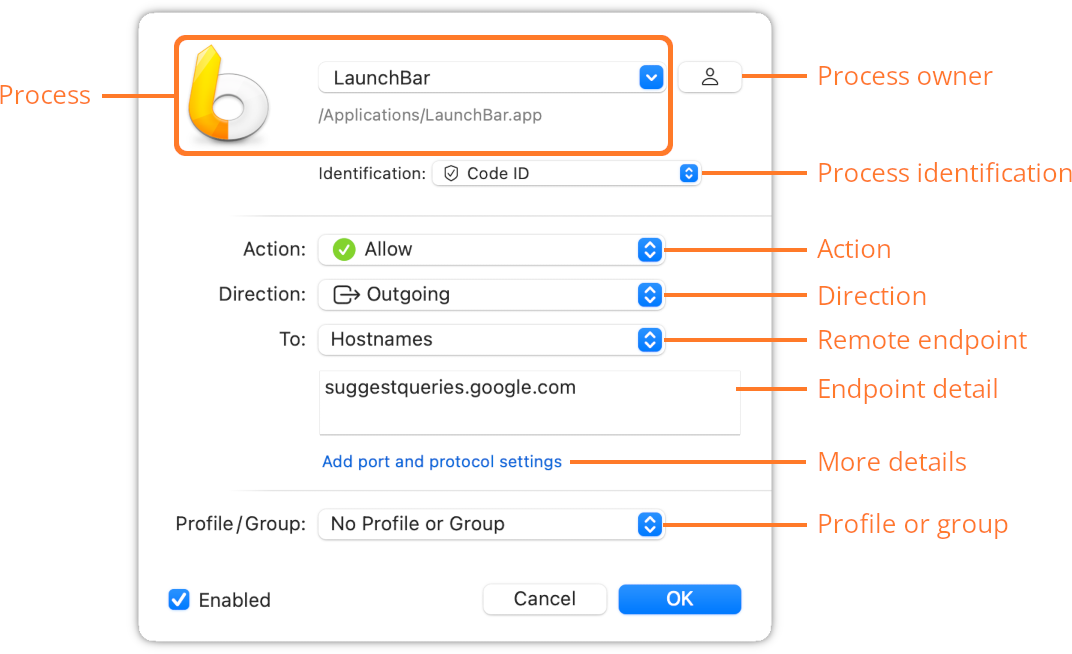
Save the rule. Any Server also includes local network destinations, so this broad rule can stop connections to a NAS or other nearby device. If you need those, narrow the scope instead of using a blanket block. Little Snitch’s rule editor
You can also create rules from Network Monitor. Be careful which row you select: blocking one domain beneath an app doesn’t block the app’s other destinations. How connection-list rules work
Check that it really worked
- Quit and reopen the target app.
- Repeat the online action you tried earlier.
- Watch for denied attempts in Network Monitor and inspect the rule responsible.
- Open a fresh webpage in your browser to confirm other apps still have access.
A previously loaded page or cached document isn’t proof of a new connection. Likewise, an app looking “offline” doesn’t prove every helper is blocked. Use the monitor to see what actually happens.
If traffic still gets through, check the process name and whether another rule takes precedence. Right-clicking the connection gives you options to inspect the corresponding rules.
Can you block the internet but keep local network access?
A blanket Any Server rule can also block your printer, NAS, or local development server. If you need those connections, use an internet-only destination scope and check the local connection separately. If you use a local allow rule alongside a broader deny rule, check which rule actually wins. Little Snitch’s precedence rules consider several properties, including the destination’s specificity.
Undo it without resetting everything
Disable or delete the specific deny rule you created, then retry the app. You don’t need to turn off Little Snitch or erase its other rules.
For a temporary offline test, keep a note of the rule you added. After disabling it, repeat the same online action once more. Seeing it fail with the rule enabled and succeed with the rule disabled is a useful check that you changed the right thing.
Expect a complete block to affect updates, sync, and sign-in as well as unwanted traffic. If your real aim is to keep audio files local, choosing an offline transcription workflow is a better starting point than blocking an app and hoping every feature still works.