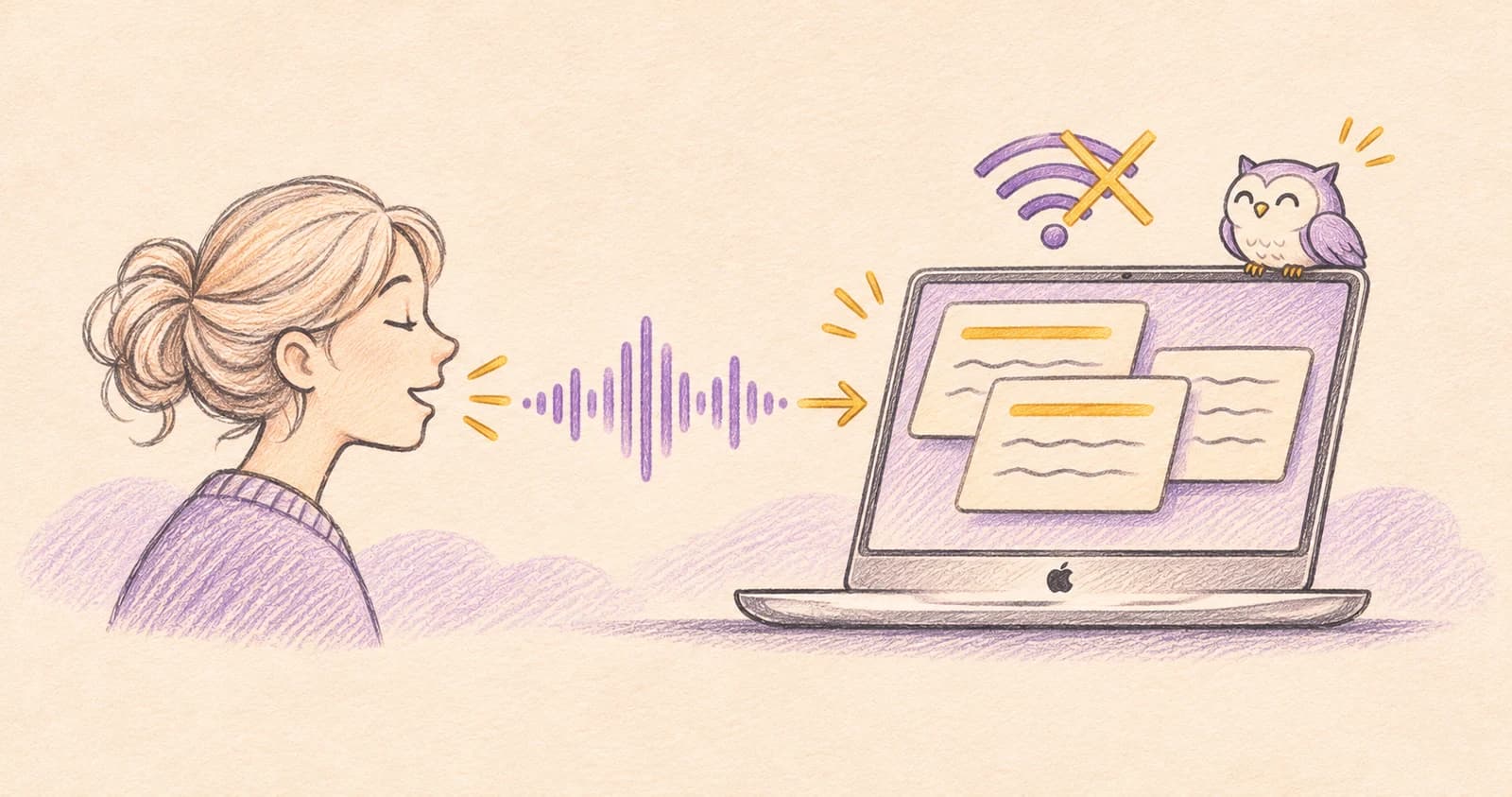
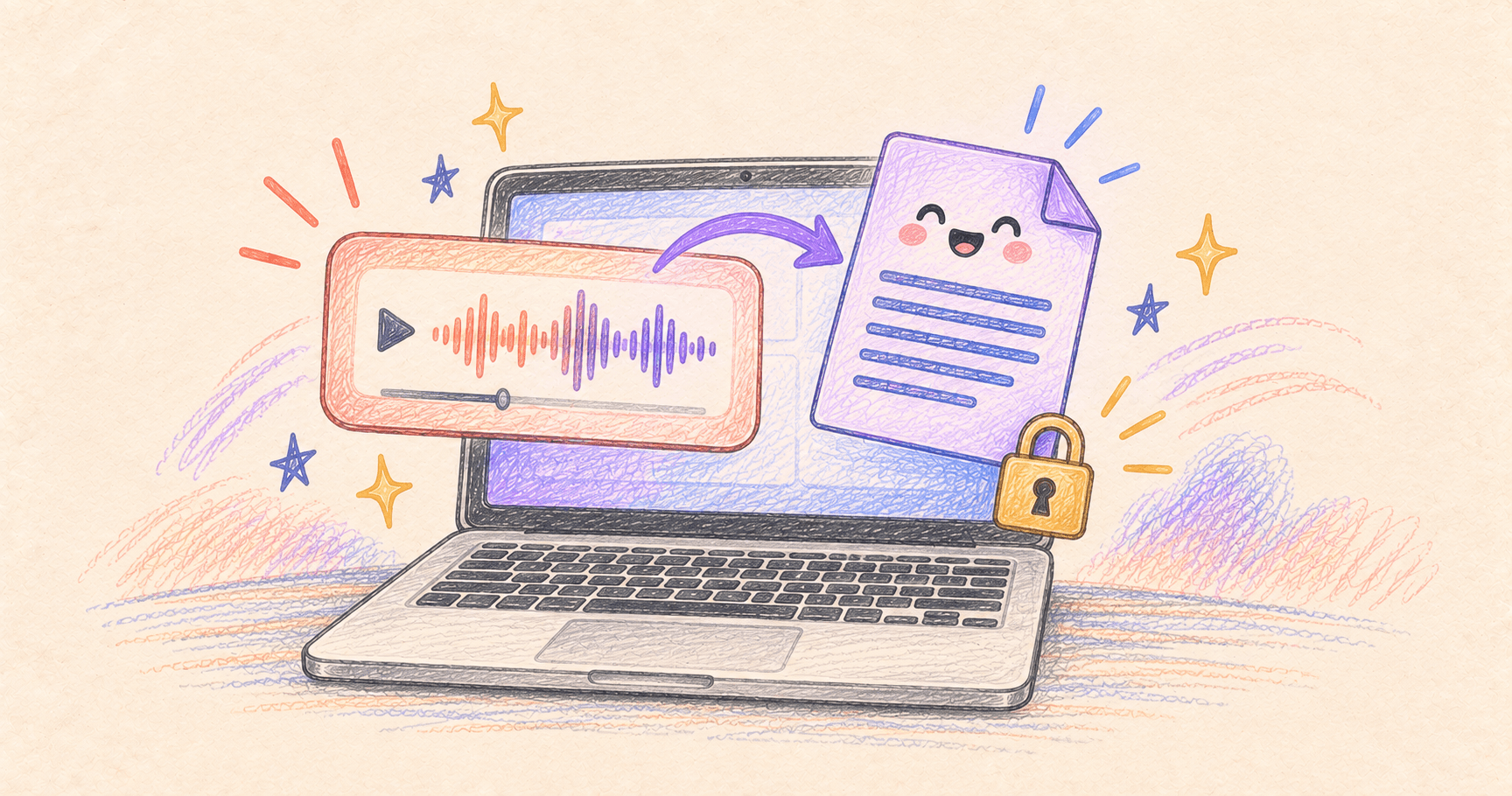
To transcribe audio offline on a Mac, download a local model in MacWhisper, then import your recording and choose that model. You need the internet for the initial download, but the transcription can run on the Mac.
This is useful for a saved interview, lecture, or voice memo you don’t want to upload. The main thing to watch is the model picker: MacWhisper also offers cloud services.
Bottom line
 MacWhisper
 can transcribe audio locally once you’ve downloaded an on-device model. The important detail is which model you select: the app also offers cloud transcription, so installing a desktop app alone doesn’t guarantee offline processing.
On this page
Download the model before you go offline
A transcription model is the download that lets your Mac recognize speech. Get it while you have an internet connection, along with the recording you want to transcribe.
MacWhisper offers local processing and optional online services. Choose a local model for this workflow; don’t select a cloud provider. The developer’s product overview describes local transcription, while its cloud transcription guide explains the separate upload-based option.
Turn your recording into text
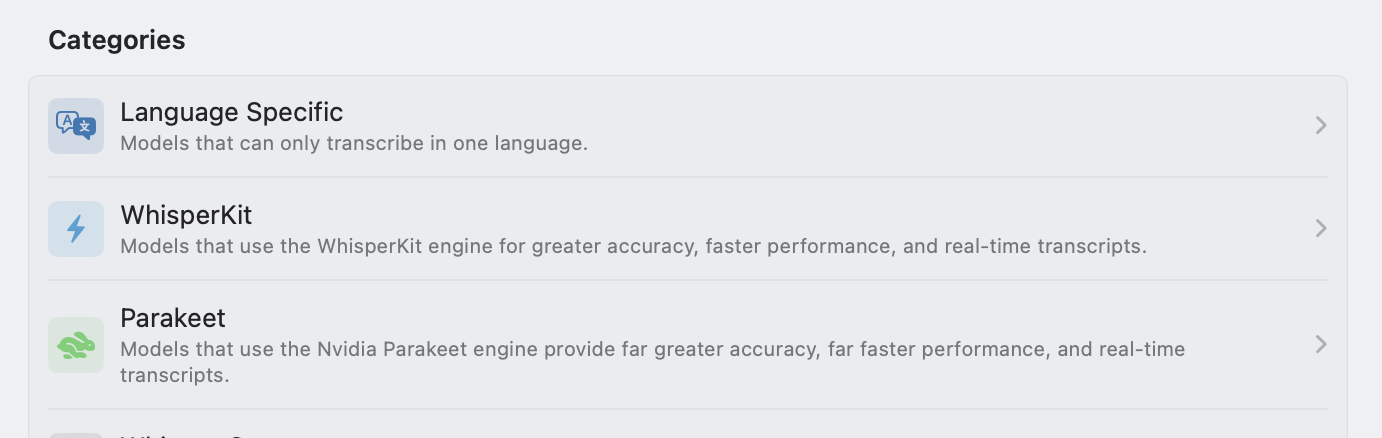
- Open MacWhisper’s Manage Models screen, download a local model, and let its first-time preparation finish.
- Drag your audio or video file into the app.
- Select the downloaded model and the recording’s language, if known.
- Start transcription. For a simple offline check after setup, disconnect Wi-Fi and any Ethernet connection, then try a short file saved on your Mac.
- Play back unclear passages, correct the text, then export it.
Start with a five-minute excerpt containing the voices and terminology you care about. You’ll learn more from that than from transcribing a two-hour interview with the wrong settings.
Audio & Voice · Free · Pro, one-time $59
Drag in audio or video and get an accurate, speaker-labelled transcript — running OpenAI's Whisper models entirely on your Mac.
Transcribe a Voice Memo you’ve already recorded
Drag the recording from Voice Memos into a Finder folder, then import that audio file into MacWhisper. Give it a useful name first, such as interview-anna-2026-10-22.m4a, so the transcript is easy to match to the recording later.
Make sure the file is fully downloaded before disconnecting. A file visible in iCloud Drive isn’t necessarily stored locally yet. Apple’s Voice Memos guide explains exporting a recording.
Which model should you choose?
On Apple silicon, check the available WhisperKit models first. MacWhisper’s support guide recommends them for faster local processing on those Macs. If processing is slow, close other demanding apps and compare a smaller model before committing to a long job. Model selection · Speed troubleshooting
A bigger model isn’t a promise of a perfect transcript. Check names, numbers, and places where people talk over one another. Keep the original recording until you’ve reviewed the result.
A quick review before you export
Listen to the opening minute, a passage with a name or number, and a section with background noise. Correct those against the recording. If you’re quoting someone, check the entire quote, including the sentence before it; a readable transcript can still miss a word that changes the meaning.
Export the format you actually need
| Your next step | Choose |
|---|---|
| Edit interview notes or quote a passage | Plain text; verify quotes against the audio |
| Add subtitles to a video | SRT or VTT, with timing information |
| Keep a working transcription project | Save the project as well as your export |
Why does offline transcription still ask for the internet?
Check three things: the recording is saved locally, the selected model has finished downloading, and you haven’t selected a cloud transcription provider. A model listed in the app isn’t necessarily installed. Finish setup online, then repeat the test with a short local file.
Model availability can depend on your Mac and licence. Try the models available in your edition before paying for a larger one; this workflow doesn’t require a cloud transcription subscription.
Does an AI summary stay on your Mac too?
Not necessarily. Local transcription and an optional cloud AI summary are separate operations. Before using a summary or assistant feature, check its selected provider and what it sends. Disable automatic exports to online services, and remember that a cloud-synced export folder also creates a copy outside the Mac.
For this task, the uncomplicated route is a downloaded recording, a local model, and a local export folder. Once the transcript is ready, choose a home for it from our Mac note-taking guide.