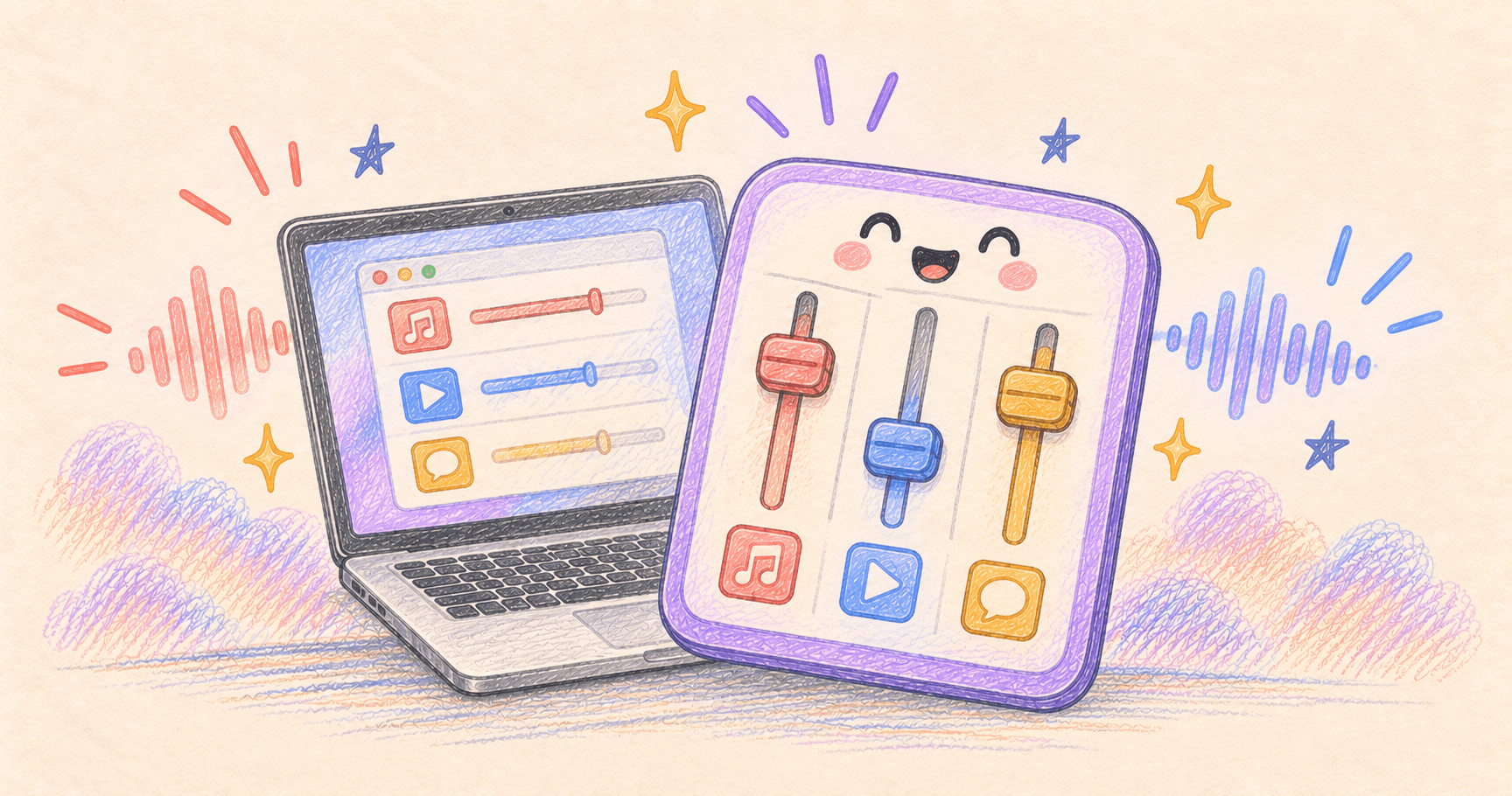
To lower one Mac app without lowering everything else, start with that app’s own playback volume. If it has no useful control, a per-app mixer such as FineTune can provide separate volume and mute controls.
The goal might be quiet music under a call, a muted game, or a browser that stops drowning out everything else. Those are playback problems. Muting your microphone is a separate action.
Documentation checked October 4, 2026. This guide is based on documented controls, not a measured audio-quality or latency comparison.
Bottom line
Use the player’s volume slider when it is enough. Use FineTune when you want separate controls for several apps. A browser’s app-level slider is not a promise of independent volume for every tab.
On this page
Use the narrowest control that solves the problem
Before adding a mixer, find the volume control in your music or video player. Turn that down while leaving your call’s listening volume comfortable. A second utility adds little if you only need to change one player once.
| Your goal | Control to try first |
|---|---|
| Make one song or video quieter | The player’s volume slider |
| Adjust an app without a suitable slider | A per-app mixer |
| Silence one noisy webpage | The webpage’s player or the browser’s tab mute |
| Stop other people hearing you | The call’s microphone mute |
| Send music to speakers and a call to headphones | Output selection or per-app audio routing |
This distinction matters when troubleshooting. Making Zoom’s playback quiet can stop you hearing a colleague while leaving your microphone active. A volume slider is not a privacy control for your microphone.
Add per-app controls with FineTune
FineTune is free and open source. Its developer documents independent volume sliders, mute and output routing from a menu-bar panel. Official project and downloads

Audio & Voice · Free & open source
A free, open-source SoundSource alternative — per-app volume, multi-device output, and a 10-band EQ, all from the menu bar.
- Install the current release from the official project and launch it from Applications. Check the release’s macOS requirements before downloading.
- Grant the Screen & System Audio Recording permission requested by the app.
- Start playback in the app you want to control, then open FineTune from the menu bar.
- Lower that app’s slider while another audio source continues playing. Keep the system volume steady during this check.
- Try mute, then restore the level before moving on to routing or equalizer settings.
FineTune lists apps as they produce audio; its pinning feature can keep a chosen app visible. The project’s quick-start instructions explain the initial setup.
Be careful when the music and meeting share a browser
Suppose YouTube and Google Meet are both in Chrome. Lowering Chrome’s app-level output may affect both. First try YouTube’s own player control, or put music in a separate app, so the two sources are easier to control independently.
For one noisy Safari tab, Apple documents tab muting. That can be enough without installing anything. Muting is an on/off choice, however; it is not the same as balancing two sources at different volumes.
If your call has its own speaker selection, check it before changing routing in a second place. During diagnosis, use one known output and establish that both apps can play through it.
Check playback before the next real call
Use unimportant audio and a test meeting. Change only the music level and listen for whether the call remains unchanged. Then disconnect and reconnect your headphones, and repeat after sleep and wake.
If audio disappears or distorts, return the app’s gain to its normal level, disable effects, and check the selected output. Quit the mixer temporarily to compare with ordinary playback. FineTune’s troubleshooting guide is the next place to check permissions and missing-app behavior.
Once those basics work, save the arrangement you actually need. There is no benefit to adding equalization, volume boosting and multi-device output to a problem that only required quieter music.
Trying to capture the audio instead? See Mac screen recording with internal sound.