Dictating a message can be quicker than typing it. Correcting the same name five times, recovering text that landed in the wrong field, and undoing an overenthusiastic rewrite can erase the saving.
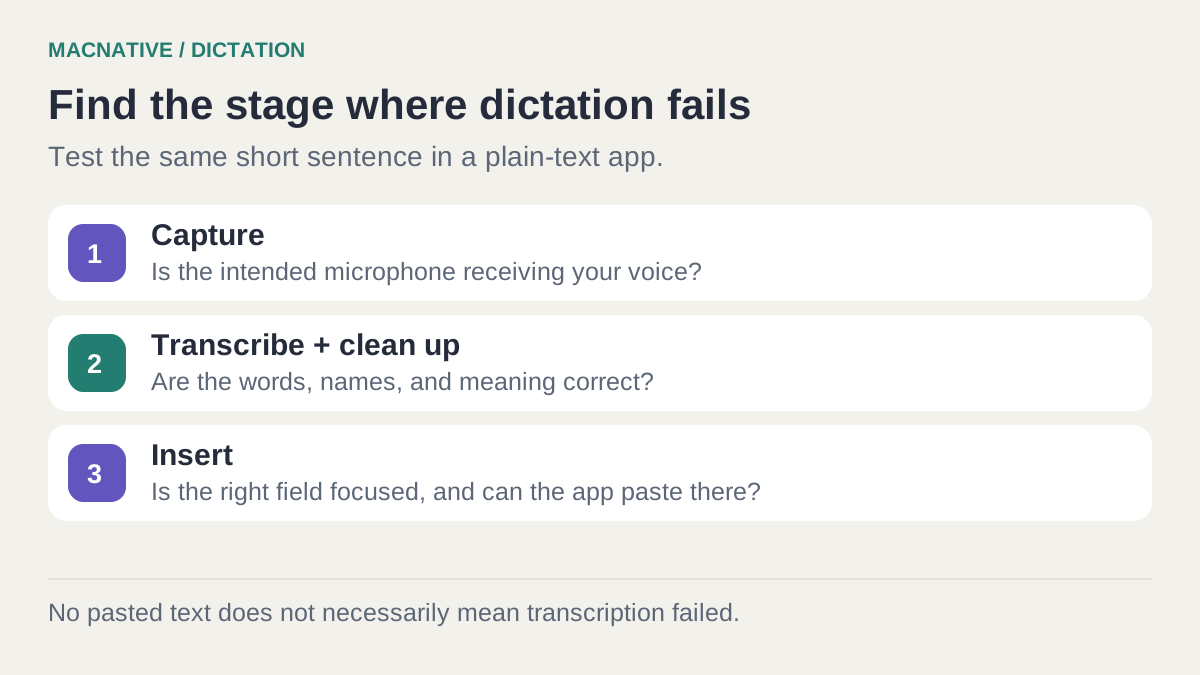
Good AI dictation depends on three separate steps: recording your voice, turning it into the right words, and inserting those words where you want them. Diagnose the step that failed instead of reinstalling the app after every bad result.
Bottom line
Begin in an empty note with a short phrase. Confirm the microphone, shortcut, language, and text insertion work before trying email or a browser form. Add recurring names to the dictionary and keep cleanup conservative when dates, numbers, or promises matter.
On this page
Try built-in Dictation before choosing another app
For occasional voice typing, open System Settings → Keyboard → Dictation, turn it on, and check the language, microphone, and shortcut. Click a blank note and use the configured shortcut or Edit → Start Dictation. Apple documents these controls in its Mac Dictation guide.
If that meets your needs, keep using it. A separate app becomes useful when you need a different correction workflow, a personal dictionary, or specific control over the transcription and cleanup models.
| What you need | Route to try | What to verify |
|---|---|---|
| Occasional text entry with no extra installation | Apple Dictation | Your language and the privacy information shown in Keyboard settings |
| Guided onboarding and system-wide dictation | Wispr Flow walkthrough below | Account, permissions, and current processing/privacy settings |
| Explicitly local transcription and optional local cleanup | FoxSay | Download models first and keep remote cleanup disabled for the offline test |
FoxSay documents its local transcription and optional cleanup providers. These are starting routes, not a measured accuracy ranking.
Get one successful dictation before changing settings
This walkthrough uses Wispr Flow, which is already in the MacNative directory. The same diagnostic approach also applies to other system-wide dictation apps.
- Install Flow, sign in, and complete its microphone test.
- Grant the requested Microphone and Accessibility permissions.
- Choose a shortcut you can comfortably hold without triggering another app.
- Set the languages you actually speak.
- Open a blank note, click in its text area, hold the shortcut, speak, and release.
Follow the current onboarding instructions for the shortcut on your keyboard. Defaults can differ on keyboards without an Fn key, so check the configured binding rather than copying one from an old tutorial.

Audio & Voice · Free · Pro $12
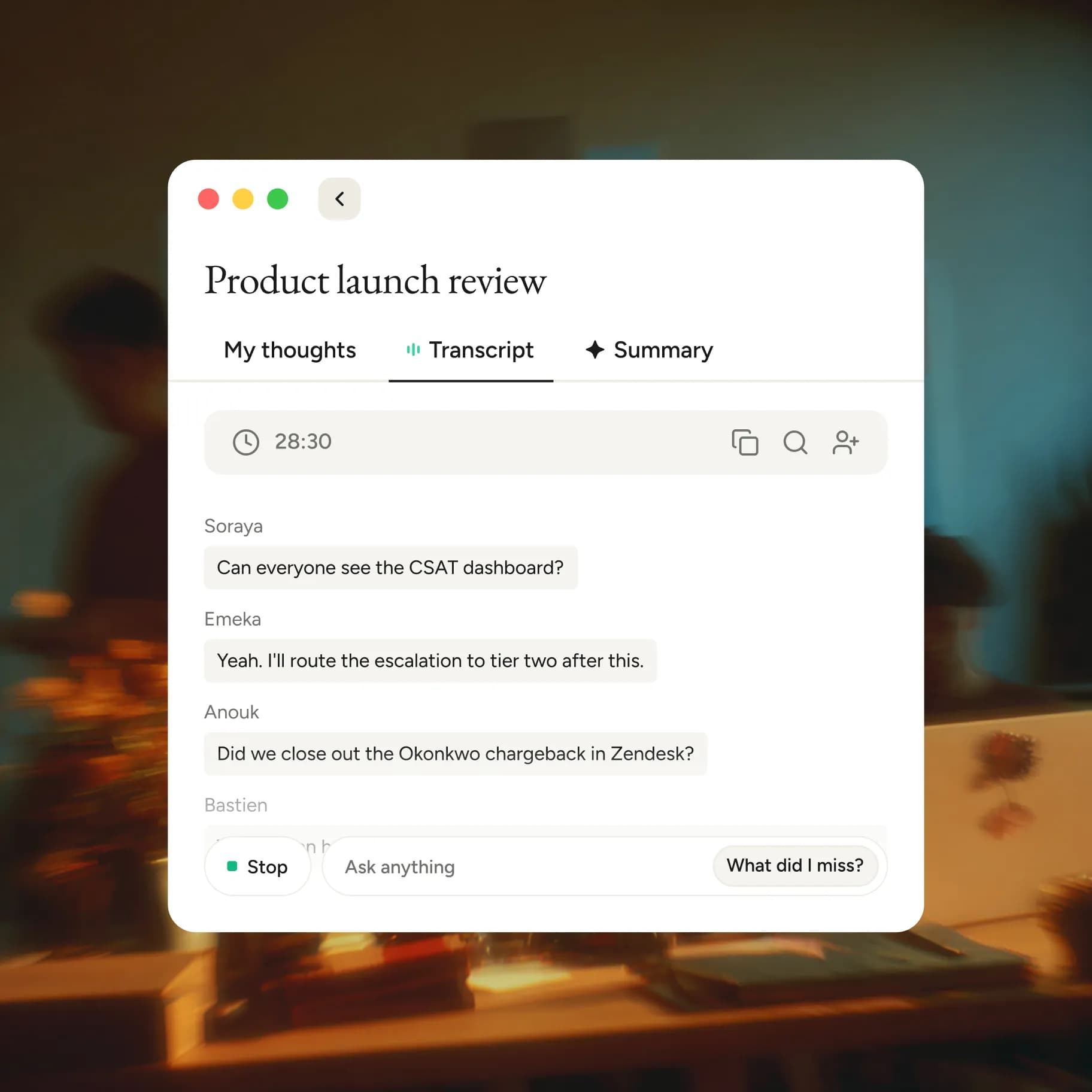
Speak instead of type — Flow turns rambling speech into clean, formatted text in any app, learns your vocabulary, and doubles as an AI meeting notetaker.
Use a sentence with a deliberately important distinction:
I can send an update on Thursday, but I cannot promise final approval before Friday.
Read the result before moving on. The “cannot” and the distinction between update and approval matter more than elegant punctuation.
Why Accessibility access is involved
The microphone lets the app hear you. Accessibility access helps it interact with the destination application and insert text. A dictation app can hear and transcribe successfully while failing at insertion.
Don't grant every available Mac permission as a troubleshooting shortcut. Start with the app's documented requirements. Our AI permissions guide explains the separate controls.
Reduce corrections with a small, repeatable test
Create a short paragraph containing the names, dates, and technical terms you use every day. Dictate it into the same blank note after each change. That makes it easier to tell whether a dictionary entry or microphone change actually helped.
Measure the time until the text is ready to send, including edits. Raw words per minute hides the cost of repairing mistakes.
A test paragraph with an answer key
Read this aloud:
Send Mara the revised Northstar draft on Thursday, 19 November. The estimate is 1,250 euros, not 1,520. We have not approved the launch. Jules may review it on Friday, but has not committed.
Punctuation can vary. The names, date, amount, negation, and tentative review must survive. An output saying “Jules will review it” has changed the meaning even if every word is spelled correctly.
Use the dictation check sheet for three attempts: your current settings, one targeted change, and a repeat in the destination app. Count meaningful corrections and total editing time. This is a personal comparison, not a benchmark of the apps.
Fix the input before the model
If the recording sounds muffled or distant, try a different input in the dictation app. Record a short clip in Voice Memos as a cross-check. If both apps capture poor audio, changing AI cleanup instructions is unlikely to help. Wispr's microphone troubleshooting recommends this separation.
When using a headset, make sure the app is listening to the intended microphone. The device you hear through and the device you record through need not be the same.
Add vocabulary you actually use
Use your app's personal dictionary for recurring names, product terms, and uncommon spellings. Add a handful, then retry the test paragraph. A dictionary isn't a substitute for checking a number or an unfamiliar person's name.
Keep dictation in manageable thoughts. Say one paragraph, inspect it, then continue. This gives you a chance to correct the direction before a long monologue becomes a long rewrite.
For mixed-language speech, select the relevant languages where supported and test a short sentence containing both. Language coverage differs by engine and model; an “automatic” setting is not a promise that every switch will be understood.
Keep cleanup from changing your meaning
Some apps distinguish transcription from an optional rewrite. When custom cleanup instructions are available, try:
Remove filler words and fix punctuation.
Preserve names, numbers, negation, uncertainty, and commitments.
Do not add facts or make the tone more confident.
Keep the original language unless I explicitly ask for translation.
This is a reusable instruction for apps with configurable cleanup, not a claim that every dictation app exposes the same setting. FoxSay, for example, documents custom prompts and per-app model choices on its official site.
The words are correct, but nothing appears
If a transcript exists in the app, the recognition step succeeded. Preserve that text before doing anything else: use the app's copy or last-transcript action, click the destination field, and paste manually.
Then test in a plain note. If it works there but fails in one browser form, concentrate on that field, its focus, or the target app. Password fields and unusual editors may intentionally restrict automation.
Wispr's paste troubleshooting guide covers Accessibility checks, restarting Flow, and keyboard-layout issues. Prefer a targeted restart or permission check to a full reset that may lose useful history.
| What you see | Next useful check |
|---|---|
| No waveform or captured voice | Selected microphone, hardware mute, Microphone permission |
| Good audio, incorrect words | Language, model, vocabulary, background noise |
| Correct words, changed meaning | Cleanup or rewrite settings; reduce transformation |
| Transcript exists, target field empty | Copy the result, focus the field, then check insertion permissions |
| Shortcut fails only sometimes | Conflicting shortcuts or another app's Secure Keyboard Entry state |
Flow's post-update troubleshooting specifically notes that secure keyboard input can block some shortcuts even when Accessibility is enabled. Re-granting the same permission won't resolve every shortcut conflict.
Does AI dictation work offline?
That depends on the transcription and cleanup engines. A locally installed app can use a remote speech service. A local speech engine can also pass its finished transcript to a remote rewriting service.
FoxSay offers local transcription and local cleanup after the required model downloads; remote cleanup is optional. For any app, test a fresh dictation after disconnecting the network and confirm the active providers. The Audio & Voice category is the place to browse other apps; this guide's job is to make the workflow work.
Can I dictate commands or code?
You can enter text into many editors, but automatic formatting can change punctuation and capitalization. Dictate into a draft and review it before executing a shell command. Wispr's terminal guide explicitly calls out this formatting issue.
Does “any app” really mean every text field?
Treat it as system-wide availability, not universal compatibility. Secure fields, remote desktops, and custom editors can behave differently. A reliable fallback is to dictate into a note, inspect the result, and paste it yourself.
Once the workflow is stable, it should feel fairly ordinary: click where you want to write, say one thought, check the details, and carry on. That is a better outcome than chasing a perfect transcript you never need to read.
Editorial review: October 25, 2026. This is a documentation-based guide with original practice examples, not a hands-on app benchmark. Check the linked developer documentation for your installed version.