

To run AI locally on a Mac, install a local runtime such as LM Studio or Ollama, download a compatible chat model, and load it before asking a question. After the app, runtime, and model are downloaded, ordinary local text chat can work without an internet connection.
This walkthrough gets you from an empty installation to an email draft you can check. Start with a small model; you can decide whether a larger one is worthwhile after the first task works.
Bottom line
Start with one small instruction-following model and a short, non-sensitive task. Download it while online, load it into memory, then repeat the task offline. Leave web tools and agents out of the initial setup so you can tell whether local chat itself works.
On this page
Choose your starting route
| Your situation | Start here | Reason |
|---|---|---|
| Apple silicon; prefer a graphical setup | LM Studio walkthrough below | Download, load, and chat in one interface |
| Want terminal commands or a local API | Ollama quick start below | Use the same installed model from the CLI and compatible apps |
| Intel Mac on macOS 14 or later | Ollama, with a small model | Its documented Intel path uses the CPU; LM Studio currently requires Apple silicon |
| Already use a local model successfully | Pick a task from the next-step links | Another interface is optional |
These are workflow choices, not a speed ranking. Requirements come from LM Studio and Ollama; both currently require macOS 14 or later for their documented Mac paths.
What you need before downloading anything
Open Apple menu → About This Mac and note the chip, memory, and macOS version. “MacBook Pro” alone doesn't tell you whether an app will run: an Intel Mac and an Apple silicon Mac have different options.
This walkthrough uses LM Studio's graphical setup. Its current Mac requirements specify Apple silicon, macOS 14 or later, and recommend at least 16GB of RAM. The documentation also allows for smaller models on 8GB Macs. Check the requirements page against your machine before installing.
An Intel Mac isn't covered by that walkthrough. Ollama's Mac documentation lists Intel support using the CPU, which is a different performance proposition. Start especially small if you take that route.
You also need free storage. The app download and the model download are separate. Leave room for both, plus your ordinary work; downloading a model onto a nearly full startup disk is an avoidable complication.
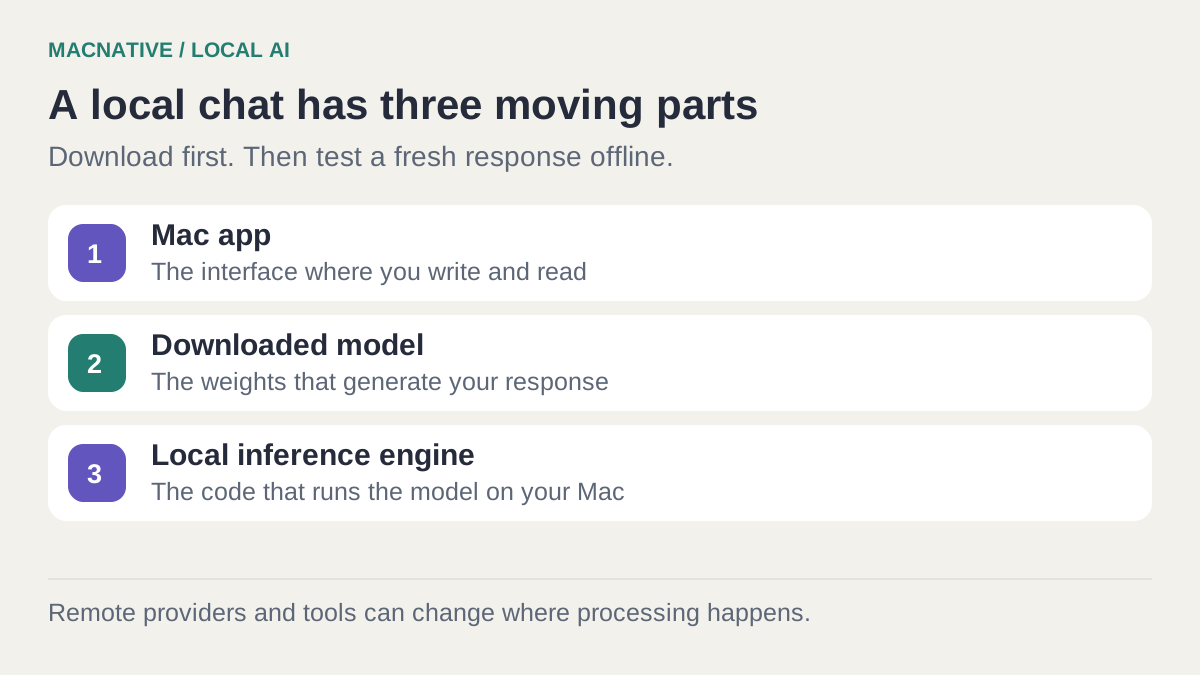
Three terms worth knowing
- Model: the trained set of weights that generates the answer. Think of it as a substantial data file the app knows how to use.
- Quantization: storing those weights more compactly. A lower-bit version can reduce memory needs, with possible quality tradeoffs.
- Context: the material available for the current answer, including instructions, conversation, and attached text. Longer context usually costs more memory.
You don't need to master model architecture to get started. You do need to notice the download size and avoid selecting the largest context setting simply because it is available.
Get your first local conversation working
- Install LM Studio from its official website.
- Open Discover and choose a small instruction or chat model compatible with your Mac. For a first experiment, consider a compact model in roughly the 3–4 billion parameter range; treat that as a starting point, not a guarantee of fit.
- Check the model's download size and description before downloading. Choose a text/chat model for this exercise, rather than an embedding-only model.
- Let the model and any required runtime finish downloading.
- Open Chat, use the model loader to select the downloaded model, and wait until it is ready.
These are the app's documented download and loading steps. A model listed in Discover isn't necessarily installed, and a downloaded model isn't necessarily loaded into RAM.
Use this fictional input for your first conversation:
Turn these notes into a short email. Keep every fact unchanged.
Do not add commitments or an explanation for the delay.

Notes:
- We received the revised design on Monday.
- Review is still in progress.
- We can give an update on Thursday, not a final approval.
- Ask whether the client needs the mobile layout reviewed first.
Inspect the answer. Did “an update” become “approval”? Did the model invent a reason for the delay? A useful local model should preserve those distinctions, even when the prose sounds less polished than a cloud service.
Prefer Terminal? An Ollama quick start
Install the native Mac app from Ollama, launch it, and allow its documented CLI setup. In Terminal, run:
ollama run llama3.2:3b
The first run downloads the model if it isn't installed, then starts a chat. This is a concrete small-model example, not a claim that it is the best current model. Ollama lists this tag in its Llama 3.2 library. Use the fictional email prompt above and check the same facts. For multiline input in the interactive CLI, wrap the pasted prompt in triple double quotes ("""), as described in the CLI reference. Enter /bye to exit the chat; ollama stop llama3.2:3b unloads it when you are finished.
If Terminal says command not found, reopen Terminal after completing the app's CLI setup. If it cannot connect to Ollama, open the app and retry. See the CLI reference for the commands.
You don't need a cloud account for this local-model example. Avoid selecting a cloud model when testing offline operation.
Prefer an app already in your MacNative library?
Osaurus is a native Mac option for local MLX models and optional cloud providers. Keep the first session in ordinary chat with a local model selected. Add tools and agents after you know the model works for your text tasks. Official project

AI & Automation · Free & open source
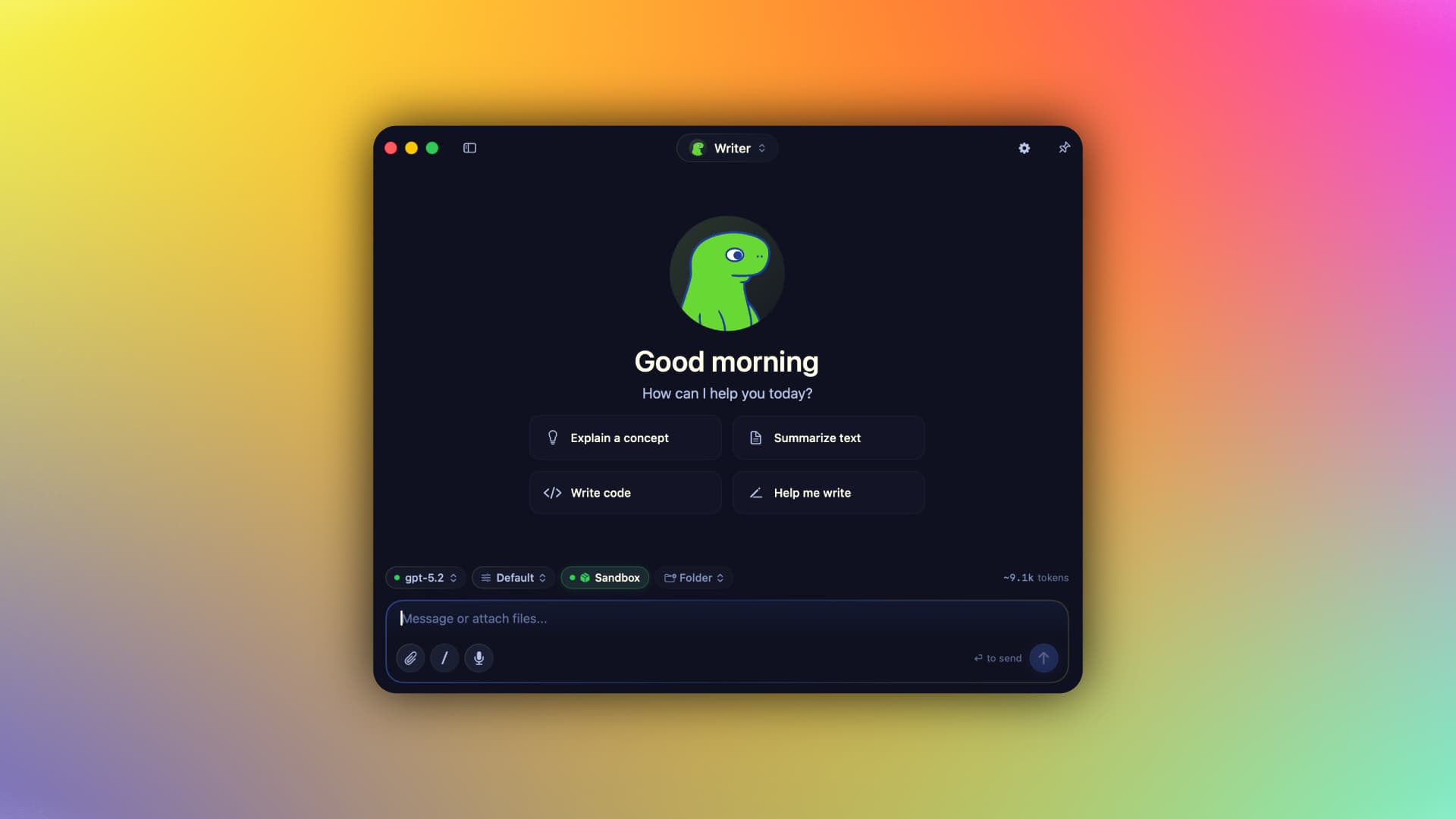
A native Swift harness for AI agents that keeps your context, memory, tools, and identity on your Mac — run local MLX models or bring your own cloud keys, fully offline-capable.
BoltAI is another interface in the directory, but an interface and a model runtime aren't the same thing. If you connect it to a remote API, that is cloud processing. Check which provider the particular conversation uses rather than relying on the app being installed locally.
Give it work where you can check the answer
Start with transformations of material you already have: reorganizing notes, extracting a list from a paragraph, or drafting a response from specified facts. Those tasks give you something concrete to compare against the output.
| Useful first task | How to check it |
|---|---|
| Turn rough notes into an email | Every promise, date, and name matches the notes |
| Extract action items from a short transcript | Each item has supporting text; missing owners stay unassigned |
| Explain an unfamiliar paragraph | The explanation doesn't introduce facts absent from the paragraph |
| Suggest headings for a draft | The structure fits your actual argument |
For a fresh topic, start a fresh conversation. Otherwise yesterday's instructions and examples may keep influencing today's answer, and the growing history adds work.
A local model won't automatically know the latest product release or read the files in your home folder. You must provide information or enable an appropriate tool. For documents, continue with private PDF chat on Mac.
Check that the workflow really works offline
After setup, disconnect Wi-Fi and Ethernet and repeat the fictional email task. Use a fresh prompt, not a previously generated answer. Avoid web search or remote tools during this check.
LM Studio documents offline operation for downloaded local models. Its privacy policy distinguishes local use from optional cloud services. Those distinctions matter more than the word “desktop” in the product description. Offline behavior · Privacy policy
An offline success demonstrates that this particular task did not require a live connection. It isn't a full privacy audit: an app can have history, backups, update checks, or other features with different data handling. Save sensitive exports outside cloud-synced folders if keeping them on this Mac is part of your requirement.
If the first attempt fails
The model won't load: reduce the model size or context allocation, and close other demanding apps. Check how RAM affects local AI before downloading another large model.
The answer starts slowly: the first run includes loading work. Compare a second short prompt before judging steady-state speed.
The output is nonsense: confirm this is a chat/instruction model, begin a new conversation, and simplify the input. A larger model is one possible next step, not the first diagnostic.
It works online but fails offline: check the selected provider, missing runtime downloads, and any enabled web tools. The failure may be outside the model itself.
Choose a useful next task
- Ask about a document: follow the offline PDF walkthrough and grade the answer against its sample brief.
- Check model fit: use the RAM guide before increasing model size or context.
- Fix waiting: use the speed diagnosis to separate a slow first load from slow generation.
- Recover disk space: remove unused model downloads after choosing the model you want to keep.
For more interfaces, browse AI & Automation apps. Keep your successful model and test prompt when comparing apps so you can judge the interface separately from the model.
Is local AI completely free?
It can avoid subscription and per-request provider charges, but the software's licence, model licence, storage, power, and hardware still matter. A paid Mac interface doesn't make its connected cloud API free, either.
Keep one model that does a useful job reliably. There is little value in collecting ten downloads before you know whether the first one can save you ten minutes of editing.
Editorial review: October 25, 2026. This is a documentation-based guide with original practice examples, not a hands-on app benchmark. Check the linked developer documentation for your installed version.