
You close your MacBook at midnight expecting a report in the morning. At breakfast, the agent is still waiting for a file, a permission, or the computer it was running on.
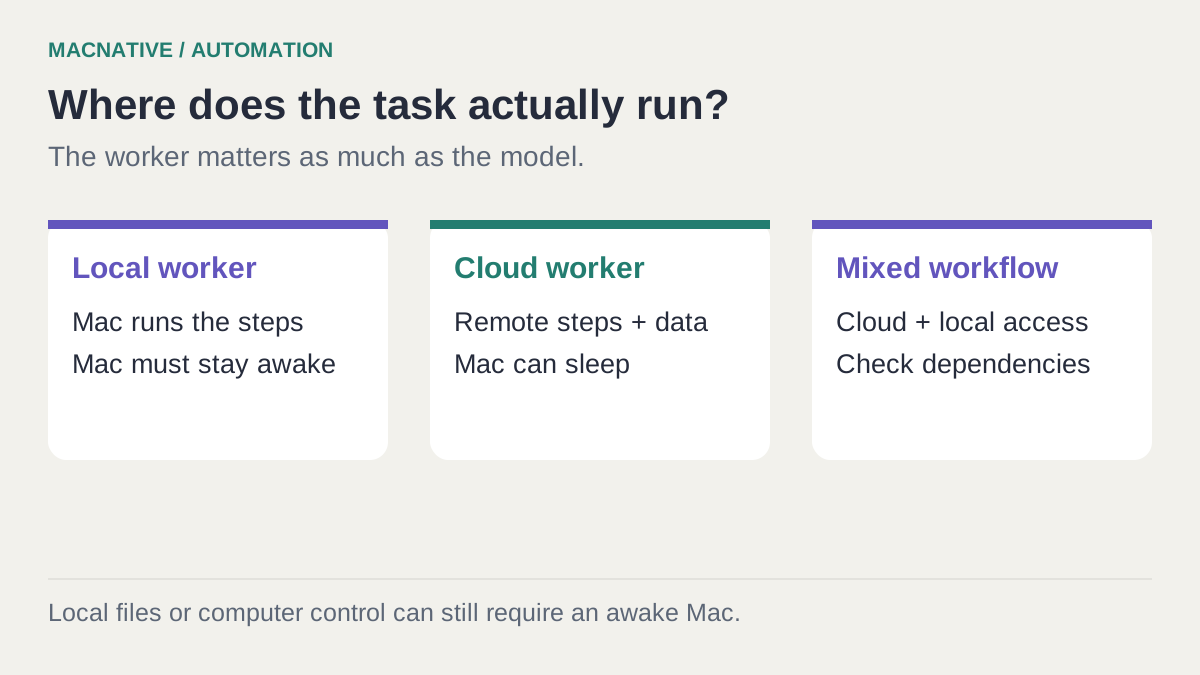
An AI task can continue while your Mac sleeps only when the work runs somewhere else and has everything it needs there. A cloud model alone isn't enough: the app controlling the task might still be running on your Mac.
Bottom line
For a sleeping-Mac workflow, use a cloud task with cloud-accessible inputs and a cloud destination. Test it once with your Mac asleep. If the job needs Finder, a local model, or an app on your desktop, keep that computer awake or move the workflow to another machine.
On this page
The model and the worker can be in different places
An agent has several jobs: ask a model what to do, fetch inputs, use tools, and save an output. Those steps don't necessarily happen on the same computer.
For example, a desktop agent might send a question to a cloud model, then use a local tool to read a spreadsheet. The answer comes from a server, but the spreadsheet step still depends on your Mac. Closing the lid breaks that dependency even if you have a paid AI subscription.
| Task | Can your Mac sleep? | What to check |
|---|---|---|
| Research public websites and save a report inside a cloud agent | Potentially, yes | The service runs the whole task remotely |
| Summarize documents through a connected cloud drive | Potentially, yes | The connector can reach the documents without the desktop app |
| Rename files in your Downloads folder | Usually no | The file tool runs on, or reaches through, your Mac |
| Transcribe recordings using an on-device model | No | The machine doing the inference must remain awake |
| Control a Mac app with clicks and typing | Don't assume so | The agent's requirements for sleep, screen lock, and an active session |
Set up a cloud task with a small, complete brief
Start with something that has no desktop dependency: a morning research digest from public sources. This is easier to diagnose than a job that reads local files, opens a browser profile, and sends email.
In Claude's current scheduling interface, describe the recurrence in a conversation, review the proposed task, and confirm Schedule. Older interfaces expose Scheduled → New task. Anthropic currently documents scheduling on paid plans. It says Pro and Max tasks created before October 6 that run on the computer continue to run locally; tasks requiring local files or apps also run locally. Check the task's execution location instead of assuming an old schedule migrated. Claude's scheduling instructions
Here is a brief you can adapt:
Every weekday at 07:00 Europe/Vienna, prepare a short briefing about
changes to the three products listed below.

Use their official release notes and documentation. Cover only changes
since the previous successful briefing. If there is no saved checkpoint,
cover the previous 24 hours and say that this is the first run.

For each item, include what changed, who it affects, the source URL,
and the source date. Say when a source is inaccessible.

Save the briefing in this task for me to review. Do not email or publish it.
If nothing changed, say so. Do not repeat old updates to fill the report.
Replace “the three products” with actual names and source URLs. A bounded source list makes the output easier to inspect. A time zone avoids the ambiguity of “tomorrow morning,” especially when you travel or daylight saving time changes.
The checkpoint instruction matters, too. A recurring task may start with a fresh session. If the service cannot preserve a checkpoint, use an explicit date range instead and accept that you will need to deduplicate overlapping results.
Give the worker inputs it can actually reach
A file visible in Finder isn't automatically available to a cloud task. Even a synced folder can be accessed through two different routes: a cloud connector or your Mac's local copy.
Anthropic's cross-device guide says connected local folders are reached through the desktop app while it is open. That is different from a document already saved to the Claude account or available through a cloud connector. How local access works
For an overnight report, upload an appropriate copy or connect the cloud source directly. Confirm the worker can list the exact file before scheduling. Use non-sensitive sample content for the first run.
The ten-minute test that saves a wasted night
Don't make the first unattended run an eight-hour experiment.
- Run the task manually while you are present. Resolve missing sources and sign-in problems.
- Create a supported near-term schedule, or start a cloud job long enough to check after sleeping the Mac.
- Note where the finished result should appear. A notification is useful, but it is not the output itself.
- Put the Mac to sleep. If possible, check the task from your phone or another device.
- Confirm that the output was produced after the Mac went to sleep, and inspect the result for inaccessible inputs.
If the test succeeds, repeat with the real inputs before trusting the schedule. If it fails, look at the first unfinished step. “Can't access file” calls for a different input route; “awaiting approval” calls for a task that can finish its draft without that action. Neither problem is fixed by making the prompt longer.
Read the first failure as a routing problem
| What happened | Likely dependency | Change to test |
|---|---|---|
| The schedule exists but no run starts while asleep | A local execution path or older local schedule | Inspect where the task runs; recreate remotely if supported |
| The run starts but cannot find a file | A local path or expired connector | Supply a permitted cloud copy or repair the connector |
| The run waits for interaction | Approval, login, or an interactive step | Make the unattended stage produce a reviewable draft |
| The report repeats yesterday's updates | No durable checkpoint or an overlapping date range | Specify the reporting window and record source dates |
| The report finishes but no notification arrives | Notification delivery | Check saved run history before rerunning the job |
Do not infer success from the schedule being enabled. Record the scheduled time, actual start, output timestamp, and any missing inputs. That distinguishes a job that completed while the Mac slept from one that resumed when you opened the lid.
Keep the morning review small
Ask for a result that makes missing work obvious: sources checked, sources unavailable, findings, and any unfinished steps. A polished report can hide the fact that half the inputs never loaded.
Keep unattended work reversible. Preparing a draft report is a better first overnight task than editing the only copy of a client spreadsheet. Once the workflow is reliable, expand its scope deliberately.
What if the task really needs your Mac?
For local inference or file processing, the practical choices are to keep your Mac awake, run the job on another always-on computer, or redesign it for the cloud. A remote connection to a sleeping Mac doesn't move the computation elsewhere.
Osaurus, for example, supports local models as well as cloud providers. Choosing a remote provider doesn't automatically relocate the surrounding desktop tools. The project's architecture and features are useful context when deciding what runs where.
For a task that can run with the display off, Amphetamine provides a temporary keep-awake session. Our screen-off work guide covers the setup and the difference between display sleep and system sleep.

Utilities · Free
Keeps your Mac awake on your terms — precise triggers for time, running apps, network, battery, or an attached display, all from the menu bar.
Screen lock is a separate question. A local transcription job may need no visible interface; a computer-use agent may depend on access to the logged-in desktop. Follow that agent's documented behavior and test the exact lock state you intend to use.
Does scheduling guarantee the task will finish?
No. A schedule starts an attempt. Usage limits, unavailable websites, revoked connections, and approval requests can still interrupt it. Give every recurring task a visible failure outcome, not just a success notification.
Can a local model work with the laptop lid closed?
It needs an awake computer. Closing a laptop lid commonly triggers sleep; a dark display is different. Use the supported power configuration for your Mac, or move the local model to a machine that stays on.
The useful question before bedtime is: Could this task finish if my Mac disappeared from the network right now? If the answer is yes, and your short test confirms it, you have an overnight workflow you can start trusting.
Editorial review: October 25, 2026. This is a documentation-based guide with original practice examples, not a hands-on app benchmark. Check the linked developer documentation for your installed version.