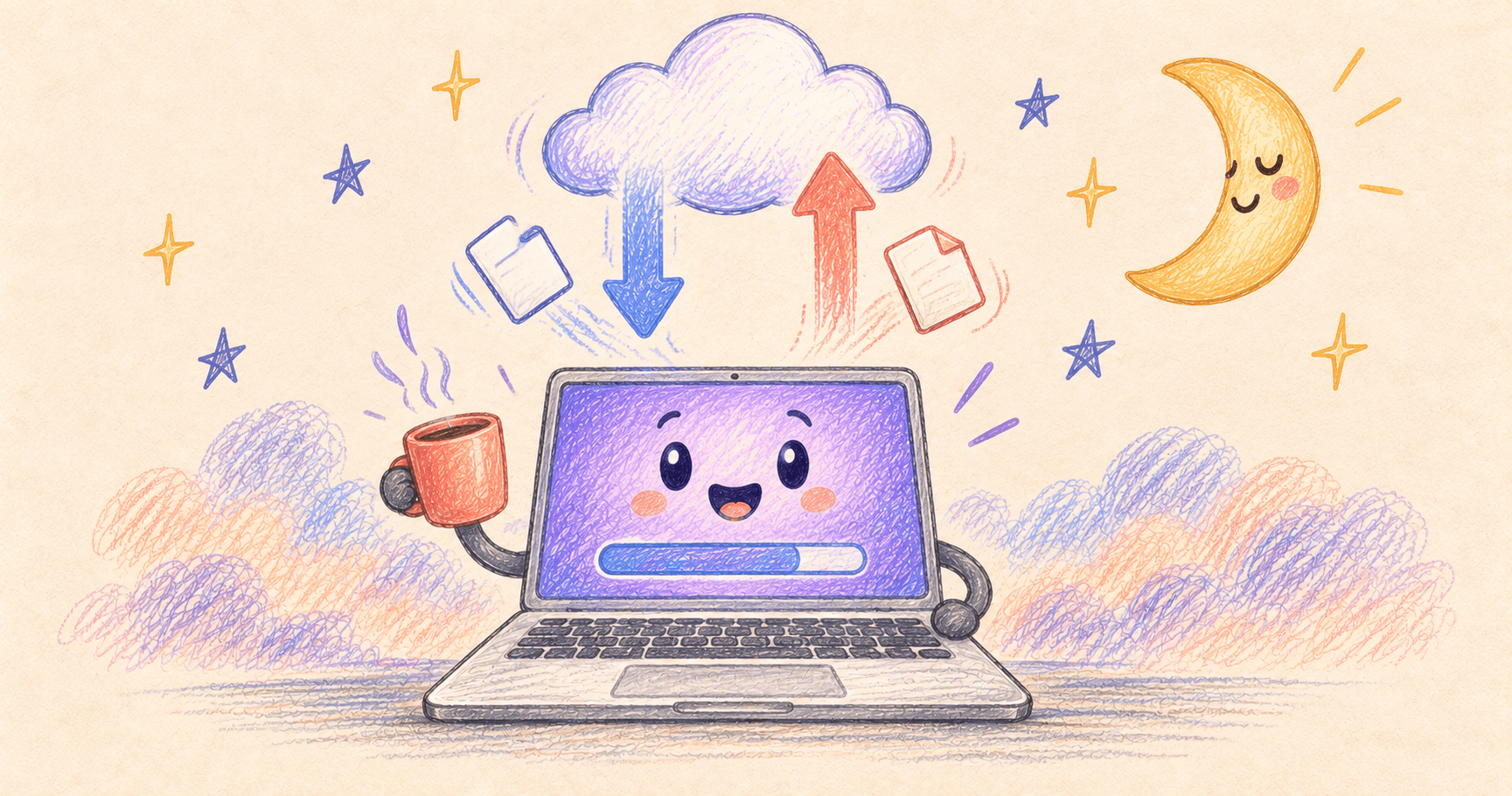
Your Mac can keep downloading with the screen off, as long as the Mac itself stays awake. Keep the MacBook lid open, connect power for a long transfer, and use one of the methods below.
If you’ve come back to an upload that still says “42 minutes remaining,” check system sleep rather than just increasing the screen timeout.
Bottom line
Use Amphetamine for a temporary keep-awake session, or enable macOS’s plugged-in sleep prevention. You can let the display go dark while the Mac keeps working.
On this page
The easiest temporary fix: Amphetamine
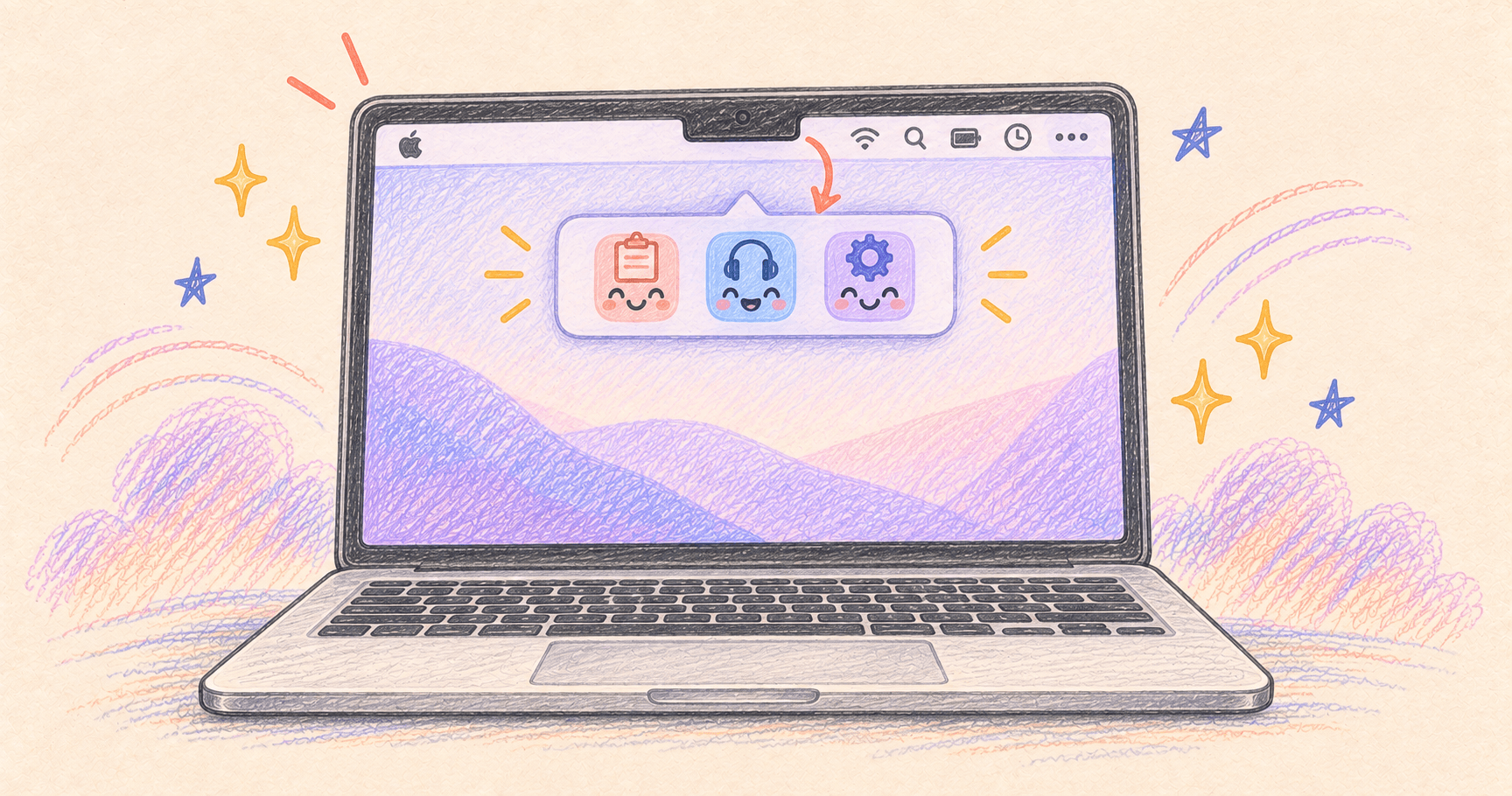
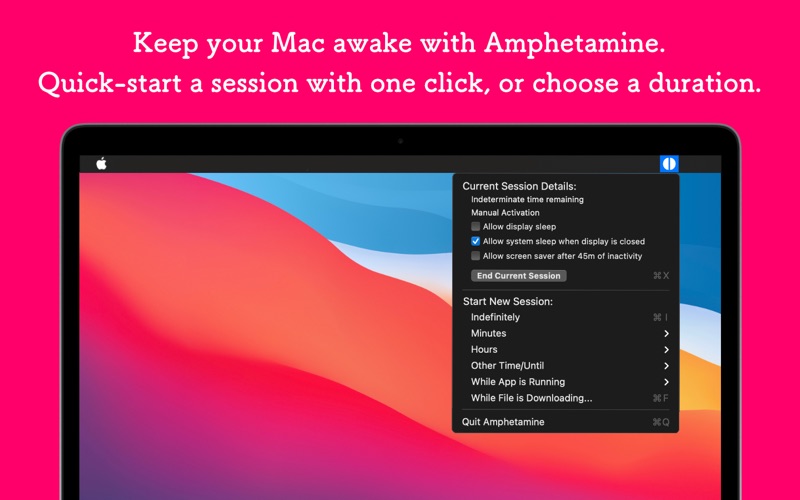
Amphetamine is free and lets you keep the Mac awake for a set duration or while an app is running. It also lets the display sleep independently. Official App Store listing
- Open Amphetamine and click its menu bar icon.
- Start a timed session long enough to cover the task, with some room for delays.
- Allow display sleep if you don’t need to watch the screen. Keep the MacBook lid open for this simple setup.
- Plug in the charger for a long job and leave the downloading or uploading app running.
- End the session when the transfer finishes if the timer hasn’t expired.

Utilities · Free
Keeps your Mac awake on your terms — precise triggers for time, running apps, network, battery, or an attached display, all from the menu bar.
For an overnight upload, a short fixed timer can end too soon. Choose a longer session deliberately and check it in the morning. Keeping an app open is also different from keeping it busy: a browser-based session may continue after its download finishes.
Before leaving a long transfer unattended, note its progress, let the display go dark for a few minutes, then check again. The transferred amount should have increased. This catches a paused transfer or an expired session while you’re still there to fix it.
Prefer not to install anything?
On a MacBook, open System Settings → Battery → Options and enable Prevent automatic sleeping on power adapter when the display is off. Connect power for the setting to apply.
On a desktop Mac, look under Energy for the equivalent sleep-prevention option. Apple’s sleep settings guide covers the differences between Mac models.
This is a persistent setting. If you only need it for one transfer, switch it back afterward rather than trying to remember why the Mac stays awake every evening.
One download? Use caffeinate without installing an app
Open Terminal from Applications → Utilities. Paste this command and press Return:
caffeinate -i -t 7200
This prevents idle system sleep for two hours. The screen can still turn off. Leave that Terminal window open while the download runs; no output is normal. To stop early, press Control–C in that window.
The number is seconds: 3600 is one hour and 14400 is four hours. For the built-in explanation of these options, enter man caffeinate in Terminal; press Q to leave the help page.
This timer doesn’t know when your download finishes. It also isn’t a workaround for closing the lid or choosing Sleep from the Apple menu.
Screen off, locked, asleep: what’s the difference?
| State | What matters for your task |
|---|---|
| Display asleep | The screen is dark; the Mac can still work |
| Screen locked | Your session is protected; sleep settings still apply |
| System asleep | Don’t rely on an ordinary app transfer continuing |
Can you close the lid?
Don’t assume a normal keep-awake session overrides closing it. Amphetamine has a separate closed-display mode, with additional considerations on Apple silicon. For the least fiddly download setup, leave the lid open and let the display turn off.
If the transfer still stalls while the Mac is awake, check the network connection, the source website, and the app’s own error message. Sleep prevention won’t repair an expired download link or a disconnected VPN.
No room for the finished file? Start with our guide to freeing up disk space.