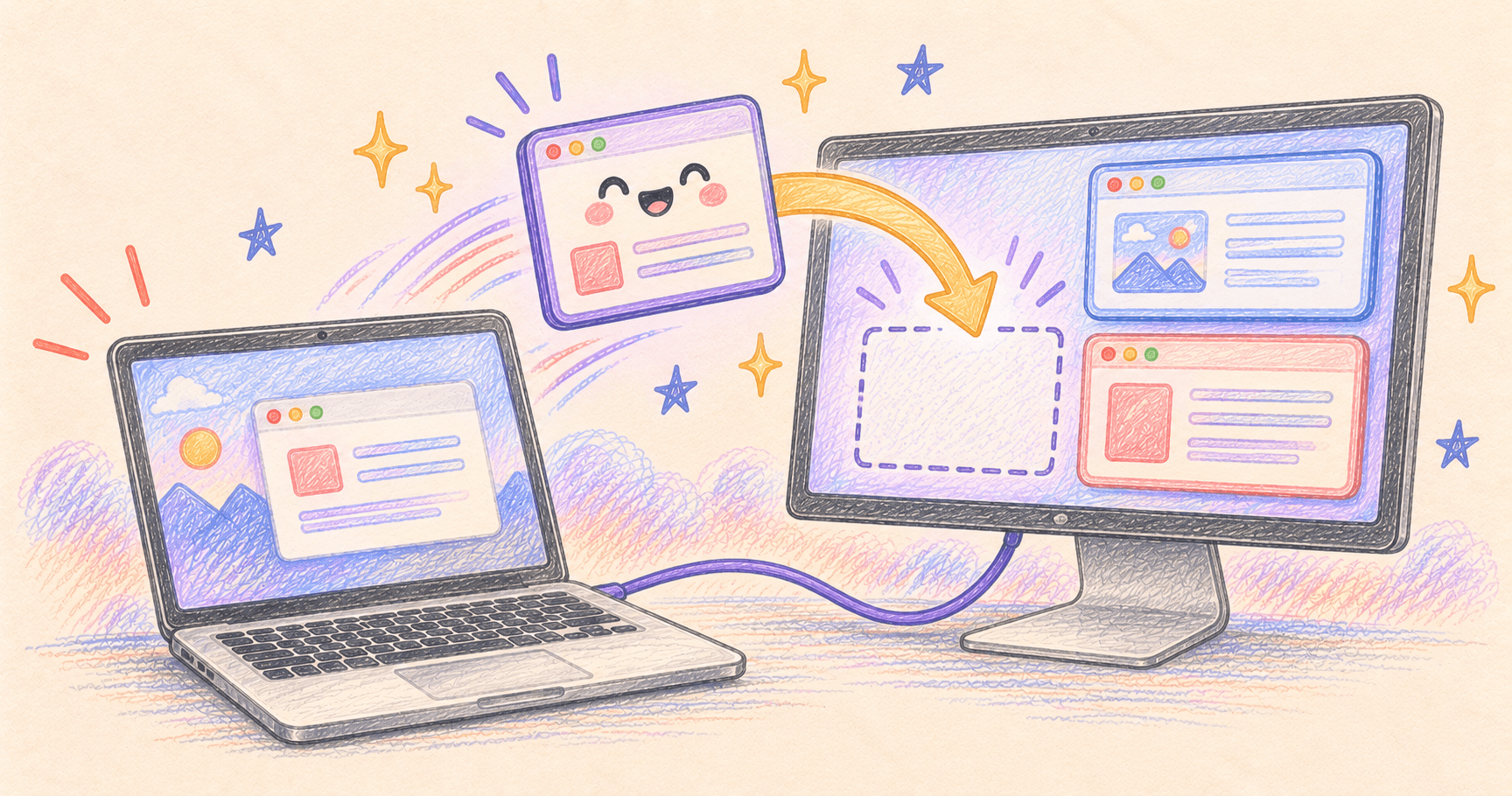
If your Mac windows move after disconnecting a monitor, check the display arrangement first, then use a layout-restoration tool if the windows still land in the wrong places. Resettle is designed for automatic restoration when displays return. Moom is another option if you prefer explicitly saved layouts.
A browser returning to the laptop instead of the big screen is not the same problem as the pointer crossing the wrong edge between monitors. Fixing the second problem will not necessarily fix the first.
Documentation and prices checked October 4, 2026. This guide explains documented workflows; it does not claim measured restoration success across monitors or docks.
Bottom line
Use macOS Displays settings to correct the screens’ arrangement. For app windows that still scatter after reconnecting, try a window-restoration workflow and check it with your own dock, displays and full-screen apps.
On this page
Separate monitor arrangement from window placement
Open System Settings → Displays → Arrange with your external screen connected. Check that the display positions match your desk and that you are extending or mirroring as intended. Apple’s Displays guide explains those controls.
Once the screens behave correctly, arrange a few ordinary windows manually. Disconnect and reconnect once, allowing the displays to finish waking. Note what actually changes: the destination screen, window size, position, or all three.
If one screen never returns, solve that connection problem before buying a layout utility. A remembered window position cannot make an unavailable display usable.
Use Resettle for a desk you reconnect to regularly
Resettle is aimed at the home-desk, office-desk, laptop-only routine. Its developer says it learns each display setup and restores window placement once the connection settles. The menu includes Remember This Layout, Resettle Now and Undo Last Resettle. Official feature description

Utilities · $14.99 · one-time (One-time purchase, 14-day refund)
Puts your windows back where they were when your monitors come back. Learns each display setup on its own.
A useful starting workflow is to arrange your working windows, choose Remember This Layout, then reconnect the same monitor. If the result is wrong, use Undo Last Resettle before adjusting the remembered arrangement. Follow the app’s permission prompts and verify that it can move your windows before relying on automatic behavior.
The listed price was $14.99 once, before applicable taxes, when checked. The developer advertises full-screen window support and handling for identical monitor models; consider those claims things to verify on your desk, not a promise about every application. Pricing and compatibility
Prefer choosing a layout yourself?
Moom may fit better if you want named arrangements for writing, research or calls. Its Save Layout command captures a set of windows. You can restore an app-specific layout instead of letting the current positions become your preference automatically.
Moom’s documentation explains which windows are included and its Spaces limitations. A window hidden behind another window can still belong to the saved layout; an app you deliberately hide is a different case. Read the saved-layout instructions before assuming a snapshot contains exactly what you can see on top.
A repeatable check before you depend on either approach
Open two Finder windows, a browser, a document and any app you normally keep full-screen. Record where each belongs. Then repeat these checks with your usual connection:
| Scenario | Check after restoring |
|---|---|
| Unplug and reconnect | Correct display, position and size |
| Sleep and wake | No repeated jumping as displays wake |
| Two windows from one app | Each document returns where you expect |
| Full-screen app | Correct screen and usable Space |
| Direct cable versus dock | Whether the failure follows the connection |
Repeat the troublesome scenario several times. A single successful restore is encouraging; it does not establish that a dock’s wake-up sequence is reliable. Keep the Mac model, macOS version, display model and connection type with any bug report.
If the windows are in the right place but the brightness keys do nothing, that is a separate issue. See our external-monitor brightness guide.