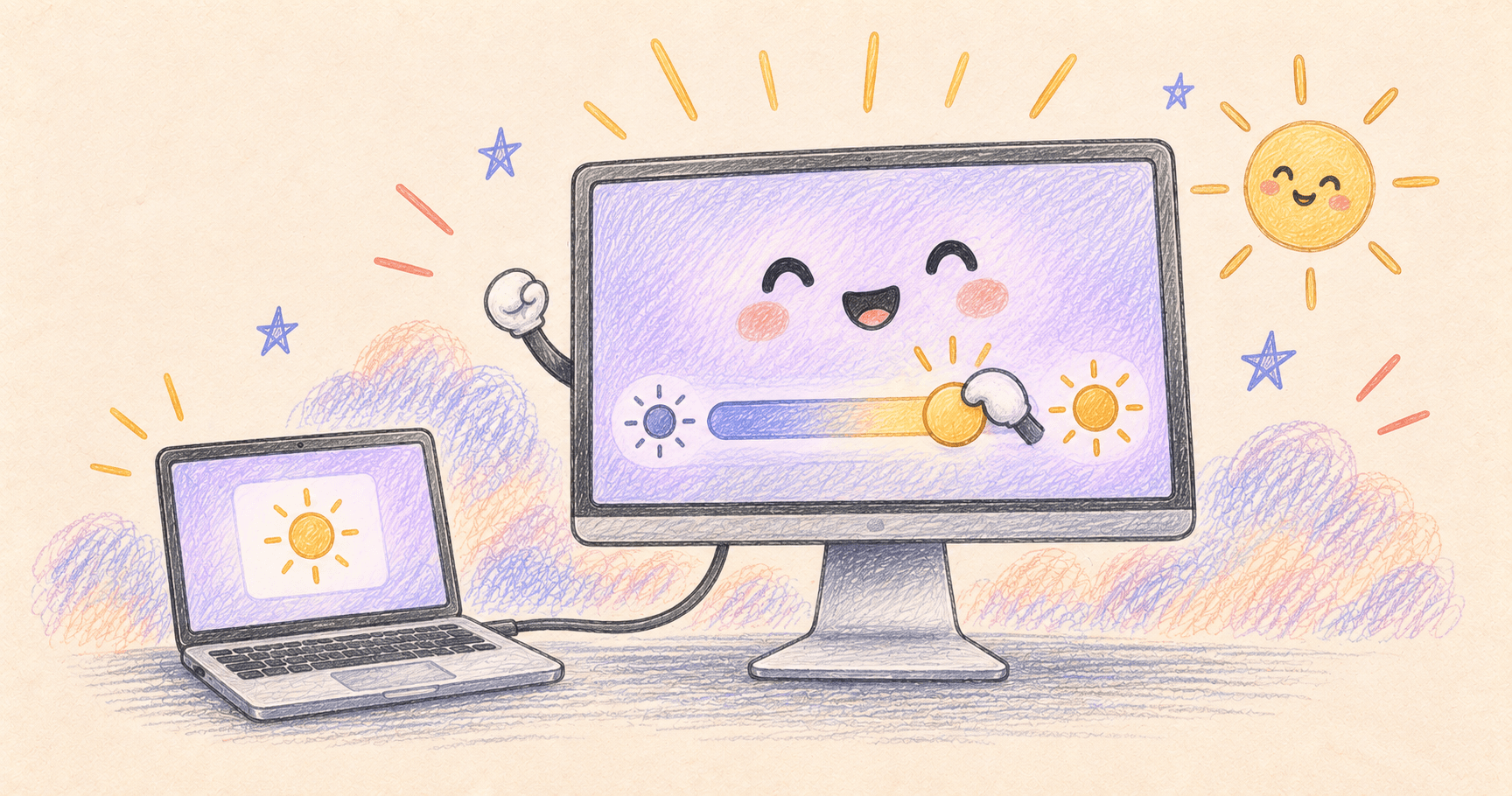
Your monitor shows a perfectly good picture, but the Mac’s brightness keys do nothing. That doesn’t necessarily mean anything is broken: displaying an image and accepting brightness commands are separate jobs.
Bottom line
Try MonitorControl for free brightness controls, or DisplayBuddy if you want additional display controls. Both depend on the connection to your monitor. First enable DDC/CI in the monitor’s own settings, if available.
On this page
Start with the monitor’s own buttons
Open the monitor’s on-screen settings and look for DDC/CI. Enable it if the option exists. This is the setting that lets software send controls to the display.
Then change brightness using the monitor’s buttons. If even that control is unavailable, check its picture mode before troubleshooting the Mac. Some modes manage brightness themselves; your monitor’s manual should explain which controls they lock.
Try MonitorControl first: the free option
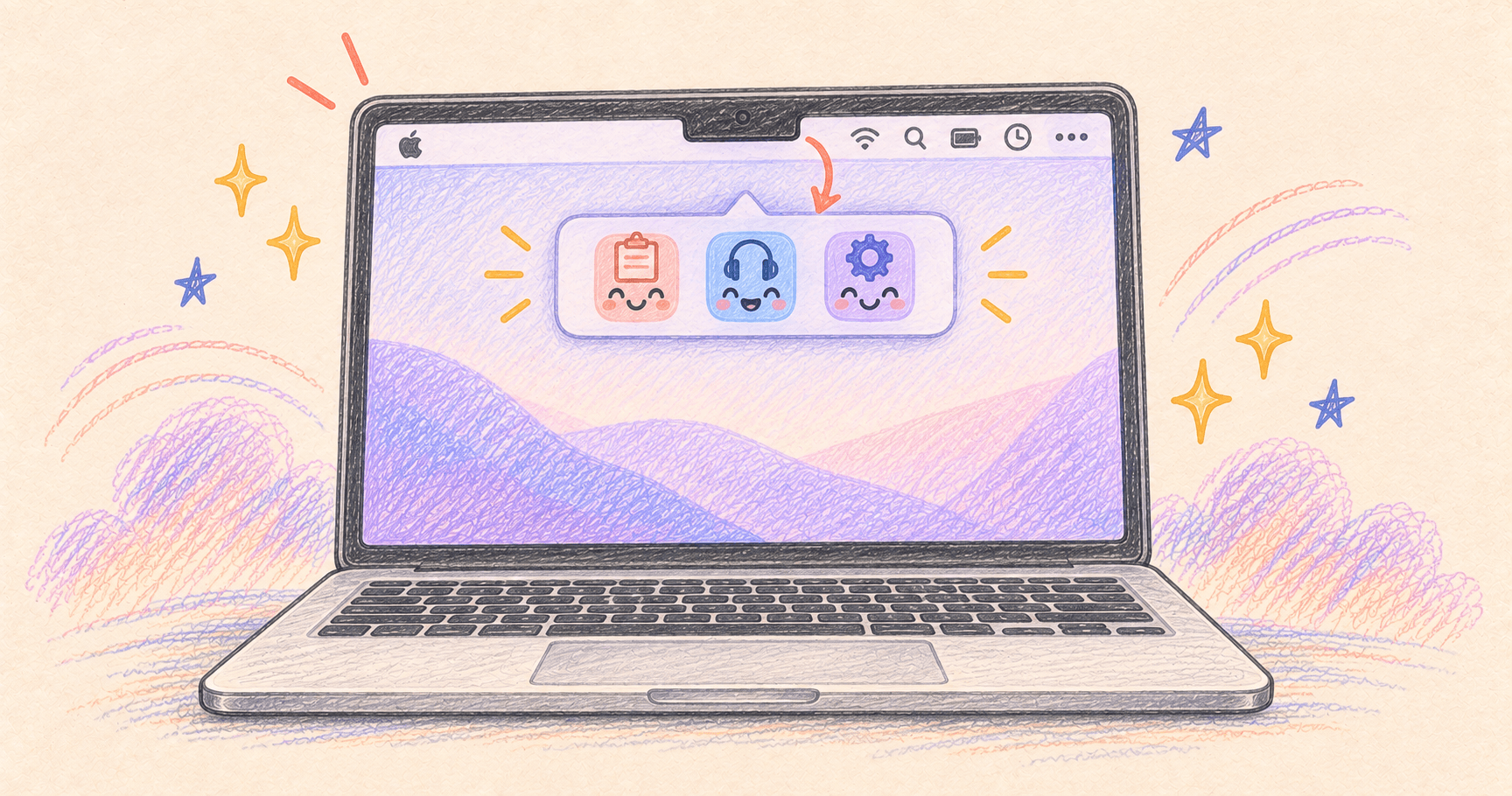
- Download MonitorControl from its official releases, open it, and click its menu bar icon.
- Find the external monitor by name. Move its brightness slider a little and watch that screen.
- Once the slider works, try the keyboard brightness keys. Check the app’s Keyboard settings and grant requested Accessibility access if the keys do nothing.
- Enable launch at login if you want the controls available after restarting.
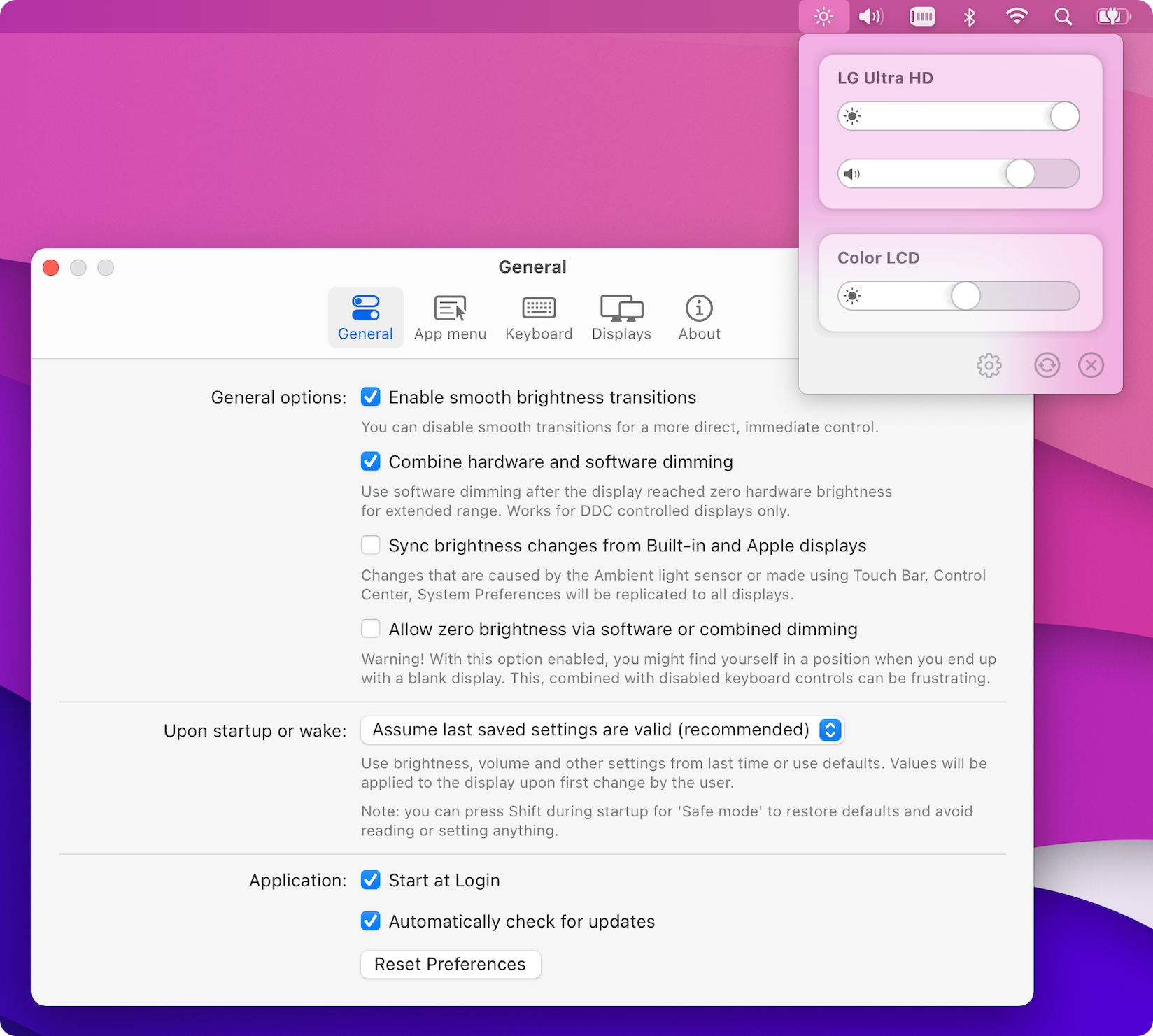
If the slider works but the keys change the wrong screen, check which display the keyboard controls target. With two external monitors, test them one at a time. MonitorControl’s documentation covers keyboard control and hardware/software dimming.
Already use DisplayBuddy? Set it up here
- Open DisplayBuddy with the monitor connected.
- Find the external display in its list; don’t accidentally adjust the MacBook screen.
- Check Control Mode. Use DDC for a compatible third-party monitor, or the Apple display mode for a supported Apple screen.
- Move the brightness slider. Once it responds, configure the keyboard shortcuts you want to use.
DisplayBuddy also offers Software Control when hardware control isn’t available. That makes the image darker without changing the monitor’s physical backlight. DisplayBuddy’s setup guide
Slider works, keyboard doesn’t? Keep the working connection and check the utility’s shortcut settings and requested permissions next. A responding slider tells you the app can already control the display; changing cables at that point is unlikely to fix a shortcut problem.

Utilities · $24.99 · one-time

Control external monitors from your Mac's menu bar — brightness, contrast, volume, and input switching over DDC/CI, with presets, schedules, and multi-display sync.
If the slider moves but nothing changes
Work through this order; it’s easier than changing five settings at once.
| Try | What it tells you |
|---|---|
| Connect directly, bypassing the dock | Whether the dock is interrupting monitor control |
| Try another supported cable or input | Whether this connection passes DDC commands |
| Quit other display-control utilities | Whether two apps are fighting over the same setting |
| Try software dimming | Whether you can at least make the picture comfortable |
Lunar’s documentation describes cases where USB-C-to-HDMI connections block DDC but DisplayPort works. That’s a troubleshooting lead, not a promise that buying a particular adapter will fix every monitor. Borrow a cable first if you can. Lunar’s compatibility FAQ
Hardware brightness vs software dimming
Hardware brightness changes the monitor’s backlight. Software dimming makes the picture darker while the backlight stays at its existing level. Either may make a bright screen more comfortable, but a moving slider alone doesn’t tell you which method is in use. Check the app’s control mode.
If the monitor doesn’t accept DDC commands through your dock, software dimming can be a useful fallback. It won’t fix the underlying connection.
Do you need a paid app?
| What you need | Start with | Why |
|---|---|---|
| Free brightness and volume controls | MonitorControl | A straightforward first check for your monitor connection. |
| Automatic brightness behavior | Lunar | Compare its automation options for your setup. |
| Several monitors’ controls together | DisplayBuddy | Brightness and other display controls in one menu. |
Try your exact monitor connection before buying. An app’s feature list can’t tell you whether the dock on your desk passes the commands it needs.
For more small fixes to your desktop setup, see our useful Mac menu bar apps.