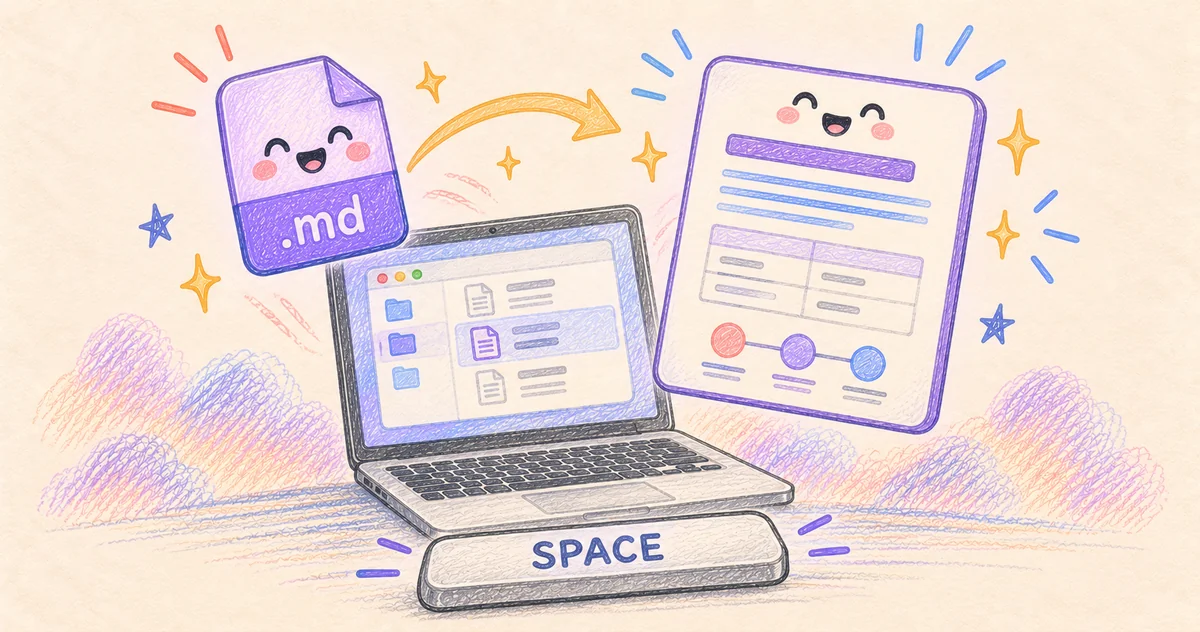
If pressing Space on a Markdown file shows raw text, install and enable a Markdown Quick Look extension. A Markdown editor and a Finder preview extension are different things; changing what opens on a double-click may not fix the space-bar preview.
That distinction matters when you just want to read a README without opening a project or importing a folder into a notes app.
Documentation checked October 4, 2026. Glance behavior is described from its developer’s guide. The downloadable sample is an original diagnostic file, not evidence of a completed compatibility test.
Bottom line
Glance supplies a Markdown Quick Look extension. Install it in Applications, launch it once, then select a local .md file in Finder and press Space. If you still see source text, check the enabled extensions before changing editors.
On this page
Give Finder a Markdown renderer
Apple’s file-preview guide explains the preview options built into macOS. For Quick Look, select a file and press Space. What appears depends on the file type and the preview support installed on your Mac.
Glance’s setup guide instructs users to put the app in Applications and open it once to register its extension. At the documentation check, it listed macOS 14 or later on Apple silicon. Check that requirement before recommending it to someone with an Intel Mac. Glance’s Finder guide

Writing & Documents · Free · Pro, one-time $9.99
A native macOS Quick Look extension and viewer for Markdown — instant, WebView-free rendering with Mermaid diagrams, LaTeX math, tables, and code highlighting.
After installation, try an ordinary .md file stored locally. Keep the first attempt simple: a heading, a sentence and a list. A cloud-only file or a complicated document introduces other questions before you know whether the extension runs at all.
Use a file whose expected contents you know
Save our Markdown preview check file to your Mac. If your browser displays its text, save that page as a file ending in .md, not .txt. It includes a heading, emphasis, a checklist, a table, code, a diagram and a formula.
The sample intentionally contains no external images or downloads. You can repeat the same check offline without wondering whether a missing network resource caused the difference.
| Sample element | What to look for |
|---|---|
| Heading and bold sentence | Formatting rather than visible Markdown punctuation |
| Table | Two aligned columns rather than a row of pipe characters |
| Code block | Preserved indentation and distinct code formatting |
| Mermaid diagram | A diagram, if the renderer supports Mermaid |
| Formula | Typeset math, if that syntax is supported |
Support for ordinary Markdown does not imply support for every extension to it. If headings work but the formula does not, the basic preview is running. Investigate the renderer’s supported syntax rather than reinstalling everything.
If Finder still shows source text
Check System Settings → General → Login Items & Extensions → Quick Look, as described in Glance’s guide. Names and placement can vary by macOS release. Confirm that the intended extension is enabled.
If several editors provide Markdown previews, temporarily disable competing Quick Look extensions one at a time and reopen the sample. Keep a note of what you changed so you can restore the original setup. Glance’s documentation also suggests logging out and back in if registration remains stuck; save your work first. Extension troubleshooting
Avoid changing file associations, uninstalling editors and resetting caches all at once. You want to know which change affected Finder, especially if double-clicking already opens your preferred editor correctly.
Reading, previewing and editing are separate decisions
Glance describes reading and previews as free, with editing in a paid Pro tier. Its Finder preview is read-only. Verify the current license on the official site before buying for editing features.
You can keep a different editor for writing. A useful arrangement is a fast Finder preview for identifying the right document, followed by your chosen editor only when you need to change it. For help choosing that writing environment, see our Mac notes-app comparison.