Sponsored by lo.cafe, the maker of NotchNook.
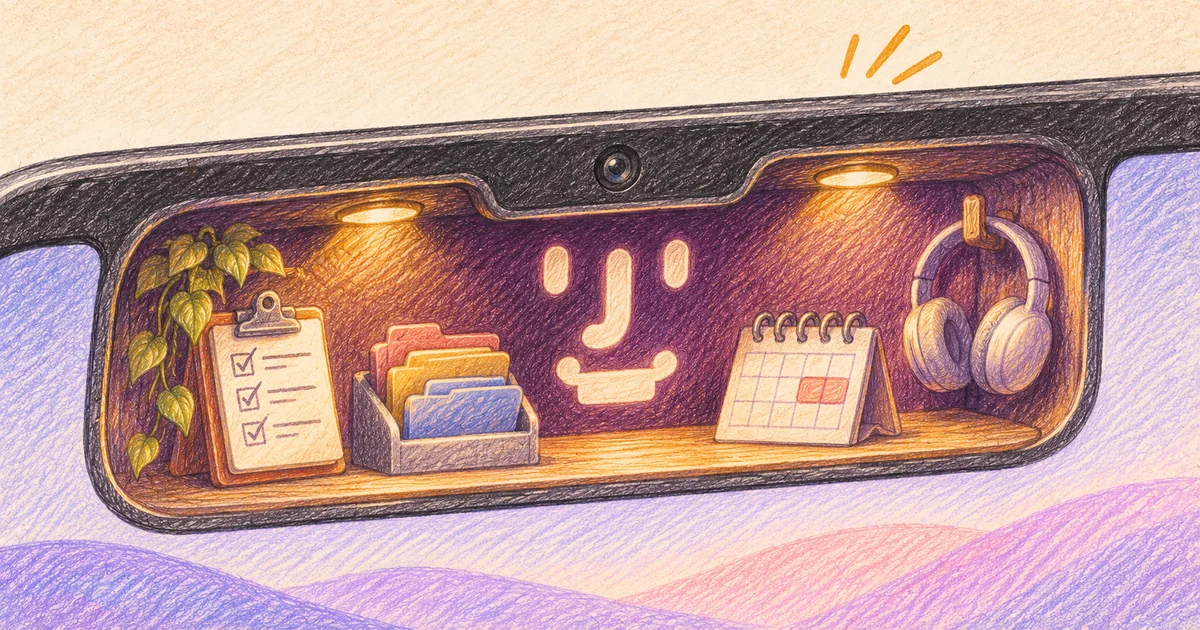
NotchNook Pro is a Mac notch app for everyday productivity. It turns the strip around your MacBook's camera into a small control center: hover over the notch and a panel drops down with the tools you reach for between tasks.
- Clipboard history to find and paste anything you copied earlier
- File tools to park, AirDrop and convert files right at the top of the screen
- Music controls with synced lyrics
- Calendar with a countdown and one-click join for your next meeting
- Widgets such as a Pomodoro timer, to-dos, notes and weather
- AI agents, so you can follow and approve Claude Code and Codex without switching to the terminal
lo.cafe calls it "the original notch app for Mac, taken to the next level," and version 2.0 is a ground-up rebuild of the NotchNook many Mac users already know. This guide walks through each feature: what it does and how you use it.
Try NotchNook Pro free for 48 hours. Every feature is unlocked and no card is required.
Bottom line
 NotchNook Pro
 puts clipboard history, file tools, music, your calendar, widgets and coding-agent approvals in one panel at the top of your screen. It costs $19 once or $3 a month for two Macs, needs Apple silicon and macOS 14.6+, and works on screens without a notch. The 48-hour free trial unlocks everything and asks for no card.
On this page
NotchNook Pro at a glance
| What it is | A notch app for Mac: a drop-down panel at the top of the screen with tools you'd otherwise open separately |
|---|---|
| Developer | lo.cafe (Brazil), maker of the original NotchNook |
| Current version | NotchNook Pro 2.0.10 |
| Price | $19 lifetime or $3/month, up to 2 Macs per license |
| Free trial | 48 hours, every feature, no card required |
| Requirements | Apple silicon, macOS 14.6 or later. Intel Macs can run NotchNook Classic |
| No notch? | Works anyway: a slim handle at the top of any screen, including external displays |
| Languages | 32, fully translated |
| Where to get it | notchnook.pro or Homebrew (not on the Mac App Store) |
The app is organized as a row of tabs under the notch: Nook (your widgets), Music, Calendar, Tray, Prompter and Agents, among others. The sections below cover them one by one. When the panel is closed, small Live Activities around the notch keep showing what's going on, such as a song, a timer or an agent at work.
AI agents: follow and approve Claude Code and Codex from the notch
What it does: The Agents tab follows your Claude Code and Codex sessions step by step and lets you approve commands and answer questions from the notch, without switching back to the terminal. It also tracks GitHub Copilot.
How you use it:
- Start a Claude Code or Codex session in your terminal as usual.
- Switch to your browser, editor or email. The session keeps running.
- When the agent needs a permission or a decision, it shows up at the notch. Open Agents, read the command or question, and respond. For a command, choose Deny, Always or Allow.
- Before a long run, check AI Usage to see how much of your Claude and Codex limits you've used and when they reset.
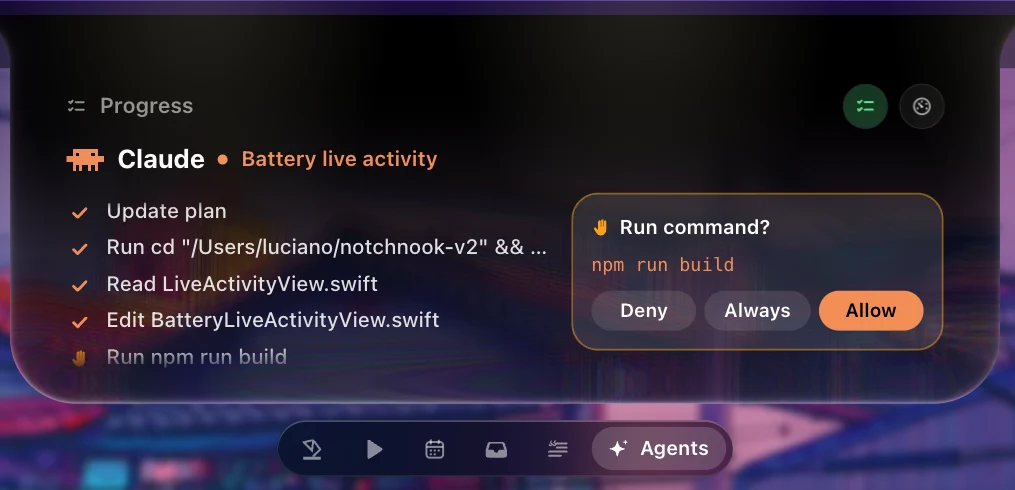
Worth knowing: NotchNook doesn't replace your terminal. The agent still runs there, and the notch is where you watch it and answer it. Agent status also appears as a Live Activity around the closed notch, so you can tell at a glance whether a session is still working.
Our take: This is the feature that sets NotchNook Pro apart from other notch apps, and it sits right next to the everyday tools covered below. On a long refactor or migration, every approval used to mean Cmd-Tab to the terminal and back. Here the prompt comes to you.
Clipboard history: find anything you copied earlier
What it does: NotchNook Pro keeps a history of everything you copy, one shortcut away, either in the notch or on a shelf at the bottom of the screen. You can search it, filter it and sort items into categories.
How you use it:
- Copy a few links, an error message and a code snippet over the course of an hour.
- When you need the second link again, open Clipboard and search for a word from it instead of going back to the browser.
- Paste it straight into the app you're working in.
Privacy: lo.cafe says your clipboard stays on your Mac and passwords are never saved.
Our take: If you've never used a clipboard manager, having history in the same place as your files and music makes it an easy habit to build. And because it lives next to the Tray, a copied link and a dropped screenshot are both one hover away when you put a message together.
Files Tray, Pocket and file conversion
What it does: Drag a file to the top of the screen and three drop targets appear: Files Tray to keep it handy, AirDrop to send it, and Convert to change its format. Pro converts video to MP4, GIF, M4A, MP3 or WAV, and handles other files such as PDF and TXT.
How you use it:
- Tray: Drop a screenshot at the notch, switch to the email, chat or pull request where it belongs, then drag it back out.
- Convert: Drop a screen recording on Convert and pick MP4 or GIF before you attach it. No separate converter app needed.
- Download from a link: Copy a video link and NotchNook can download it straight into the Tray, trimmed if you like.
- Pocket: While dragging files, shake the pointer and a Pocket appears to hold them. It's useful when the source and destination windows aren't on screen at the same time.
Our take: The Tray and AirDrop come with both editions. Conversion, link downloads and Pocket are Pro-only, and they're the reason to upgrade if you move a lot of media around.
Music controls and live lyrics
What it does: The Music tab shows album art, a scrub bar and playback controls for Apple Music, Spotify and any other app macOS lists as Now Playing. If two apps are playing, you choose which one NotchNook follows. Pro adds lyrics synced line by line.
How you use it: Hover over the notch to skip a track or scrub through a song without leaving the app you're in. Open the lyrics panel when you want to follow along. The same panel also lets you switch audio output, for example from AirPods Max to the MacBook speakers.
Our take: Music controls are the classic notch-app feature and both editions have them. Synced lyrics are a Pro extra that's nice to have rather than a reason to buy.
Calendar: your next meeting and new events
What it does: The Calendar tab shows your upcoming events from macOS Calendar with a countdown before each meeting, plus join buttons for Google Meet, Zoom, Microsoft Teams and Webex links. You can add events without leaving what you're doing.
How you use it:
- Open Calendar from the notch and check the countdown to your next meeting.
- Click the join button when it's time, instead of hunting for the link in an email.
- To add an event, type a title, pick a duration and click Add Event.
Google Calendar: Add your Google account to the Mac's Calendar app, allow NotchNook to access it, and your events show up in the Nook.
Our take: The countdown and one-click join are the useful parts here. You see how long you have before the next call and join it from the notch, without searching your inbox for the link.
The Nook: widgets right under the camera
What it does: The Nook is NotchNook's home panel. It holds up to 13 widgets side by side: the media player, a Pomodoro timer, system readouts, a mini calendar, to-dos, notes, weather, Shortcuts, a camera mirror, AI Usage and more.
How you set it up: Right-click the notch and choose Edit Workspace to see every widget. Drag a couple into the Nook, move them around, or drag one out to remove it. Start with two you'll reach for daily, such as Pomodoro and to-dos, and add more later.
- Pomodoro and timers: scroll wheels with haptics, several timers at once and focus music.
- To-dos: a quick list in the Nook plus a full window with a month calendar and focus timers.
- Notes: quick notes one click away, with a bigger editor when you need it.
- Mirror: check your camera before a call.
Our take: The Nook is what keeps you opening the notch between tasks. A focus timer and a to-do list one hover away remove two reasons to switch apps.
Teleprompter that follows your voice
What it does: Prompter places your script just under the camera, so you look at the lens while you read. It can scroll at a pace you set, or follow your voice and highlight each word as you say it. A separate window keeps your scripts.
How you use it: Paste your script, choose Scroll or Voice, and start reading.
Our take: A real bonus for anyone who records product demos, tutorials or presents on video calls.
Live Activities, Liquid Glass and multiple displays
- Live Activities: Music, timers, meetings, downloads, battery, AirPods and your agents appear around the notch while the panel is closed. Classic shows a basic set; Pro shows all of them.
- Liquid Glass or classic black: Let your wallpaper glow through a glass notch, or keep it solid black like the camera housing.
- Displays without a notch: On an external monitor or an older Mac, a slim handle at the top opens the same Nook. Each display gets its own, and you choose which screens show it.
- Terminal: Pro also includes a terminal inside the notch for quick commands.
- Keyboard shortcuts: Open any workspace from the keyboard instead of hovering.
NotchNook Pro vs Classic: features and pricing
NotchNook Classic (1.x) is still sold and updated, and it's the edition for Intel Macs. Here's how the two compare, based on lo.cafe's edition table:
| Feature | Pro (2.0) | Classic (1.x) |
|---|---|---|
| Music, Calendar, Nook widgets, Tray | Yes | Yes |
| AirDrop from the Tray, camera mirror | Yes | Yes |
| Claude Code and Codex approvals | Yes | No |
| Clipboard history and Pocket | Yes | No |
| File converter (MP4, PDF, TXT and more) | Yes | No |
| Song lyrics | Yes | No |
| Pomodoro and to-dos | Yes | No |
| Teleprompter and terminal | Yes | No |
| Live Activities | All | Basic |
| Liquid Glass notch | Yes | No (classic black) |
| Works without a notch | Yes | Yes |
| Macs | Apple silicon, macOS 14.6+ | Apple silicon or Intel, macOS 14.6+ |
| Price | $19 lifetime or $3/month | Lower lifetime and monthly price |
- Licenses: One license covers up to two Macs. Pro and Classic use separate keys, so a Classic key won't activate Pro.
- Updates: Included with both editions.
- Refunds: lo.cafe offers a full refund within 7 days for new purchases made directly through Stripe. Paddle purchases follow Paddle's policy.
- Install: Download from notchnook.pro or run
brew install --cask getnotchnook/v2/notchnook-v2. Activate in Settings → License after you buy.
| Your situation | Pick | Why |
|---|---|---|
| You run Claude Code or Codex and work in other apps meanwhile | NotchNook Pro | Agent approvals and AI usage limits are Pro-only. |
| You copy, convert and move files all day | NotchNook Pro | Clipboard history, Pocket and the file converter are Pro-only. |
| You only want music, calendar and a place to drop files |  NotchNook | Classic covers the basics for less. |
| You use an Intel Mac | NotchNook | Pro needs Apple silicon. Classic runs on both. |
NotchNook Pro FAQ
What is NotchNook Pro?
NotchNook Pro is a Mac notch app by lo.cafe that turns the area around your MacBook's camera into a panel for everyday productivity: clipboard history, a file tray with conversion and AirDrop, music controls with lyrics, your calendar, widgets such as Pomodoro and to-dos, a teleprompter, and Claude Code and Codex approvals.
Is there a notch app for Claude Code on Mac?
Yes. NotchNook Pro follows Claude Code and Codex sessions in the notch and lets you approve commands and answer questions there. Its AI Usage widget also shows how much of your Claude and Codex limits you've used and when they reset.
Does NotchNook Pro work on a Mac without a notch?
Yes. On a Mac without a notch, or on an external monitor, a slim handle at the top of the screen opens the same Nook. Each display gets its own.
How much does NotchNook Pro cost?
$19 for a lifetime license or $3 a month. Either covers two Macs. There's a 48-hour free trial with every feature and no card required.
Does NotchNook Pro work on Intel Macs?
No. Pro needs Apple silicon and macOS 14.6 or later. Intel Macs can run NotchNook Classic, which doesn't include agent controls, clipboard history or Pocket.
What's the difference between NotchNook Pro and NotchNook Classic?
Both have music, calendar, Nook widgets, the Tray and AirDrop. Pro adds Claude Code and Codex approvals, clipboard history, Pocket, file conversion, lyrics, Pomodoro, to-dos, the teleprompter, a terminal and the Liquid Glass notch.
Is my clipboard data sent anywhere?
lo.cafe says your clipboard, notes and tasks stay on your Mac and passwords are never saved. The app contacts lo.cafe's server to handle payment and license activation.
Does it replace the terminal for Claude Code or Codex?
No. The agent keeps running in your terminal. NotchNook Pro lets you follow it and respond without switching windows.
Try NotchNook Pro on a real workday
Start the trial on a day with real work ahead. Move two things you do several times a day to the notch, such as answering your coding agent and grabbing an earlier link from clipboard history, and see whether you reach for the notch without thinking about it.
Productivity · $19 · one-time (Lifetime; US$3/month also available. Free 48-hour trial, no card.)
The original notch app for Mac, taken to the next level.
Try NotchNook Pro free for 48 hours. No card required.
Features and pricing checked against notchnook.pro and the NotchNook changelog on November 17, 2026. Current version: NotchNook Pro 2.0.10.