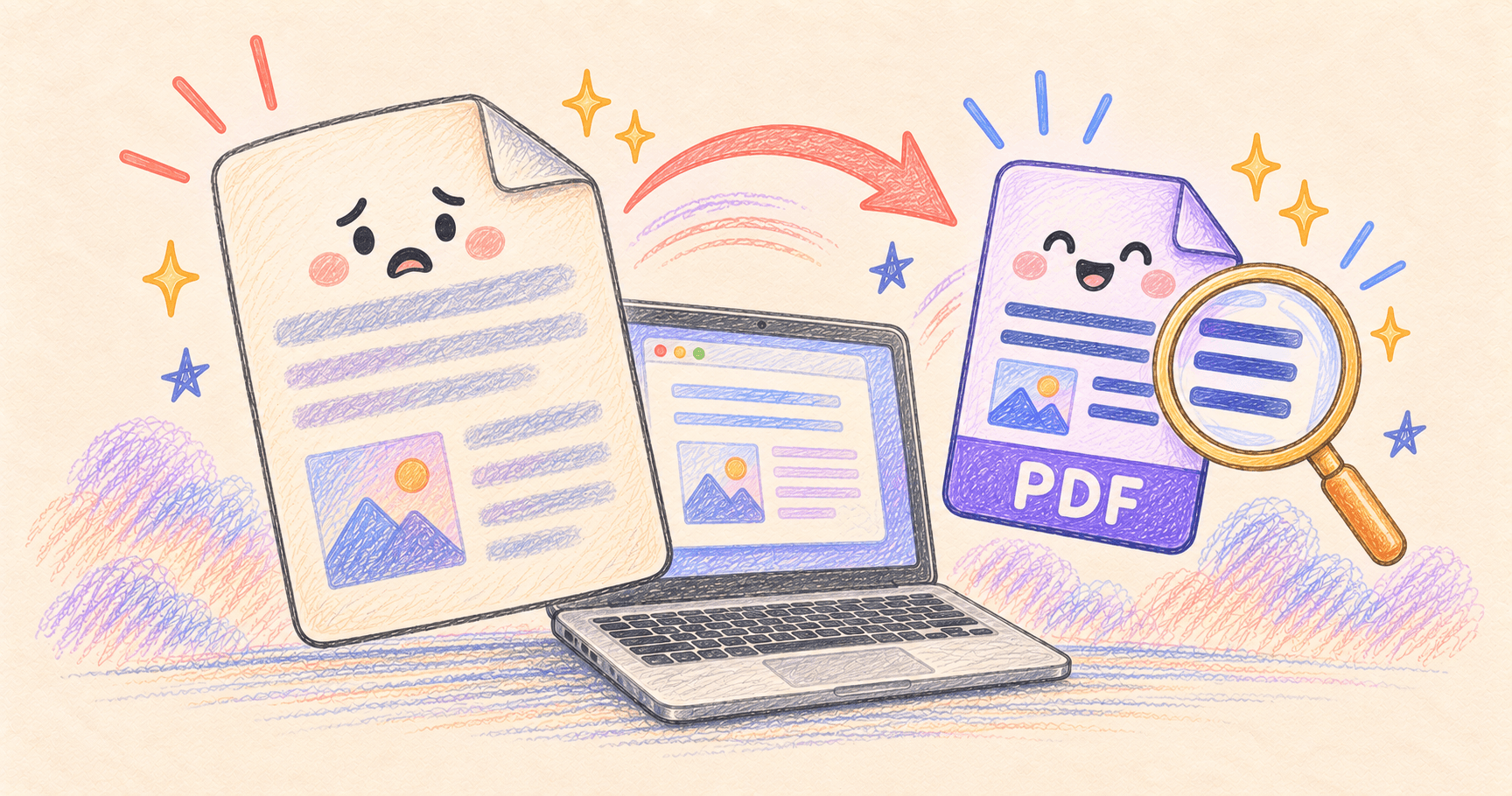
If Preview’s Reduce File Size export makes your PDF blurry, go back to the original and try a less aggressive export. Compressing the blurry copy again cannot recover detail already lost.
First decide what the recipient needs. A readable upload below a size limit is a better target than the smallest file you can produce. A scan of small print and a PDF exported from a word processor may need different treatment.
Documentation checked October 4, 2026. This guide offers a comparison method, not measured compression ratios. Results depend on the original PDF and the settings available in your macOS version.
Bottom line
Preserve the original. Export a separate copy, compare the smallest text at the same zoom, and check its actual size. If Preview gives you too little control, try a PDF tool with selectable compression levels, such as PDF Expert.
On this page
Check whether the blur is already there
Open the original and the compressed copy side by side. Use the same zoom level and inspect the same page. Look at a small number, a footnote and the edge of a diagram. Comparing one file at Fit to Window with another at a much larger zoom can be misleading.
Try selecting a word. If the page behaves like a photograph, it may be a scan. Selectable text is helpful, but not conclusive: OCR can add an invisible text layer over a scanned image. A file can be searchable while its visible letters remain blurry.
Name your exports clearly, such as application-original.pdf, application-preview.pdf and application-high.pdf. Keep the original outside the trial-and-error cycle.
Try Preview’s export controls
Open the original in Preview and choose File → Export. The familiar route is Quartz Filter → Reduce File Size. Save under a new name, then open the saved copy.
Apple’s current guide also lists options for optimizing images for screen viewing and saving images as JPEG. If your version exposes them, try changing one option at a time. Its linearized-PDF option concerns loading in browsers; that is a different goal from meeting an attachment limit. Apple’s export options
Apple explicitly notes that compression can lower quality and that the outcome varies. Don’t overwrite your original just because the new file is impressively small.
When you need a choice of compression levels
PDF Expert documents lossless, high, medium and low compression options under File → Reduce File Size. It also shows an estimated output size. Start with the least aggressive setting likely to meet your limit, export a copy, and inspect that saved file. PDF Expert’s guide
Writing & Documents · Free · Premium plan
The PDF app that feels native — read, annotate, edit text and images, fill and sign forms, and redact, all at a speed the incumbents never manage.
Lossless does not mean that every document will become dramatically smaller. If a PDF is already efficient, preserving all its content may leave little to remove. A paid tool cannot guarantee both an arbitrary size and unchanged appearance for every input.
Check the current plans and feature access before buying. Downloading an app for free is not evidence that its compression feature is permanently free.
Check more than the headline file size
Select the exported file in Finder and use Get Info to check its size. Then open that exact file, not a still-open original, and use this short acceptance check:
| Document type | What to inspect |
|---|---|
| Scanned paperwork | Small print, faint handwriting and stamps |
| Digital report | Selectable text, search and links |
| Image-heavy document | Fine lines, gradients and necessary photo detail |
| Form | Field values and whether required fields remain usable |
| Document for printing | A printed sample of the most demanding page |
For an upload limit, leave a little room below the maximum rather than aiming at an exact displayed number. If the readable version remains too large, ask whether the recipient accepts separate files or fewer optional pages. A missing attachment is inconvenient; unreadable supporting information defeats the purpose of sending it.
Need editable text from a single image instead? Our image-to-text guide covers that workflow. OCR and compression address different problems.