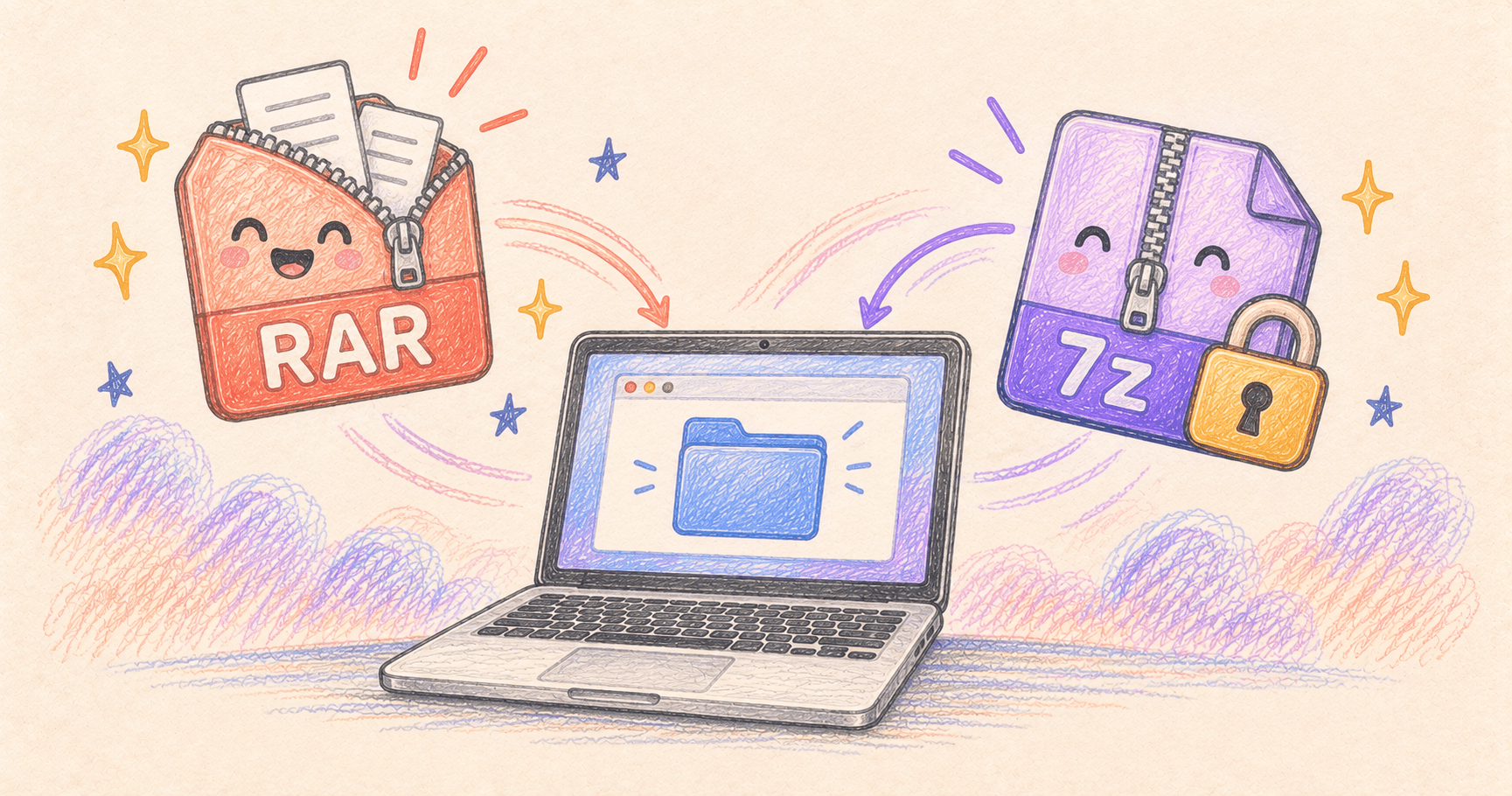
To open a RAR or 7z file on Mac, download Keka, then Control-click the file and choose Open With → Keka. The download from Keka’s website is free, and extraction happens on your Mac.
If double-clicking the archive only gives you an error, you don’t need to upload it to an online converter. Start with the steps below. The second half of this guide covers creating an archive with a password.

On this page
Open a RAR or 7z file
- Get Keka from its official website or the Mac App Store. The website download is free; the store purchase supports development.
- In Finder, Control-click the archive and choose Open With → Keka.
- Choose an extraction location if prompted, then enter the password if the sender supplied one.
- Open the extracted folder and check that the expected files are there.
Want every RAR file to open this way? In Finder, select a .rar file, press Command–I, choose Keka under Open with, then click Change All. Repeat for .7z if needed.
Keep the original archive until you’ve checked the contents. Extracting it gives you another copy of the data, so you’ll need room for both.
Which formats can Keka create?
| Format | Open with Keka | Create with Keka |
|---|---|---|
| RAR | Yes | Not in the standard setup |
| 7z | Yes | Yes; useful for encrypted archives |
| ZIP | Yes | Yes; check encryption compatibility |
You don’t have to send a RAR file back just because you received one. Keka lists its separate creation and extraction formats.
Create a password-protected archive
For a straightforward encrypted archive, choose 7z. Confirm that the recipient has an extractor that supports it before sending.
- Open Keka and choose 7z as the format.
- Fill in Password and Repeat with a long, unique password.
- Keep Encrypt filenames enabled if you also want to hide the names inside.
- Leave deletion of original files off, then drag the folder onto Keka to compress it.
- Extract the finished archive into a new folder to verify the password and contents.
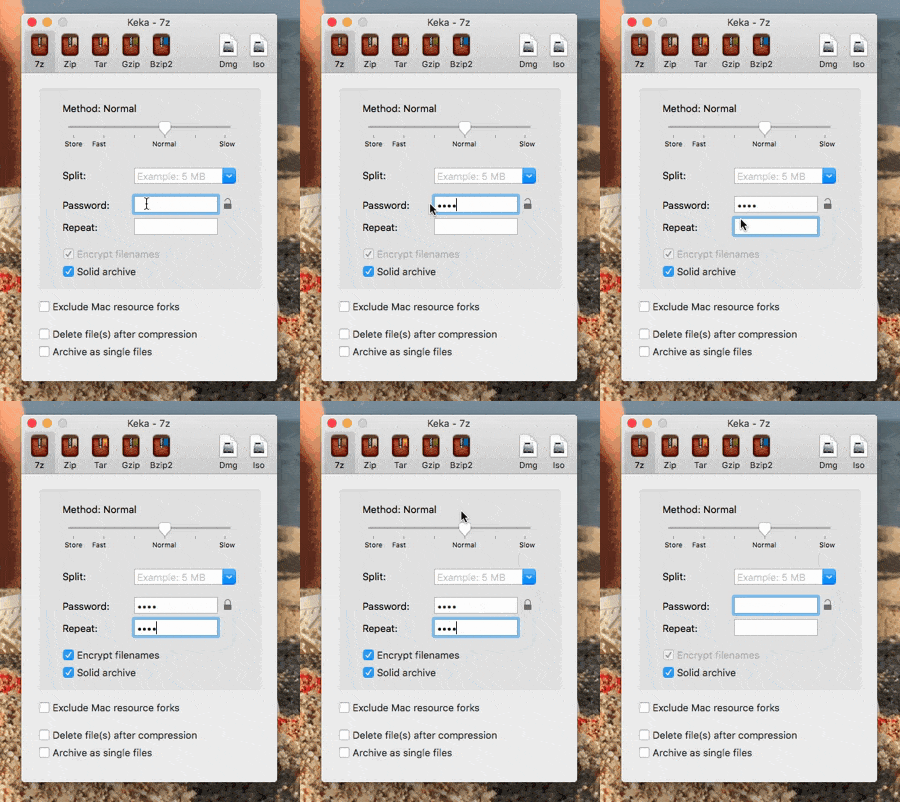
Keka documents AES-256 encryption for password-protected 7z archives. Its compression guide explains the password fields and filename option.
Your original folder is still an ordinary, unencrypted folder. Creating an encrypted archive protects that archive; it doesn’t change the source files or the copies you extract while testing. Check which copy you’re attaching before you send it.
What if you specifically need a password-protected ZIP?
Finder’s Compress command doesn’t offer a password field. In Keka, choose ZIP and enter the password before compressing. Keka’s documentation describes legacy ZIP encryption as the default, with AES enabled separately; don’t assume every password-protected ZIP uses AES. Not every recipient’s built-in extractor supports AES-encrypted ZIPs. Keka’s ZIP encryption notes cover that tradeoff.
For private files, don’t fall back to legacy encryption just to avoid installing an extractor. Agree on a compatible tool, test one harmless file first, and send the password through a different channel from the archive.
If extraction fails
- Split archive: put all parts in one folder, keep their original names, and open the first part, often
.part1.raror.7z.001. For example,photos.7z.001,photos.7z.002, andphotos.7z.003belong together; start with.001. - Password error: check for an accidental space when pasting. Keka can’t recover a password the sender hasn’t given you.
- Unexpected end or missing data: download the archive again; an incomplete transfer can’t be fixed by renaming the extension.
Running out of room while extracting? Here’s how to free up disk space on your Mac.