
For a full-page screenshot on Mac, use Chrome’s “Capture full size screenshot” command to save a PNG for free. For a scrolling chat or a window outside the browser, use a scrolling-capture app such as CleanShot X.
The normal Shift–Command–4 shortcut only captures what’s visible. Scrolling the page after pressing it won’t extend the image.
Bottom line
Use Chrome for a webpage PNG, Safari’s Export as PDF for a document, or CleanShot X for a scrolling area in an app. Pick the method based on what you need to capture, rather than installing a tool first.
On this page
Take a full-page screenshot in Chrome, without an extension
- Open the webpage you want to save. Dismiss pop-ups that cover the content.
- Scroll to the bottom once so images have a chance to load, then return to the top.
- Press Option–Command–I to open Developer Tools.
- With Developer Tools focused, press Shift–Command–P to open its Command Menu.
- Type screenshot, then select Capture full size screenshot. Don't choose the plain Capture screenshot command if you want the whole page.
- Open the downloaded PNG and check the top, middle, and bottom before sharing it.
You don’t need to type code or use the Console. The Command Menu is just a search box for browser tools. Google’s Command Menu guide explains how to open it.
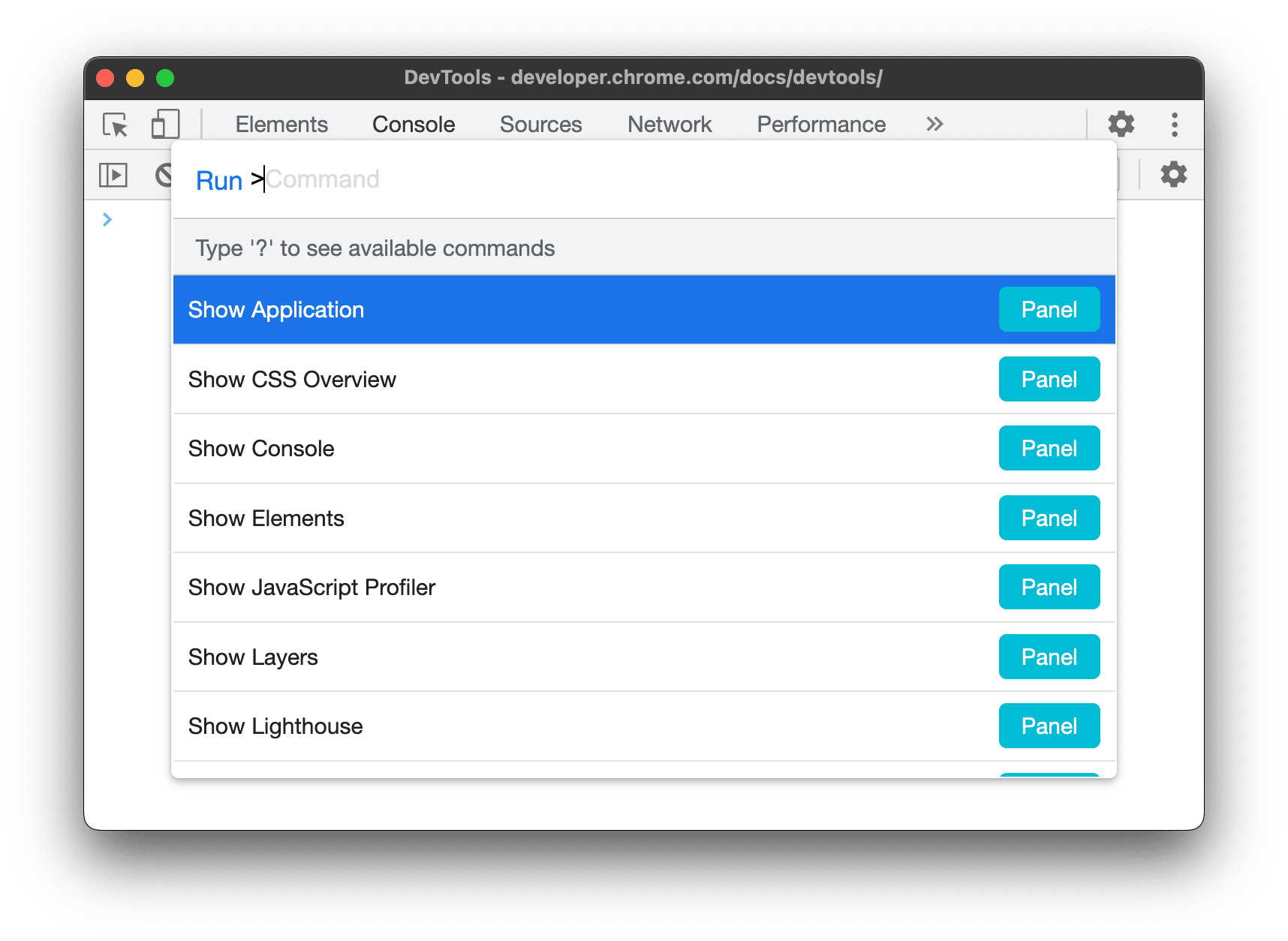
The page suddenly looks narrower? Docked Developer Tools takes up part of the window. Use its three-dot menu to undock it into a separate window, then repeat the capture at the page width you want.
This method captures the webpage, not the browser’s address bar. A chat panel that scrolls inside a fixed page can still be cut off. Use a scrolling-region capture for that case.
Save a full webpage in Safari as a PDF
If you mainly need an article, receipt, or reference document, open the page in Safari and choose File → Export as PDF. Save it, open the PDF in Preview, and check that the content you need is included. You can also use File → Print → PDF → Save as PDF if you want a paginated print layout.
A PDF is often easier to read than one extremely tall image. It may contain selectable text, and readers can move between pages. The layout can differ from the live webpage, though, so use a PNG when the visual appearance is the point.
If you need a PNG from a page you normally read in Safari, open that page in Chrome and follow the steps above. For a signed-in page, you’ll need to sign in there too.
Capture a scrolling chat or app window with CleanShot X
Use this route when the content is inside an app or a separate scrolling panel. CleanShot X is a paid app with Scrolling Capture. You can start it from the menu bar; check its shortcut settings instead of assuming a default key combination.

Photo & Video · $29 · one-time
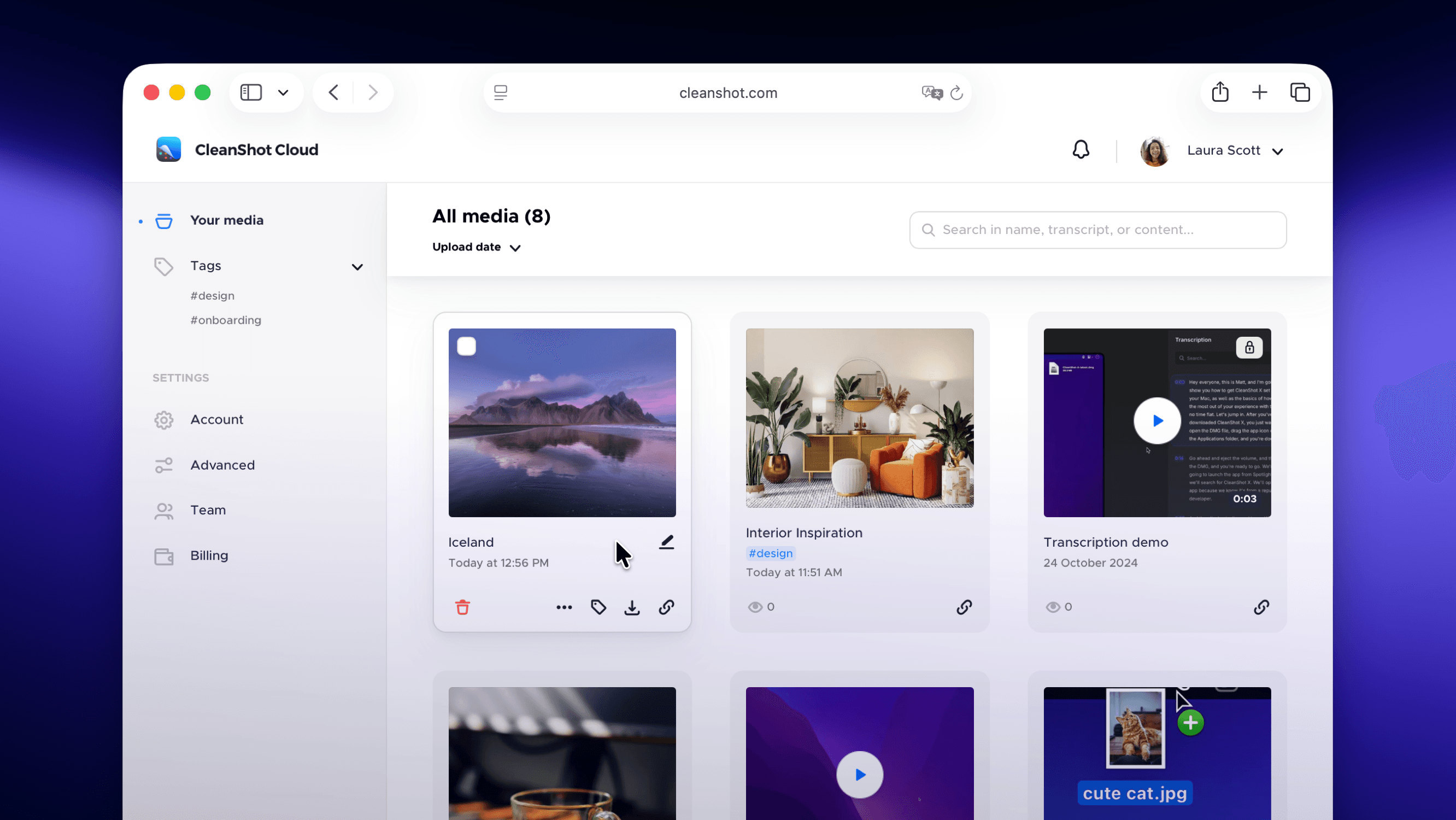
Screenshot and screen-recording done right — hide desktop clutter, annotate, capture scrolling pages, record GIFs, and get a shareable link.
- Open CleanShot X and grant the screen-recording permission it requests in System Settings → Privacy & Security.
- Bring the target window forward. Open Scrolling Capture from CleanShot’s menu.
- Select the area that scrolls. Keep the selection inside the content pane, leaving out fixed sidebars and toolbars where possible.
- Start the capture and scroll steadily. Keep the window in the same position and wait for new content to load.
- Finish the capture using the on-screen controls, then inspect the result before saving or copying it.
CleanShot combines the captured sections into a tall image. It supports scrolling content beyond the visible screen; see the developer’s scrolling-capture feature overview.
For a chat, choose a clear start and end message. A short excerpt with readable text is often more useful than a picture of the entire conversation.
Why is the scrolling screenshot cut off or repeating rows?
| Problem | What to try |
|---|---|
| Only the visible area is saved | In Chrome, choose Capture full size screenshot. For an inner scrolling panel, use a region-capture tool. |
| Blank spaces where images should be | Scroll through the page first and wait for images to load, then capture again. |
| A header or message appears more than once | Keep fixed headers outside the selected region where possible, and scroll more slowly. |
| The page keeps loading more items | Choose a stopping point and capture a useful section. An infinite feed has no single full-page endpoint. |
| The result is too small to read in a message | Attach the original file or split it into a few readable sections. |
Before sending, check for names, email addresses, or private messages you didn’t mean to include. A full-page capture can contain much more than the screen you started on.
Is there a Mac keyboard shortcut for scrolling screenshots?
macOS’s standard screenshot shortcuts don’t scroll and stitch a page. Shift–Command–3 captures the screen, Shift–Command–4 captures an area, and Shift–Command–5 opens the screenshot and recording controls. Use the browser method or a scrolling-capture app for content below the visible area. Apple’s screenshot shortcuts
Need the words rather than the picture? See how to copy text from an image on Mac. For a short moving demonstration, convert a screen recording into a GIF.