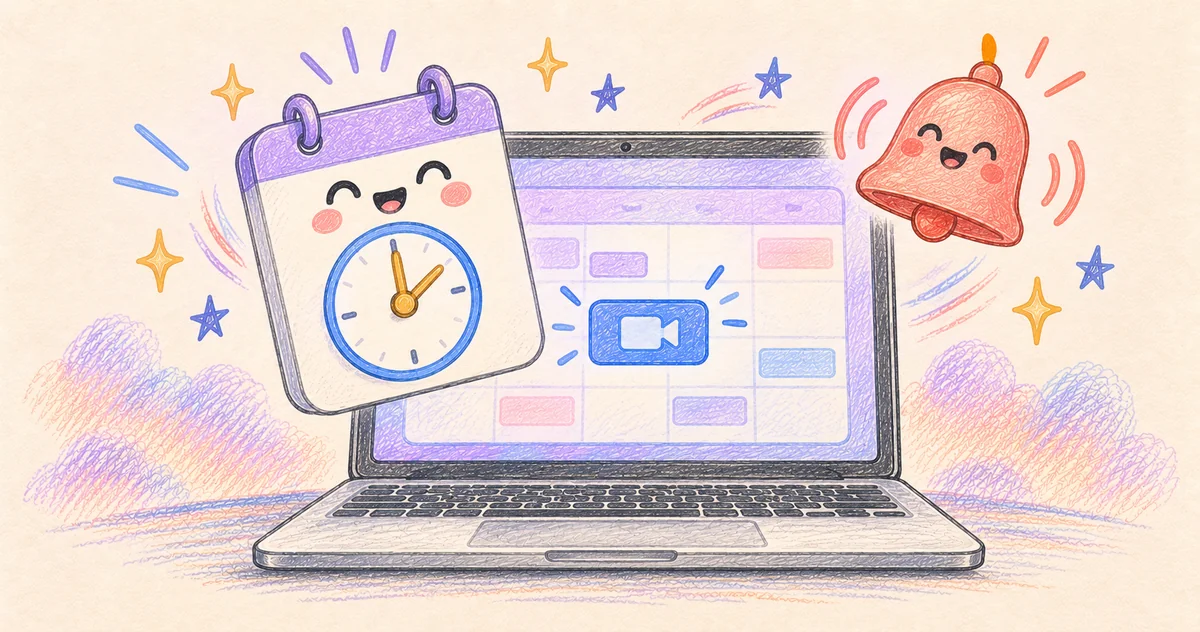
For a full-screen meeting reminder on Mac, use a calendar utility that explicitly supports it, such as Dato. First make sure the meeting appears in the Mac’s Calendar app, then enable the right calendar in the utility’s full-screen notification settings.
Making a standard notification louder is one option. If you routinely miss corner banners while working, a full-screen alert is a different kind of interruption—and deserves a test before your next important call.
Documentation checked October 4, 2026. The setup below follows official sources. We have not measured notification reliability across Focus modes, displays or calendar providers.
Bottom line
Use Dato for full-screen meeting notifications. A Google Calendar event must reach the Mac’s Calendar app first. Seeing an event in Dato’s agenda does not by itself confirm that its calendar is enabled for full-screen alerts.
On this page
Confirm the event in Apple Calendar first
Open Calendar on your Mac and locate the meeting at its expected time. Check the account, calendar and time zone. A meeting visible only in a browser is not yet evidence that a Mac calendar utility can see it.
For a Google account, choose Calendar → Add Account → Google if it is not already present, complete Google’s sign-in flow, and enable the calendar you need. Apple documents adding calendar accounts.
Create a test event with a start time ten minutes ahead. Use an innocuous title such as “Reminder setup check.” Keep this separate from your actual invitation so troubleshooting does not accidentally change a real meeting.
If a normal alert would be enough, try Calendar’s notification settings first. Apple’s notification guide covers alert styles, sound and time-sensitive notifications.
Enable the full-screen notification feature
Dato combines a menu-bar calendar with full-screen meeting notifications. Its current trial listed macOS 26 or later when checked; the developer also links older versions. Use the version appropriate for your Mac. Official features, trial and requirements
Utilities · $18 · one-time
A better menu-bar clock — tap the date for a mini calendar with your events and world clocks, and join the next call in one click.
Open Dato’s settings, enable full-screen notifications, and select the calendar containing your test event in that feature’s calendar picker. Choose the reminder timing you want. Keep Dato running for the test.
The full-screen notification calendar selection is worth checking independently of the main agenda. An event can be available to the app without being selected for every notification feature.
If the agenda shows the meeting but no alert appears
Dato’s FAQ lists several exclusions: all-day events, muted or excluded events, meetings joined recently, and full-screen alerts paused by a Focus Filter. Check those before reinstalling the app. Full-screen notification troubleshooting
Use a fresh, timed test event rather than repeatedly joining and leaving the same meeting while waiting for an alert. That avoids confusing your test with the app’s recently-joined-event behavior.
Do not assume “full-screen” means “ignores every Focus setting,” “wakes the Mac,” or “appears on the lock screen.” Those are separate behaviors. A reminder that works on an awake, unlocked Mac has passed only that scenario.
Test the way you actually work
Repeat with a new test event for each situation that matters to you:
| Situation | What to observe |
|---|---|
| Ordinary desktop | Timing, title, dismissal and sound |
| Your usual Focus mode | Whether the alert appears or is deliberately paused |
| A full-screen work app | Where the alert appears and how you return to work |
| External display connected | Which display receives the interruption |
| A private screen-sharing rehearsal | Whether the alert exposes a title to the audience |
| An event with a meeting link | Whether Join opens the intended destination |
For screen sharing, decide whether you want the interruption at all. Check the app’s pause controls or your Focus arrangement before presenting. A useful reminder should fit your meeting habits, including the meetings where an interruption would be unwelcome.
Dato is available as a one-time App Store purchase or through Setapp; check the current regional price before choosing. For planning features beyond reminders, see our calendar-app guide.