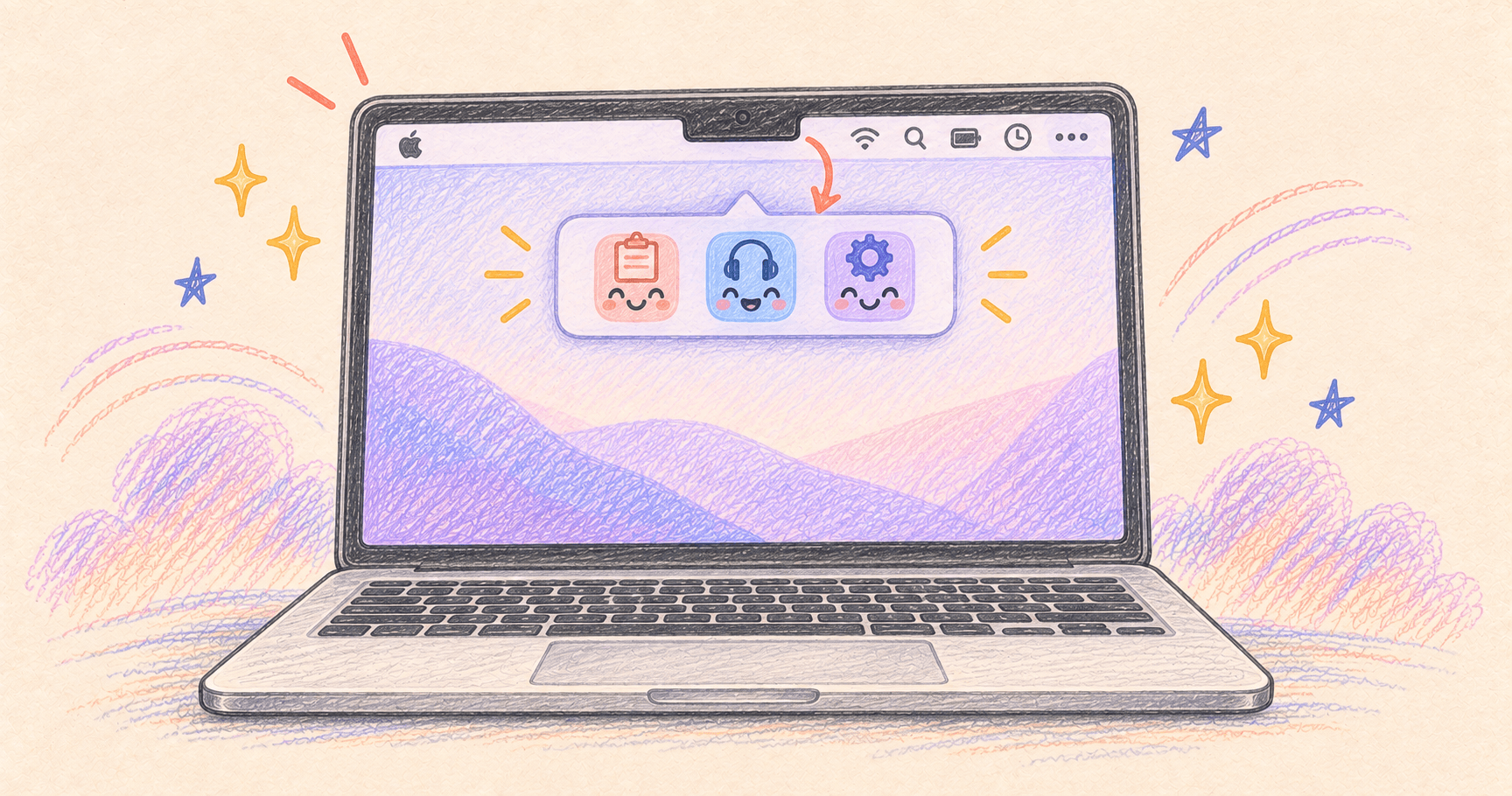
If Mac menu bar icons disappear behind the notch, first click the desktop and quit one or two unused menu bar apps. If the missing icon returns, you’ve found a space problem. An overflow row, such as Ice Bar, gives those icons somewhere else to appear.
The app may still be running even though you can’t reach its icon.
Bottom line
For a quick fix, switch to Finder and quit a few unnecessary menu bar apps. For a lasting fix, use a manager that displays hidden icons in a separate row. Simply hiding more icons doesn’t always make the one you need accessible.
On this page
Make room before installing anything
- Click the desktop to bring Finder forward. Its shorter app menus may leave more room than the app you were using.
- Quit a couple of menu bar utilities you don’t need right now. Watch whether the missing icon returns.
- Hold Command and drag movable icons to reorder them. Keep frequently used controls near the right edge, away from the notch.
If the icon never appears, reopen its app from Applications and check whether its settings allow the menu bar icon to be hidden. Missing because of crowding and disabled in preferences are different problems.
Is the notch really the problem?
| What you notice | What to try next |
|---|---|
| The icon returns when you quit another utility | Make space or use an overflow row |
| It vanishes only when a particular app is active | Switch to Finder and compare the available room |
| It stays missing even with plenty of room | Check the app is running and its icon is enabled |
What if the whole menu bar is missing?
Move the pointer to the top of the screen. If the entire bar reappears, check the menu bar’s automatic hiding setting in System Settings, or leave full-screen mode. That is a different issue from a few icons being squeezed out next to the notch.
Use Ice Bar for icons that won’t fit
Ice has a separate strip called Ice Bar. It puts hidden items below the main menu bar, where the notch isn’t in their way. Its official site shows exactly what that looks like:
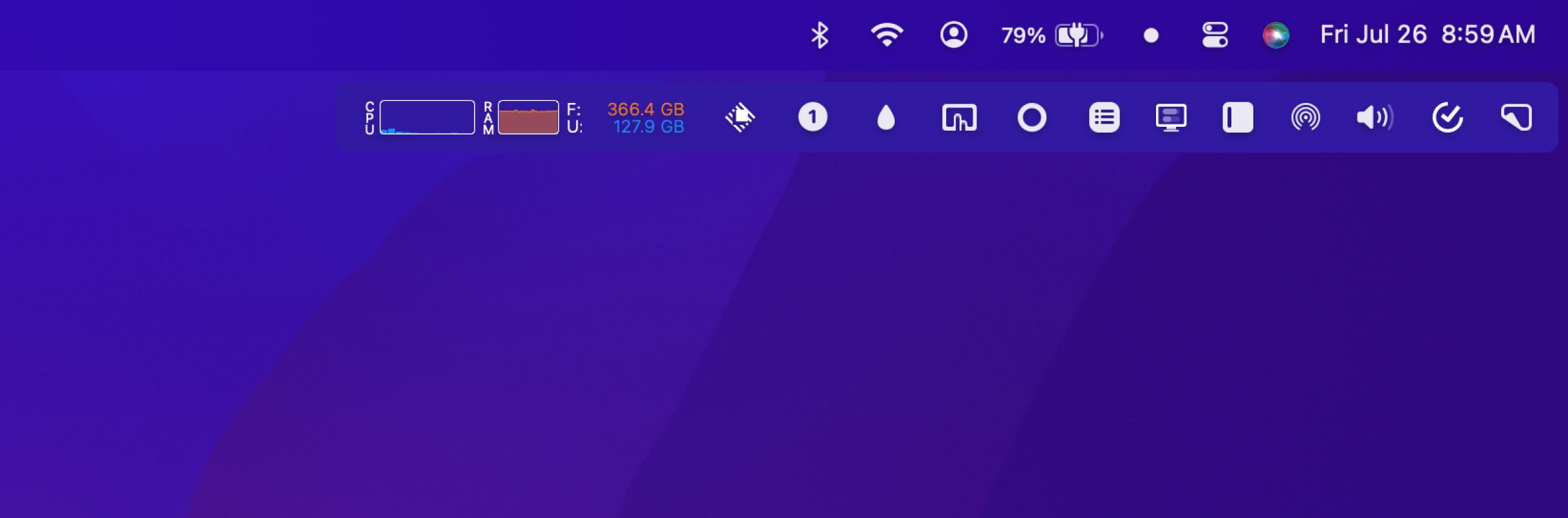
- Install a release compatible with your macOS version and grant the permissions Ice requests.
- Open Ice’s settings and enable Ice Bar.
- Arrange occasional-use apps in the hidden section; leave everyday controls visible.
- Reveal that section and try opening the previously missing app’s menu.
Ice’s project documents macOS 14 as its minimum, but minimum requirements aren’t a guarantee of compatibility with every newer macOS update. Check its current releases and known issues if behavior changes after an OS upgrade.
Ice is running, but the hidden icons still don’t appear
Check that Ice Bar is enabled, rather than only the option to hide and reveal items on the main bar. Reveal the hidden section again, then click an icon in the separate row.
If the row is empty or clicking does nothing, review Ice’s requested permissions in System Settings → Privacy & Security and reopen it after granting access. After a macOS upgrade, check the project’s release notes before changing lots of settings.
When Bartender is worth a look
Bartender is the paid alternative to compare if you want more control over when items appear. Try its hidden-item layout with your usual collection of apps before buying. Bartender’s feature overview
Keep just one menu bar manager running while setting it up. Otherwise, it becomes difficult to tell which app moved or hid an icon.
Will hiding the notch fix this?
A dark strip or wallpaper can make the notch less noticeable. It doesn’t create physical display space where the camera sits. The practical fix is fewer visible items or an overflow row.
Keep the apps you open every day visible and move occasional controls into the overflow row. Our menu bar app guide can help you decide which ones deserve the space.