
You copy a link, grab a quote, then copy a screenshot. When you finally open the email, the link is gone. A clipboard manager keeps those earlier copies within reach, so you can collect what you need before deciding where to paste it.
Bottom line
 Maccy
MaccyMaccy is our first choice for a dedicated, subscription-free clipboard manager. Pastebot makes more sense for organized collections and text cleanup. Raycast is the convenient choice if you already use it. But before installing any of them, try the clipboard history included with newer versions of macOS.
On this page
What you get without recurring payments
| Option | What you pay | The important limit |
|---|---|---|
| Spotlight | FreeIncluded with macOS | Requires a version with clipboard history, starting with Tahoe 26 |
| Maccy | Free & open sourceFree GitHub release; optional paid download | Focused on local history; current release needs macOS 14+ |
| Pastebot 3 | Paid (one-time)$39 direct; one year of updates | One year of updates included; current release needs macOS 26+ |
| Raycast | Free + paid extrasClipboard history included in the free plan | History retention beyond three months requires Pro |
Pricing and feature details checked against the official sources linked below on September 27, 2026. Store prices can vary by region.
The easy mistake is buying Pastebot through the App Store when you want to avoid subscriptions. Its direct purchase is the option to compare here. Maccy’s free download and Raycast’s free clipboard history don’t require that purchase decision.
This comparison is based on the developers’ documented features and licence terms, not a speed or accuracy benchmark. A one-time payment also doesn’t necessarily include every future upgrade.
First, try the clipboard history already on your Mac
On macOS Tahoe 26 or later, open Spotlight, then press Command–4 to switch to clipboard history. Click Enable if prompted. Search for a copied item, select it, press Command–C, then paste it where you need it. Apple’s clipboard history guide
For “what was that link I copied a minute ago?”, start here. If you can’t find this view, check Apple menu → About This Mac: older macOS versions don’t have it. Finder’s Edit → Show Clipboard shows the current clipboard; it isn’t a list of previous copies.
Maccy: a free, local clipboard manager
Productivity · Free & open source · $9.99 on the App Store

A lightweight, open-source clipboard manager for macOS — search your clipboard history from a keystroke, with no account and no background bloat.
Maccy suits the person who wants to copy normally and retrieve something later. Its history stays on your Mac, and its interface is built around keyboard search. The app is open source; use maccy.app to find the official downloads. The free GitHub release and paid App Store route don’t require a subscription.
A useful setup is to give it one memorable shortcut and pin a few frequently used items: your booking link, a delivery address, perhaps a project reference. Keep that pinned list small enough to recognize at a glance.
Get comfortable with these three actions
- Open Maccy with its default Shift–Command–C shortcut and type part of the item you want.
- Select it and press Return to copy it back to the clipboard; use Option–Return to paste it directly.
- Use Option–Shift–Return when you want to paste without the original formatting. Option–P pins a selected item.
If direct pasting fails, check Paste automatically and Maccy’s permission under System Settings → Privacy & Security → Accessibility. These controls are documented in Maccy’s usage guide.
Choose it when: you want a searchable safety net for everyday copying. Look elsewhere when: your main job is maintaining a large, structured library of responses. You can pin useful things in Maccy, but a long history isn’t automatically a well-organized library.
Pastebot: best when you reuse and reshape text
Productivity · $39 · one-time (or subscription available)
A clipboard manager from Tapbots — searchable copy history, reusable pasteboards, and filters that transform text on the way out.
Pastebot earns its place through custom pastebins, text filters, and stacks for pasting several items in sequence. For example, a support workflow could keep approved replies together, while a writing workflow could apply the same formatting conversion repeatedly.
The purchase route matters. Pastebot 3 costs $39 USD direct, including one year of updates. Another year costs $19, optionally; you keep the last version you paid for. Its App Store option is a subscription. Both routes have a 14-day trial. Tapbots’ purchase details
Before buying, make one pastebin for a real task and one filter you would actually reuse. If you keep reaching for them during the trial, there’s a reason to pay. If you only search yesterday’s links, Maccy is the better starting point.
Raycast: best if it’s already part of your day
AI & Automation · Free · Pro $8
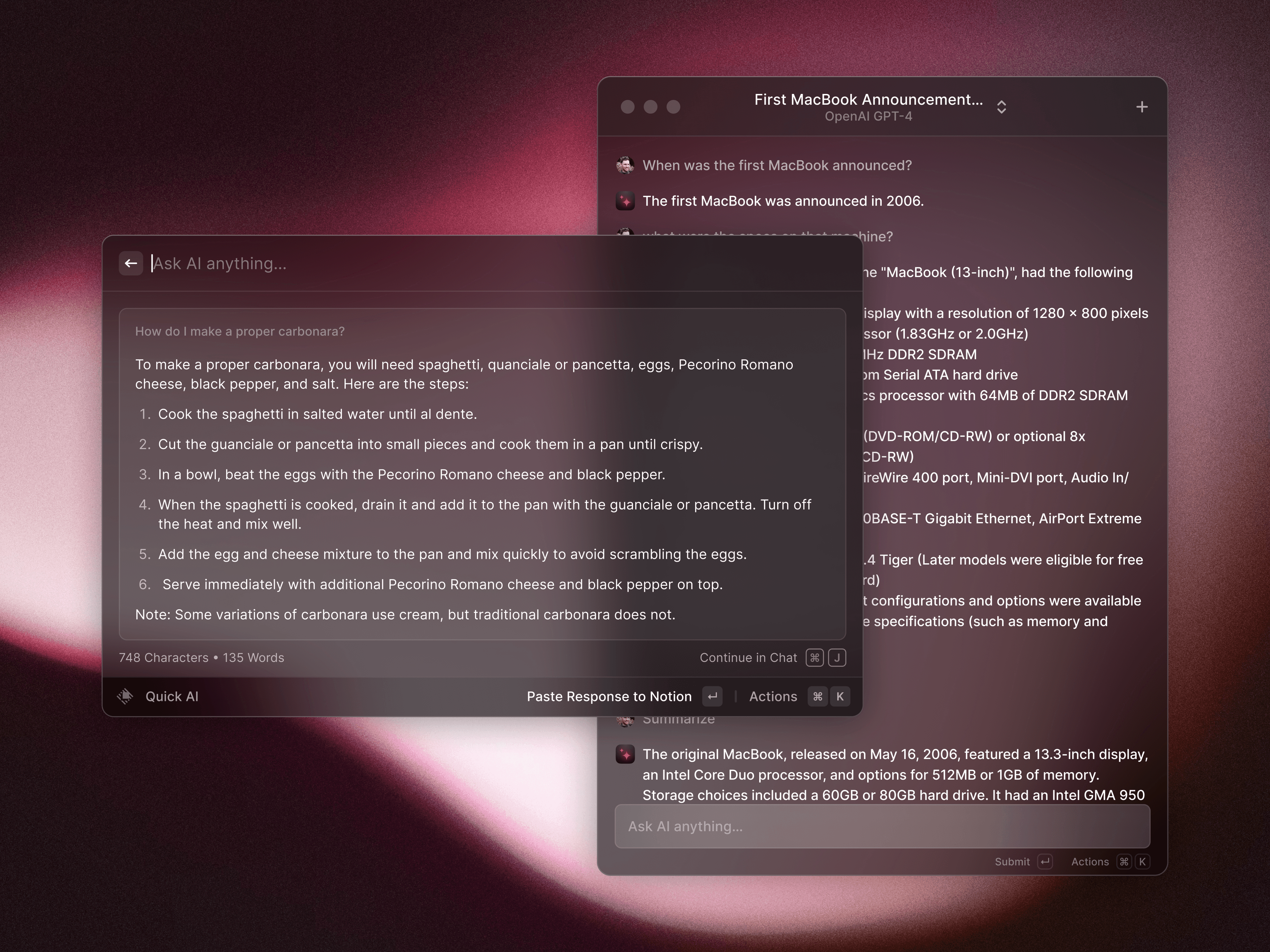
A blazing-fast, keyboard-first launcher that folds clipboard history, window management, snippets, an extension store, and AI into one command bar.
Raycast includes Clipboard History in its free plan, with text, images, files, and links. Open the command from Raycast search, then assign it a direct hotkey so retrieving a copy takes one action.
Its image text recognition is especially useful for screenshots: you can search recognized words instead of remembering when you copied the image. The paste actions also let you choose plain text when you don’t want a webpage’s styling to follow you into a document.
Check retention in settings. The current options go up to three months without Pro; six months, a year, and unlimited history require Pro. Choosing the longest free option is a setting, not something to assume. Raycast’s clipboard manual
Cloud Sync does not include clipboard history, even with Pro. Don’t subscribe expecting your clipboard archive to appear on another Mac. Raycast’s sync exclusions
For an existing Raycast user, this is the first option to try. If you’re happy with your current launcher and only want clipboard history, Maccy asks you to adopt less. Our Mac launcher comparison covers that larger decision.
Set it up before it remembers everything
Clipboard history can contain more than you intended: private messages, access tokens, or a customer’s address. Local storage is useful, but you should still decide what belongs in the history.
- Check exclusions. Maccy ignores clipboard types marked confidential; Raycast has Disabled Applications, and Pastebot has a Blacklist. A password copied from an ordinary webpage may not be marked as sensitive. See Maccy’s exclusion documentation and the app manuals above.
- Test with harmless text. Add a text editor to the exclusion list, copy a distinctive dummy phrase there, and check that it stays out of history. Remove that temporary exclusion afterward.
- Choose retention deliberately. Start with what you need for a normal working week. Keep long-term reference material in notes, not only in a clipboard archive.
- Review sync separately. Pastebot offers optional iCloud sync. Turn it on only if you want those clippings available across your Macs; check the Pastebot privacy policy for how that data is handled.
A five-minute trial that tells you more than a feature list
Copy a link, a formatted paragraph, and an image. Retrieve each using the keyboard and paste it into the app where you actually work. Then find an older item by a word you remember, pin something useful, and delete an entry you don’t want to keep.
Watch for friction: do you keep opening the wrong shortcut, losing formatting, or getting an image when you wanted its text? Change one setting and repeat. For this comparison, run one third-party clipboard manager at a time so you know which app is handling each action.
Questions worth asking before you switch
Can it recover something I copied before installing it?
Don’t count on it. A clipboard manager needs to have captured an item to retain it. It can’t reconstruct an older entry that has already been overwritten and wasn’t saved elsewhere.
Can I keep my entire history when moving to another app?
Don’t assume the apps share an import format. Save important clippings as ordinary documents before switching, then rebuild only the shortcuts or saved responses you still use. Keep the old app’s data until you’ve checked the new setup.
Which clipboard manager should you choose?
For occasional recovery on macOS Tahoe 26 or later, try Spotlight first. If you need a separate app, choose by the task you repeat most often:
| Your situation | Pick | Why |
|---|---|---|
| You want a free, local history with quick keyboard search | Maccy | Start with the free GitHub download. Pin a few items you use often. |
| You keep reusable replies or clean up text before pasting | Pastebot | Try pastebins and filters. Buy direct if you want to avoid a subscription. |
| You already use Raycast as your launcher | Raycast | Use its included Clipboard History and set a direct hotkey. Check the free retention limit. |
Often copying words you can’t select? Here’s how to extract text from screenshots and videos.