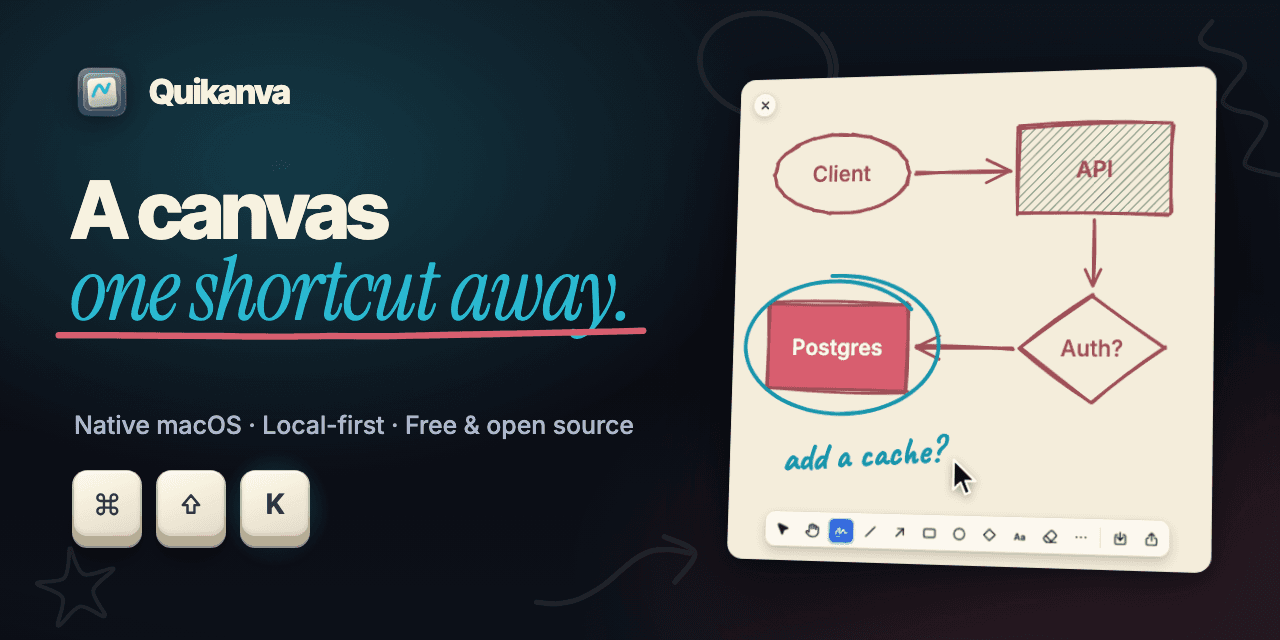
Quikanva is a free, open-source visual scratchpad for Mac. Press <kbd>⌘</kbd><kbd>⇧</kbd><kbd>K</kbd>, sketch an idea with shapes, arrows, text, images, or freehand ink, then copy or export it. There is no account, cloud workspace, or document setup to get between the thought and the canvas.
Why Quikanva?
Instant: open a new canvas from a global shortcut, the menu bar, Raycast, or a quikanva:// URL.
Capable: draw, select, resize, rotate, curve, style, layer, align, and export real diagrams.
Native: built with SwiftUI and AppKit, with Mac menus, shortcuts, windows, accessibility, dark mode, and reduced-motion support.
Local-first: sketches autosave on your Mac. Quikanva has no account, analytics, or ads, and its only network use is an update check you control.
Focused: floating canvases and a visual gallery, without the machinery of a collaborative whiteboard.
See it in action
A real launch workflow
A native, local architecture map
Both examples were drawn and captured in Quikanva. They use its shipping canvas tools rather than mock UI.
Eject the Quikanva disk image and open Quikanva from Applications.
After that, Quikanva updates itself. On the second launch it asks whether to check for updates automatically. You can also choose Check for Updates… from the menu bar. Each update is verified with a signature before it installs. Builds released before the updater have no update check, so download the latest release by hand once.
Prefer to inspect and build the source yourself? See Development.
Your first sketch
Launch Quikanva. It lives in the menu bar and does not add a Dock icon.
Press <kbd>⌘</kbd><kbd>⇧</kbd><kbd>K</kbd> anywhere to open a canvas.
Draw immediately with the default freehand tool, or press a tool key such as <kbd>R</kbd>, <kbd>A</kbd>, or <kbd>T</kbd>.
Use the share button to copy the sketch or export PNG/JPEG.
Open the Gallery from the menu bar or press <kbd>⌘</kbd><kbd>G</kbd> while Quikanva is active.
Sketches autosave locally as you work. Read the User Guide for selection, styling, gallery management, always-on-top canvases, automation, and export.
Tools
Tool
Default key
Typical use
Select
<kbd>V</kbd>
Select, marquee, move, resize, rotate, and edit elements
Hand
<kbd>H</kbd>
Pan the canvas
Freehand
<kbd>P</kbd>
Notes, annotations, and loose sketches
Rectangle
<kbd>R</kbd>
Steps, components, cards, and containers
Ellipse
<kbd>O</kbd>
Start/end nodes and concepts
Diamond
<kbd>D</kbd>
Decisions and branches
Line
<kbd>L</kbd>
Dividers and relationships
Arrow
<kbd>A</kbd>
Directional flows and dependencies
Text
<kbd>T</kbd>
Labels and notes
Eraser
<kbd>E</kbd>
Remove elements by clicking or dragging
Tool shortcuts can be reassigned in Settings → Canvas. See the complete Shortcut Reference.
Features
Capture instantly
Global shortcut (<kbd>⌘</kbd><kbd>⇧</kbd><kbd>K</kbd> by default) that opens a new canvas from any app, with prewarmed windows that appear right away
Menu-bar app with New Canvas, Open Gallery, Settings, and Quit, and no Dock icon
quikanva:// URL routes and included Raycast script commands
Optional launch at login
Always-on-top canvas windows for presenting and screen sharing, toggled from Settings, the Canvas menu, or a global shortcut (<kbd>⌃</kbd><kbd>⌥</kbd><kbd>T</kbd> by default)
A limit on how many canvases can be open at once, or no limit at all
Draw
Shapes, lines, arrows, text, images, and freehand ink from a floating toolbar that adapts to the window width
Freehand selected on every new canvas, with smoothing applied when you finish a stroke
Multi-line notes that wrap at the canvas edge, edited in place with a double-click
Image paste and drag-and-drop, with an optional subtle shadow
An eraser that removes elements with a click or a drag
Scroll and Hand-tool panning, pinch zoom, and zoom in, out, to fit, to selection, or reset, with smooth, interruptible transitions
Select and arrange
Click, Shift-click, and marquee selection
Move, rotate, and resize with eight handles, holding Shift to keep proportions
Arrow-key nudging in 1-point steps, or 10-point steps with Shift
Duplicate, copy and paste, delete, bring to front, and send to back
Curved lines and arrows with draggable endpoints and midpoint, which keep their resize and rotate handles
Snapping to other elements, the viewport, and the grid, with alignment guides and an Option-drag bypass
Native undo and redo for every canvas change
Style
Hand-drawn or precise rendering with adjustable roughness, seeded per element so the sketchy look never shimmers as you pan, zoom, or redraw
Stroke, fill, and canvas background colors
Solid or hachure fills
Solid, dashed, or dotted strokes with adjustable width and opacity
Open, closed, filled, or bar arrowheads, on one end or both
Text in Helvetica Neue, Avenir Next, Comic Sans MS, Georgia, or Menlo, with weight, size, alignment, and italic, underline, or strikethrough styling
A style inspector that applies to the current selection or to new elements
Save and organize
Autosave shortly after each change, which skips unchanged canvases and flushes when a window closes
Memorable two-word titles with the creation date and time, such as Cosmic Ladle - 2026-08-05 14:30
<kbd>⌘</kbd><kbd>S</kbd> to give a sketch a deliberate name
Automatic cleanup of empty canvases on close, which you can turn off
A sticky-note-style Gallery that shows each sketch at its real aspect ratio
Gallery actions to open, rename, export, and delete, plus multi-select, select all, and batch delete
Export and share
Copy as image (<kbd>⌘</kbd><kbd>⇧</kbd><kbd>C</kbd>), PNG export (<kbd>⌘</kbd><kbd>E</kbd>), and JPEG export
2x rendering, cropped tightly to your content
An optional background, so PNGs can be transparent
Sharing from an open canvas or straight from a Gallery card
Customize
Portrait (9:16), Square (1:1), Standard (4:3), and Widescreen (16:9) canvas frames
Defaults for background, stroke, and fill colors, drawing and fill style, stroke and arrowhead style, and text font, weight, and size
A reassignable key for every drawing tool, where choosing a taken key swaps the two
Recordable global shortcuts and a system or sortable date format for new titles
Built for the Mac
A SwiftUI shell around an AppKit canvas, with native menus, windows, and undo
Liquid Glass on the toolbar and Gallery on macOS 26 and later, with accessible fallbacks on older versions
Fluid, spring-based motion for tools, the style inspector, and Gallery cards that respects Reduced Motion
VoiceOver labels, keyboard access, dark mode, and Increased Contrast support
A layered app icon made with Icon Composer
Privacy
Quikanva does not create an account, send analytics, or upload sketches. Its only network request is the update check against GitHub releases, which you can turn off. App data is stored under ~/Library/Application Support/Quikanva/. Read the short Privacy Note for the exact boundary.
Everything under Features is available today. Here is what comes next.
Planned
PDF and SVG export
Import of Excalidraw files
iCloud sync across your Macs
Performance audit in Instruments: no dropped frames while drawing, panning, and zooming 500+ sketch-style elements
Full manual QA pass: every tool, resize and rotate, multi-select, the undo chain, closing without saving, reopening, exports, hotkey, Raycast, and URL launch, dark mode, Reduced Motion, and VoiceOver
Not planned
These are out of scope for now, to keep Quikanva fast and focused:
Bug reports, focused feature proposals, documentation improvements, and pull requests are welcome. Start with CONTRIBUTING.md, follow the Code of Conduct, and report vulnerabilities through the private process in SECURITY.md.
Check the Roadmap before proposing a feature. Focused contributions that strengthen the native quick-canvas experience are the best fit.
Built with
Swift 6, SwiftUI, AppKit, Core Graphics, and SwiftData
A custom vector engine on an AppKit canvas view, used instead of PencilKit because PencilKit's editable canvas is limited to UIKit and Mac Catalyst apps
Local sketch storage as scene JSON with PNG thumbnails in SwiftData